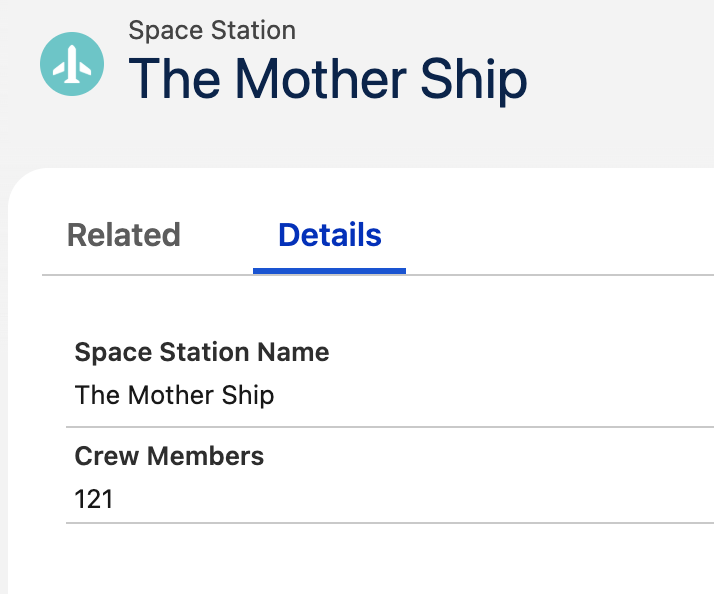
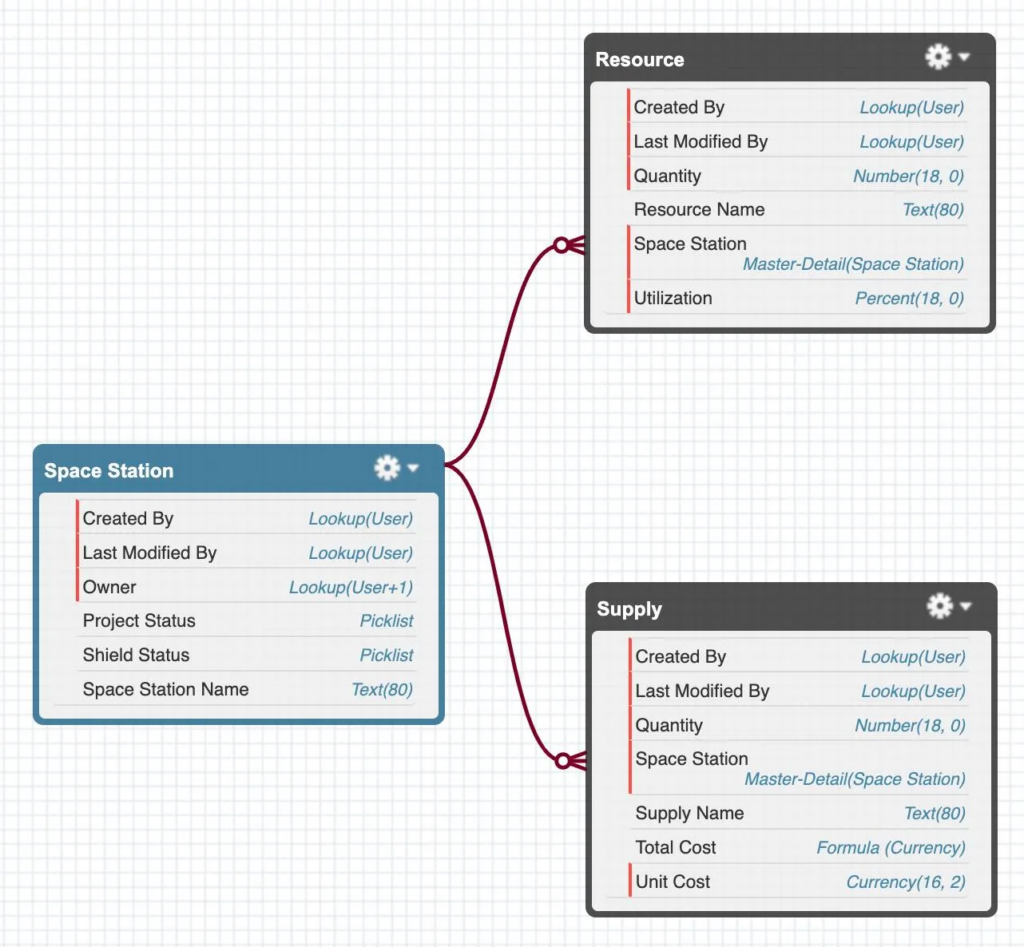
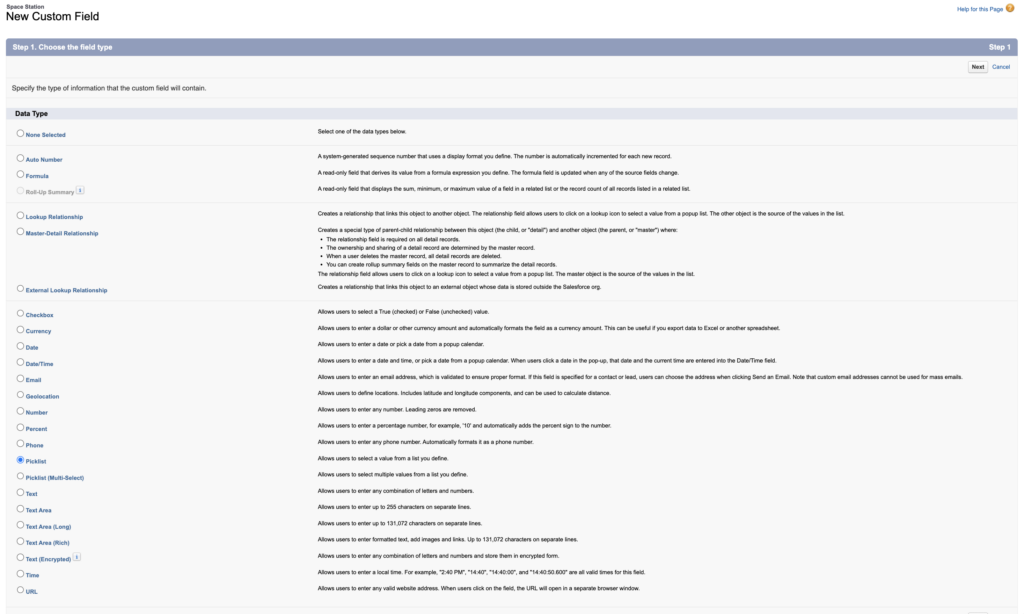
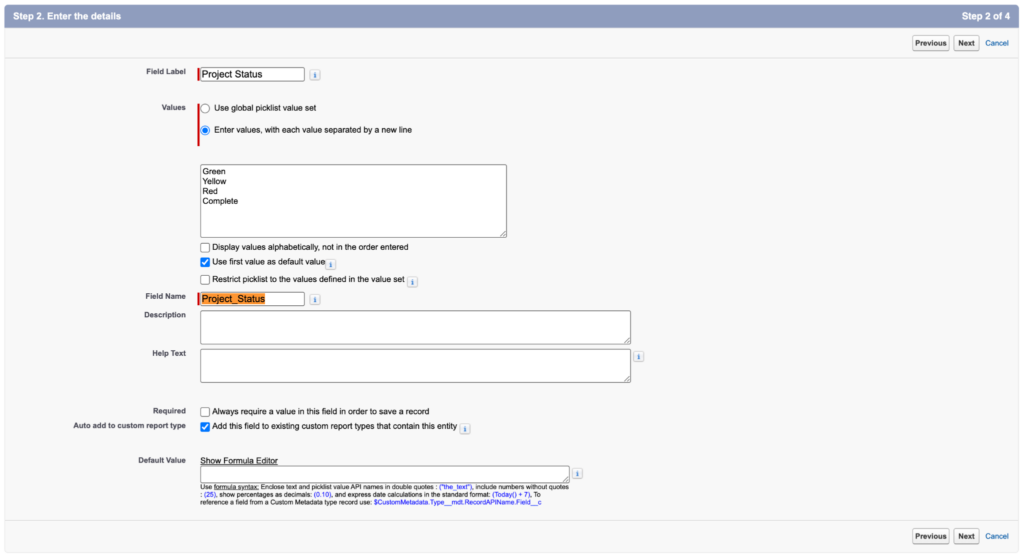
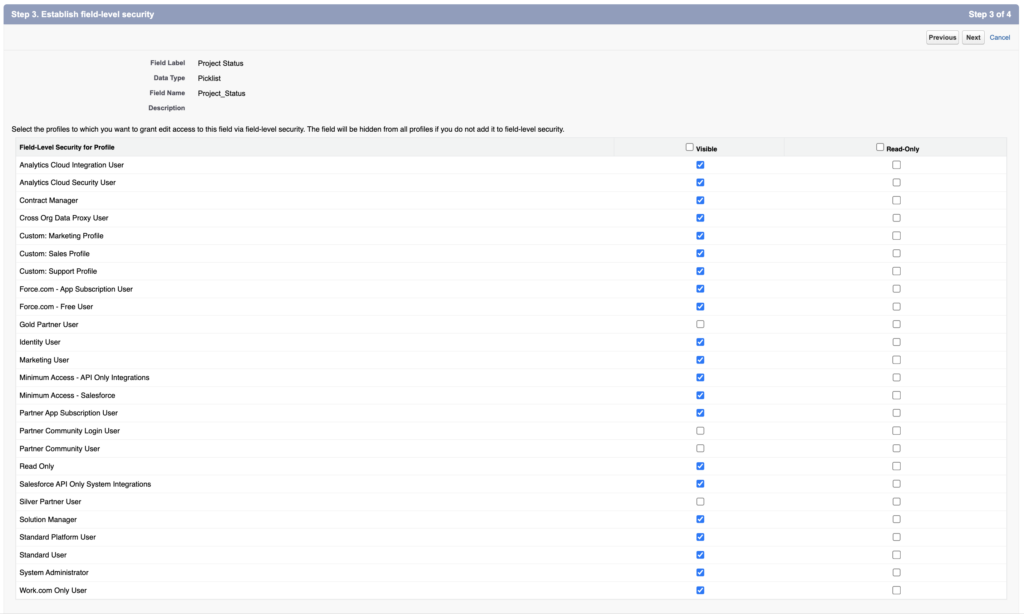
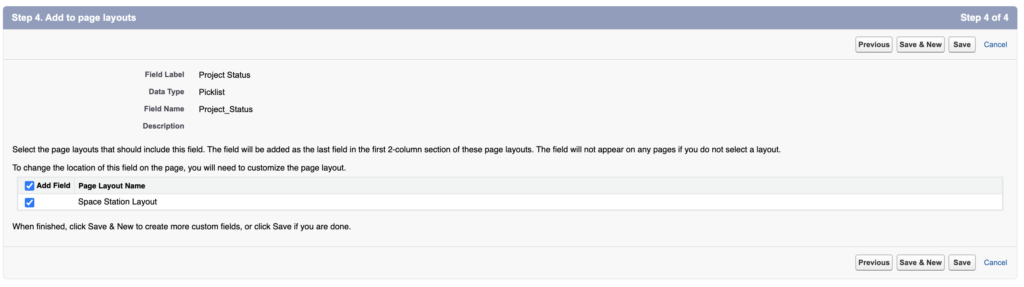
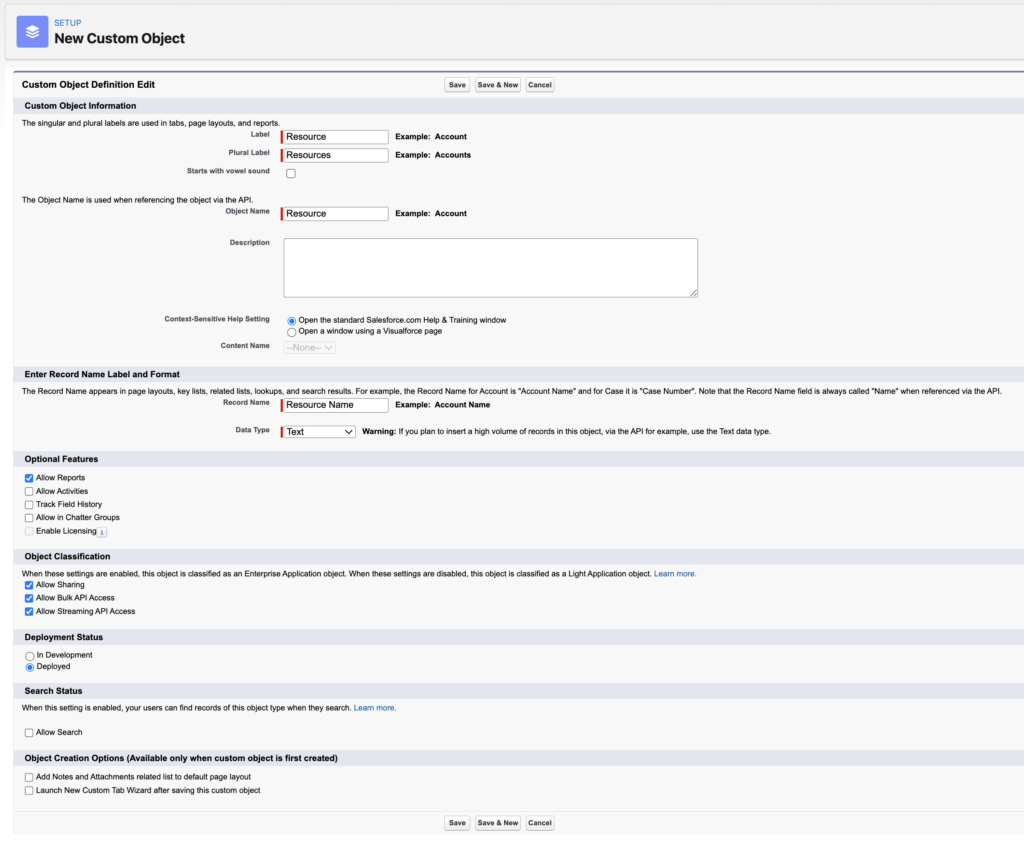
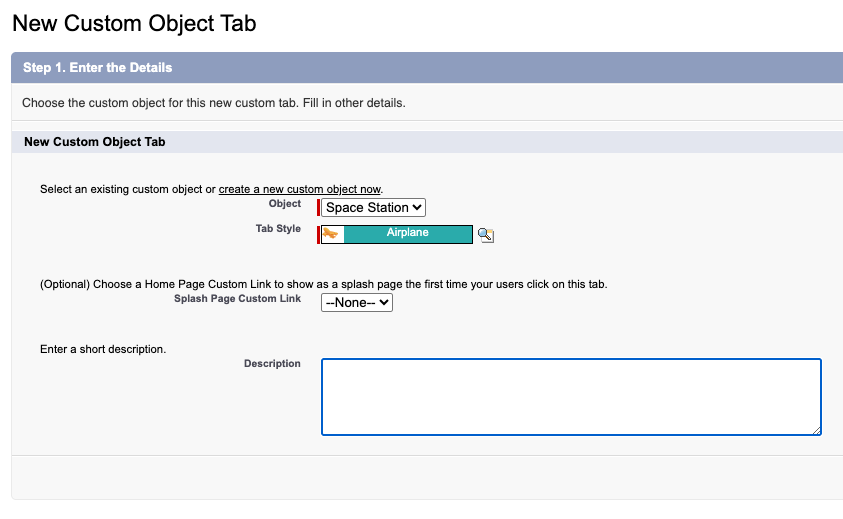
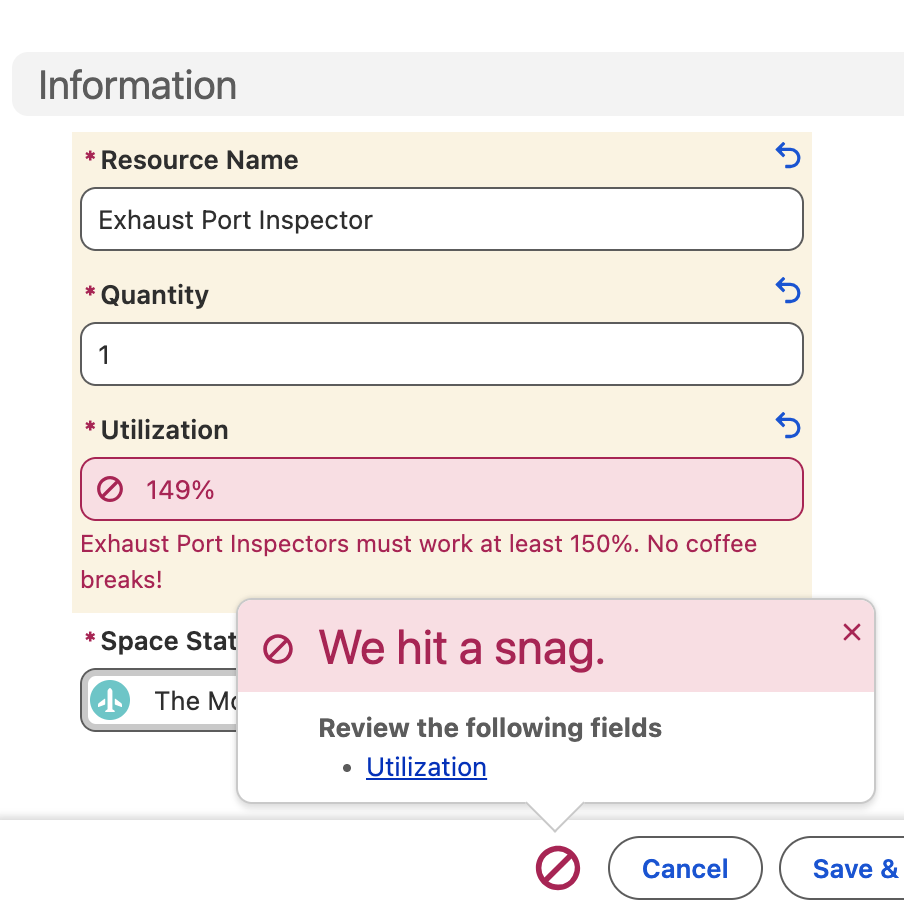
You need to create a validation rule that prevents users from saving a record for an Exhaust PortInspectorif the utilization is less than 150%. utilization이 150이상이면 Exhaust Port Inspector를 입력하지 못하게 제한
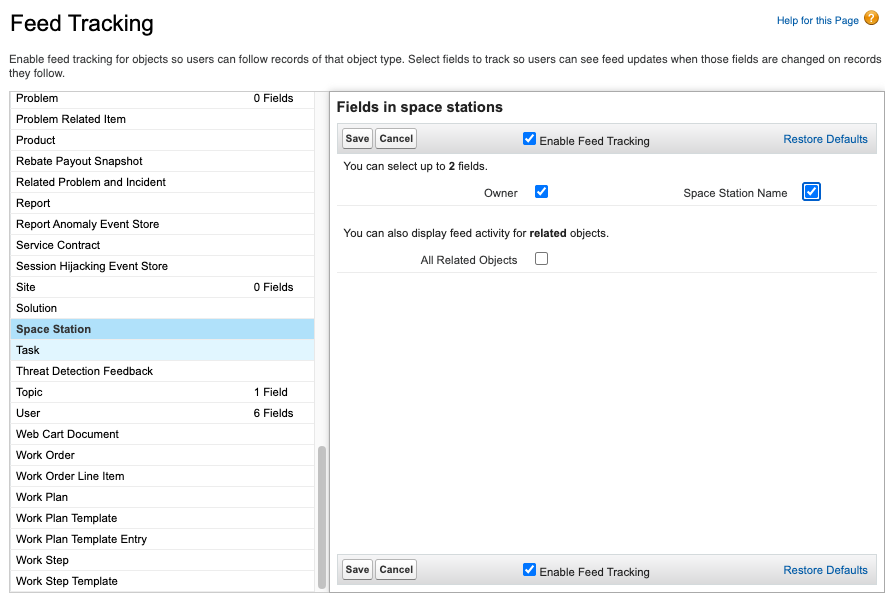
레코드가 변경할때마다 Feed(Chatter)에 Posting이 되어서 SNS처럼 해당 변경사항에 대해 댓글을 달수도 있음. History Tracking은 감사나 이력관리를 위한 거라면 Feed Tracking은 소통하고 실시간으로 변화하는 걸 공유하게 하는 기능. 레코드는 프로젝트 단위라서 모든 액션이 전부 기록되는 것은 아님
Setup > Quick Find > Feed Tracking > Space Station
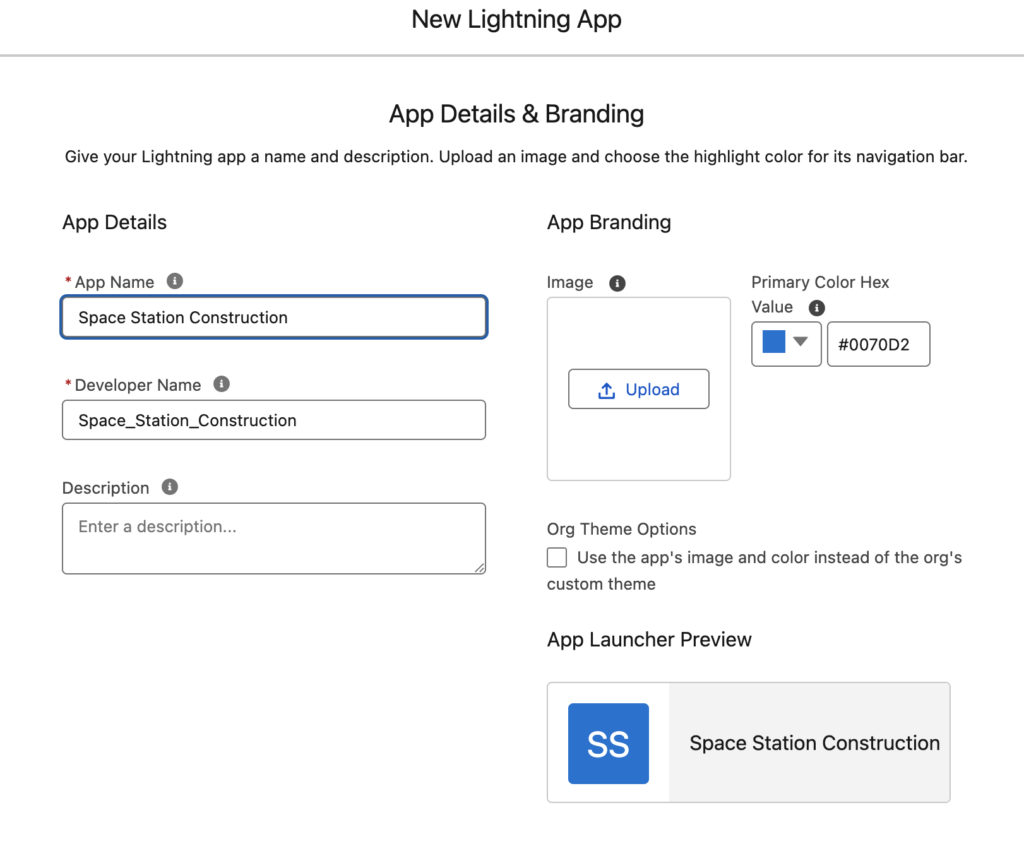
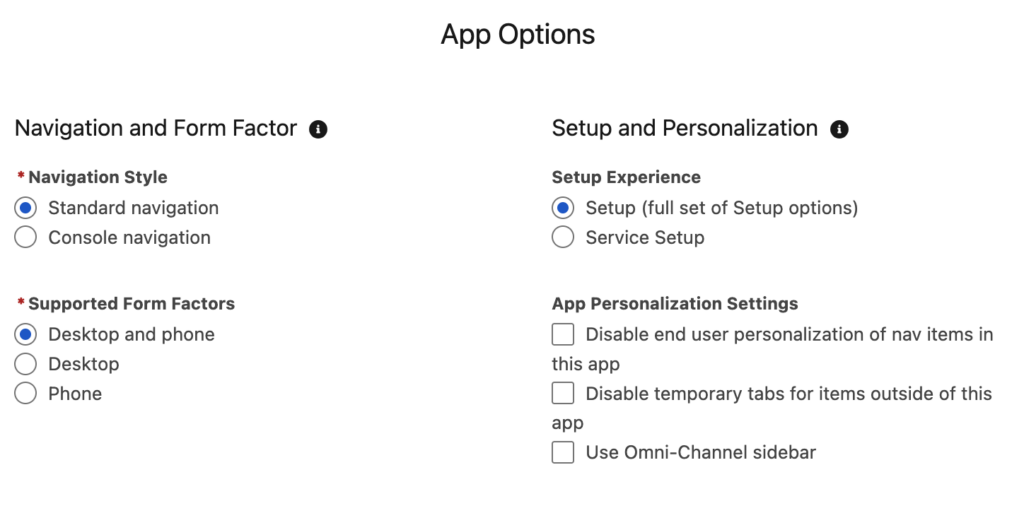
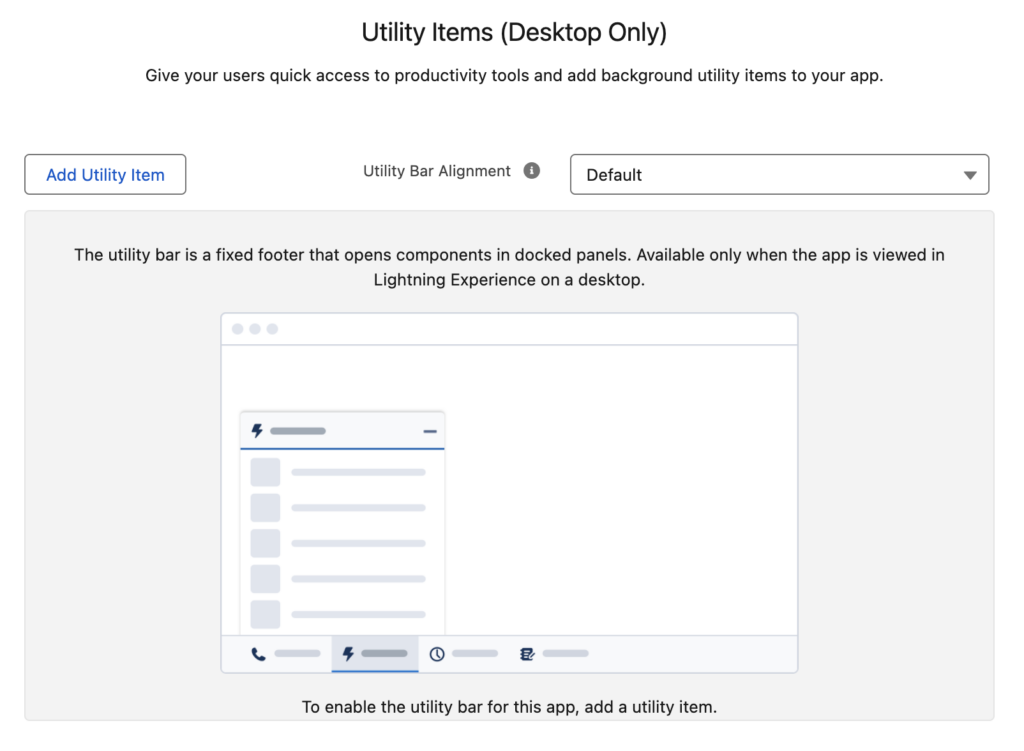
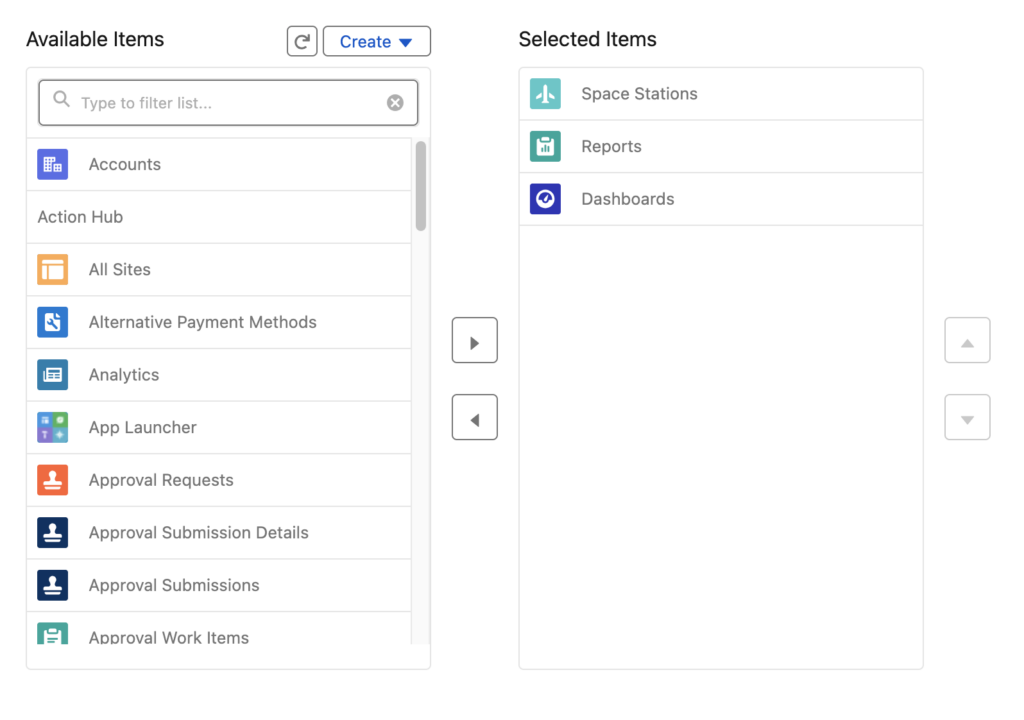
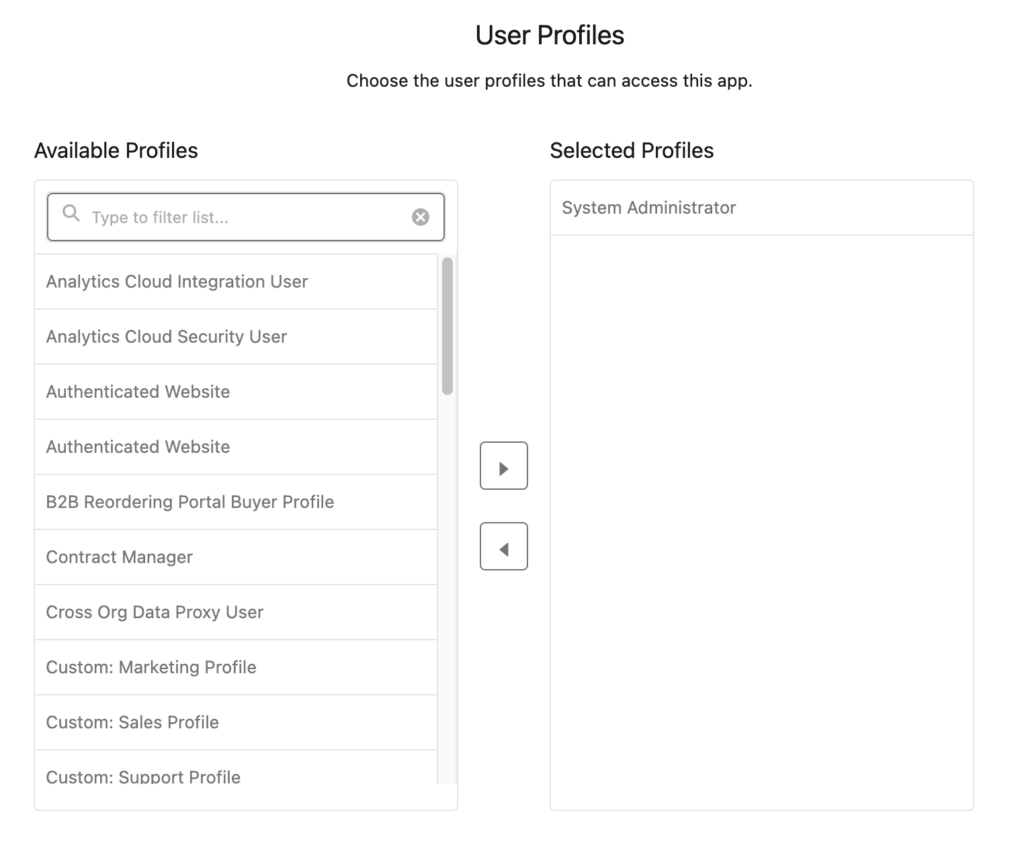
Lightning App은 Salesforce 내부에서 쓰는 앱이고 Lightning Experience (웹)과 Salesforce 모바일 앱에 사용됨. 사용자가 Salesforce 안에서 업무를 쉽게 수행하도록 화면/탭/컴포넌트를 묶은것. 쉽게 말하면 “Salesforce 내부용 패키지” 같은 느낌.
포함 요소:
탭(Tab)
레코드 페이지(Record Page)
레이아웃(Layout)
Lightning Component, Flow 등
예시:
Sales 앱 (Account, Opportunity, Contact 탭 포함)
Service 앱 (Case, Knowledge, Service Console 등)
External Client App은 외부에서 Salesforce API를 쓰는 앱. 웹 서비스, 모바일 앱, 사내 시스템 등에서 사용됨. 목적은 Salesforce 데이터를 외부 시스템과 통합. 외부 앱에서 레코드 조회/생성/업데이트 가능하게 함.
maiden: A girl or young woman, especially an unmarried one.
voyage: A long journey involving travel by sea or in space.
exhaust port: 배기구, 환기구
irreparable: impossible to rectify or repair.
real blow to team morale: 팀 사기에 심각한 타격
ample defenses: 충분한 방어
ample time 충분히 많은 시간
ample space 충분히 넓은 공간
ne’er-do-wells: 게으름뱅이들
point-and-click: denoting an interface in which the user points with a cursor and clicks on a mouse (or other input device) in order to initiate a function. 사용자가 커서로 가리키고 마우스(또는 다른 입력 장치)를 클릭하여 기능을 시작하는 인터페이스를 나타냅니다.
Migrate, then test. If you migrated your mobile customizations from your sandbox to your production environment, test everything again to make sure the Salesforce app is working as expected.
Control access. By default, all users have access to the Salesforce app. If you’re doing a phased rollout, define which employees can use the mobile app during this stage of your rollout. See Control Access and Security for the Salesforce Mobile App in Salesforce Help for details.
Collect a baseline. Take an analytic snapshot of the metrics your company is using to define success. Then you can use that data as a baseline for measuring the business impact of your rollout. 성공이라 말할수 있는 지표가 필요해요. 새로운 버젼이 비즈니스에 미치는 영향 분석
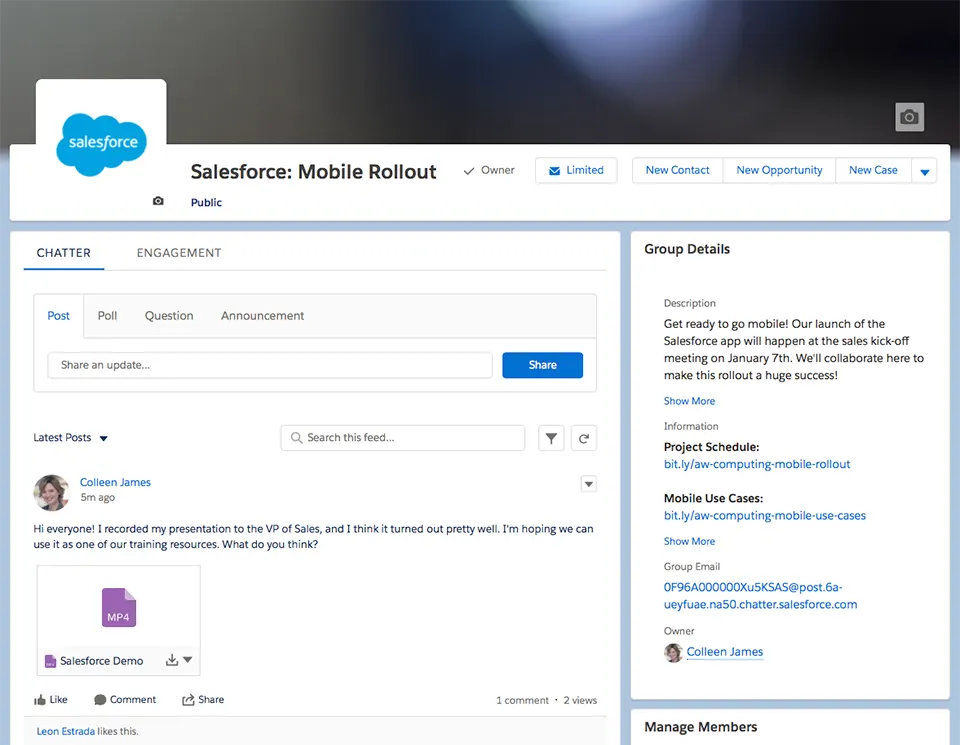
Take it to Chatter. Create a public, company-wide Chatter group where your users can ask questions about the mobile app and access training materials. Make sure your super users are engaged and ready to swarm on the questions that get posted in the group.
Ready… set… GO!
Motivate Users
During the launch event, you see a huge spike in logins and activity. but after the confetti(색종이조각) settles and the initial fanfare(과열, 과시) is over, you see a decline in usage. 출시 행사 기간 동안에는 로그인 횟수와 사용량이 폭발적으로 급증합니다. 하지만 축하 분위기가 가라앉고 초기 열기가 식으면 사용량이 감소하는 것을 볼 수 있습니다.
some ideas that might help you drive adoption:
Produce helpful content. After the launch, continue to release short one-minute recorded screenshares that promote time-saving features available in the Salesforce app.
Don’t stop marketing. Your mobile users will probably start telling you about moments when the Salesforce app saved the day. Share those mobile success stories on Chatter, including a photo of the user in action. Get a testimonial from a few executives as employees follow the example set by their leaders.
Get organic exposure. Why take photos of your users when they’d be happy to do it themselves? It’s the selfie era! Have a contest on Chatter and ask mobile users to post photos of themselves using the app, with a prize for the most likes. Not only does that give your users a chance to shine, it also creates buzz about the mobile app.
Make it a game. Ignite some friendly competition among your users by running a login report, and then doling out cool prizes to users with the most mobile logins. Create a dashboard for the contest leaderboard.
Use sales as an incentive. If you rolled out the Salesforce app to your sales team, you can use the current sales contest or selling initiative to drive mobile adoption. Create a dashboard that shows how the sales reps are performing against their goal, and the reps will be motivated to check the dashboard in the Salesforce app.
Collect Feedback
listen to your users. collect feedback about overall satisfaction and any pain points.
some ideas for gathering feedback from users:
Take it to Chatter. Use the Chatter group you created to support your mobile rollout. Employees can post ideas and suggestions there.
Make it easy. Allow users to provide input directly from the Salesforce app. You can use the standard case object or implement your own solution, like a Mobile Feedback custom object, a quick action, or a Visualforce page.
Provide multiple feedback options. Send out surveys, host open forums, or conduct simple Chatter polls.
Keep in contact.Meet with your super users regularly to gather valuable insights from the field.
Also, don’t forget to update your training programs for new hires! Incorporate the Salesforce app into your existing Salesforce onboarding activities.
Measure Adoption and Business Impact
review your metrics and figure out exactly how you want to measure them.
If your metrics include employee satisfaction, you can gather data using some of the methods we already discussed, like surveys, forums, and polls. For other types of metrics, create reports and dashboards to track your results. Take reporting snapshots and start comparing the data month after month to see if there are any increases.
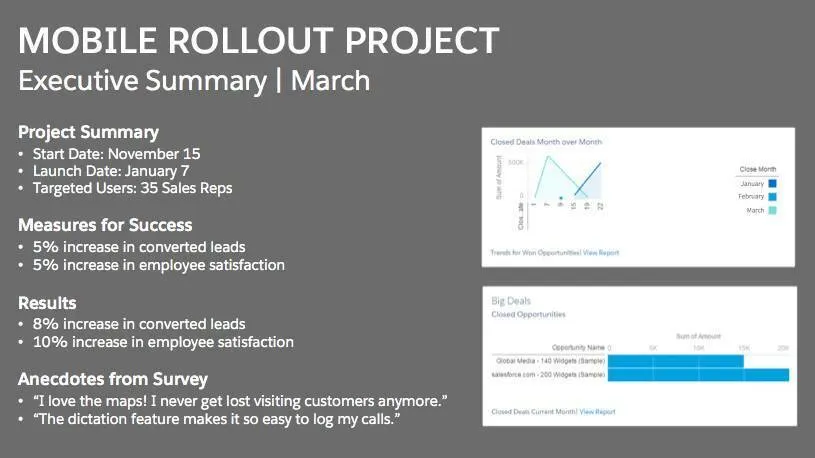
Deliver an Executive Summary
return on investment (ROI)
When you’re preparing an executive summary, follow these best practices:
Keep it to 1-2 pages maximum.
Showcase metrics and results.
Highlight any noteworthy anecdotes.
Share lessons learned.
Note planned next steps.
Keep Up the Momentum
Make sure you prioritize your backlog of mobile use cases and enhancements
revisit the backlog as often as possible to see what other mobile goodies you can roll out to your users
keep up with the Salesforce app releases to see all the cool new features you can implement
You can collect feedback from users by: A. Asking their managers B. Sending out surveys or encouraging users to post in Chatter C. Creating a Mobile Feedback object that’s accessible in the Salesforce app D. A and B E. B and C
When you’re preparing your measures for success, don’t forget: A. Your ruler B. To work by yourself on key metrics C. To take a baseline before you launch the Salesforce app D. That using specific metrics isn’t recommended
How do you keep up the momentum after your initial mobile rollout? A. Build everything your users request. B. Continually evaluate and prioritize your backlog of mobile enhancements and use cases based on feedback from users, executives, and stakeholders. C. Don’t worry about keeping up the momentum. After the initial rollout, your job is done. D. Let your executive sponsor decide which mobile features and use cases are a priority.
communication is such an important factor that it can literally make or break your mobile rollout
How do you get users excited?
👎 Update your opportunities on the go
👍 “Close your deals faster” more compelling
Develop a Communication and Marketing Strategy
It’s time to shout it from the rooftops. here are some launch ideas:
Send a weekly email drip campaign announcing the launch. Each email can highlight the marketing message for one of your mobile use cases.
Hang up posters that advertise the benefits of using the mobile app.
Create a topic in Chatter for all your communication updates to drive momentum and buzz.
Have a raffle with prizes, such as gift cards, a free day off, or lunch with an executive.
Host a launch party with cupcakes or cake.
Order swag and branded items to distribute on the day of your go-live.
Timeline
Communication
4 weeks prior
Email from executive sponsor
4 weeks prior
Chatter group created for mobile support and feedback
3 weeks prior
Email drip campaign #1
3 weeks prior
Super users identified and announced
2 weeks prior
Email drip campaign #2
2 weeks prior
Raffle or contest announced
1 week prior
Email drip campaign #3
1 week prior
Email from company president
1 day prior
Email with reminders, instructions, and where to get help
Day of Go Live
Chatter post from company CEO and launch party
Create a Training Plan
Training goal
What is the specific outcome you want to achieve with this training?
Trainer
Who will conduct the training?
Trainee
Who needs to be trained?
Training methods
What will you use to conduct the training? What materials need to be developed?
Training location
Will you train remotely or in-person?
Training metrics
How will you determine if the training was successful?
the most effective ways to train your mobile users is to provide a short (3-5 minute) video.
Quiz
Potential ideas for marketing your mobile launch include: A. You don’t need to market an internal launch. B. A weekly email drip campaign C. A launch event D. A and B E. B and C
Why is it important to create a training plan? A. Some users are reluctant(주저하는) to embrace(포옹하다) new technology. B. Users need to feel confident getting around in the Salesforce app. C. It’s required by your stakeholders. D. A and B E. B and C
Which of the following formats is generally the most effective for training your mobile users? A. User guide B. PowerPoint presentation C. Short video D. Tip sheet
when it comes to the Salesforce app, you’re responsible for making your company’s mobile dreams come true.
Rollout team
Create a Chatter group, share with your team members is a project schedule
Pick a Launch Date
Could be good timing
Not so much
Sales kickoff or contest
Holidays
Company meeting, Large company Event
End of quarter/fiscal year
Low season (if applicable)
When stakeholders are on vacation
If your rollout looks especially complex, you may need to advise your company to put other projects on hold until this project is complete.
Rolling out Schedule
Start by listing everything you need to do before going live
estimate the time and resources needed
develop a timeline for completing the tasks
manage all the milestones and tasks associated with the project
Define Measures for Success
how you’ll know if your project was successful
20% reduction in opportunities with no follow-up tasks
15% increase in calls logged
5% increase in lead conversion rate
employee or customer sentiment, using a survey app
user adoption – logins and usage data
Develop Mobile Device and Security Policies
Check company’s mobile security and compliance policies.
Devices
Their devices vs Company-issued devices
If you allow employees to use their own devices, you should develop a Bring Your Own Device (BYOD) policy that outlines your company’s rules and responsibilities regarding those devices.
Ensure all devices meet the minimum platform requirements
Security
The Salesforce app provides enterprise-grade security right out of the box.
You can control policies by Connected App Policies:
session timeouts
PIN code enforcement
offline data storage
IP allowlists
Sensitive information is always stored in an encrypteddatabase that is also encrypted by the mobile operating system.
Mobile Device Management (MDM) = Mobile Enterprise Management (MEM):
manage BYOD policies
provision devices with pre-installed apps
push enterprise identity certificates
install VPN profiles
monitor traffic
direct access to an enterprise app store
it can push the Salesforce app to your users or automatically set their custom login hosts for convenience
if you’re in a highly regulated industry, you might need to completely lock down corporate devices to ensure legal compliance
Only you can decide whether your company should use the Salesforce app on its own or along with MDM.
Single Sign-On
If your employees using single sign-on, make some changes for the mobile app. Test the Salesforce app with your SSO solution before you go live.
Quiz +100
A good time for your rollout could be:
A. Over the holidays.
B. At the end of the quarter.
C. When there’s already a large company event planned, like your sales kickoff.
D. When stakeholders are on vacation.
What are some common metrics used to measure the success of a mobile rollout?
A. Employee satisfaction
B. There aren’t any good metrics for measuring the success of a rollout.
C. Adoption data, like logins and usage
D. A and B
E. A and C
What security-related steps should you take before rolling out the Salesforce app?
A. Develop rules and guidelines about employees using personal devices to access Salesforce data.
B. Test the Salesforce app with your single sign-on solution, if applicable.
C. Create an encryption system for the mobile app.
When you’re finalizing your mobile customizations, keep these tips in mind:
Less is more. For your page layouts, consider the screen size of mobile devices and move the most important information to the top. Only add the fields that are truly necessary. A best practice is to include five fields or less on a page, and definitely no more than eight.
Build for speed. Think about performance when adding custom elements to your pages. Are there images or processes that can cause slower page load times? Users are less patient with performance on mobile devices, so streamline your content and keep your page elements as lightweight as possible.
Think about tap targets. Consider how users interact with their mobile devices when creating custom pages. For example, buttons are easier to tap than links.
Embrace mobile capabilities. Think about all the cool features available on our phones: location detection, camera, accelerometer, and more. Are there ways you can take advantage of the unique capabilities of mobile devices?
Test!Test!Test! Test with Pilot Users First!!!
Visualforce pages aren’t automatically mobile-friendly in the mobile app, and when you’re testing, you can have some issues with your existing pages and custom apps. You can either revise your code so that your pages work in the full Salesforce site and the Salesforce app, or you can create mobile-specific pages.
Yes, you love your Salesforce prodigies. But your rebels are just as important. You have to be prepared to hear all the potential complaints and pain points related to the use of the mobile app. And if you address those concerns early, you’ll turn your mobile rebels into your biggest cheerleaders.
Quiz +50
For optimal usability, what is the preferred number of fields that you should include on a page that will be accessed from a mobile device?
A. 5 fields or fewer
B. 10 fields or fewer
C. 15 fields or fewer
D. There is no recommended limit. Mobile users don’t mind scrolling.
What’s the proper way to test your mobile customizations?
A. Test exclusively on your own mobile device.
B. Test on every platform and device on which you intend to deploy.
C. Use the device emulators provided by Apple and Google.
D. Testing isn’t really necessary.
How do you deal with a Visualforce page that isn’t behaving as expected in the Salesforce app? Visualforce가 제대로 작동하지 않을때 어떻게 해야하나?
A. Nothing, Visualforce pages automatically work perfectly in the Salesforce app.
B. Delete the page.
C. Revise the code, or create a mobile-specific version of the page.
D. You can’t use Visualforce pages in the Salesforce app.
Piloting the app before you go live provides an opportunity to:
Work with your executive sponsor and stakeholders to identify a group of mobile super users.
Demo
Don’t go alone. Bring a manager who understands your vision and can support your claims about how users will benefit from mobility.
Keep it brief. Executives are busy, so get to the juicy part fast. Avoid a long opening and jump right into the benefits, use cases, and demo.
Focus on business value. When presenting your use cases, try to align your message with things executives care about: growing the business, retaining existing customers, increasing customer satisfaction, and beating competitors. How will the Salesforce app make users more productive? How will it help the company sell more, or sell faster?
Quiz +100
When you’re getting familiar with the Salesforce app, you should:
A. Ask the reference librarian at your public library.
B. Complete the Salesforce Mobile App Customization module.
C. Become a mobile data encryption expert.
D. Learn how to build an iOS app.
The best time to involve an executive sponsor and stakeholders is:
A. At the start of the project, and throughout the duration.
B. When you’re ready to go live.
C. After the launch.
D. Never, most projects don’t need executive buy-in.
Three best practices for a demo include:
A. Make sure your org is empty of data, test everything beforehand, and no need to practice.
B. Practice, illustrate your use case with real user stories, and do static screenshots rather than a live demo
C. Practice, illustrate your use cases with real user stories, and make sure you have sample data in your org.
D. Use screenshots, create presentation slides, and present in-person only.
What’s a good approach for pitching to executives?
A. Start with a lengthy opening that provides a lot of stats and supporting details.
B. Highlight the business value of your use cases.
C. Bring a manager who will support your claims about the benefits of using the Salesforce app.
D. A and B
E. B and C
Vocabulary
evangelist: 복음전도자
metamorphosis: 변형, 변태 (애벌레가 나비로 변화하는 것)
absorb: 흡수하다
unleash: Release from a leash or restraint.
unleash your inner geek!
Stakeholders: 이해관계자
Executive: 경영진 Having the power to put plans, actions, or laws into effect.
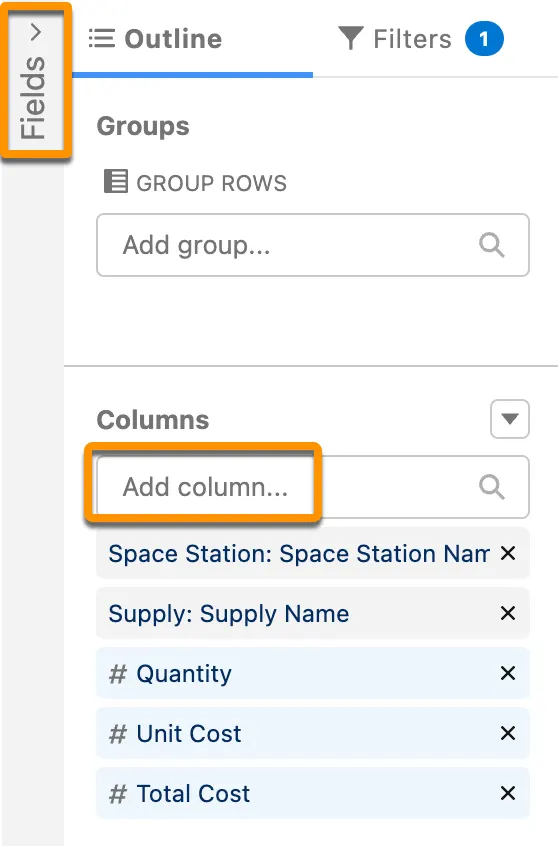
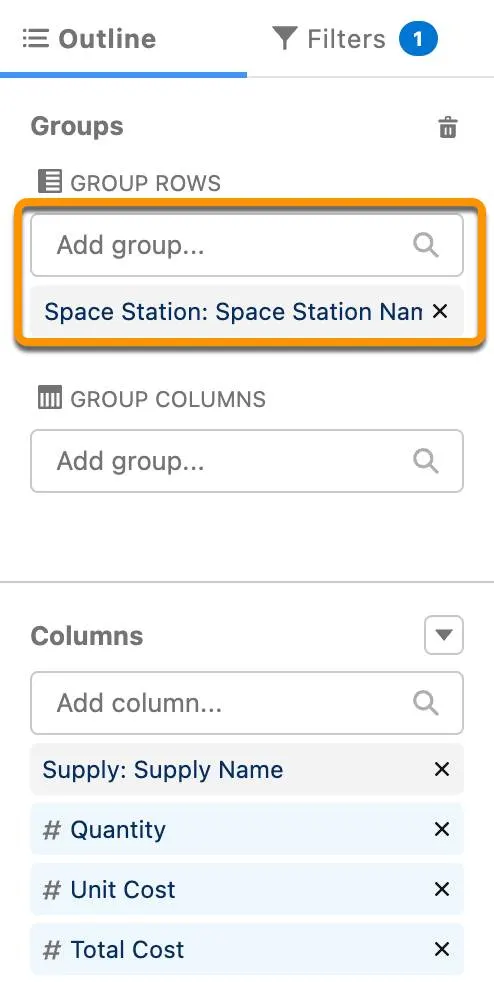
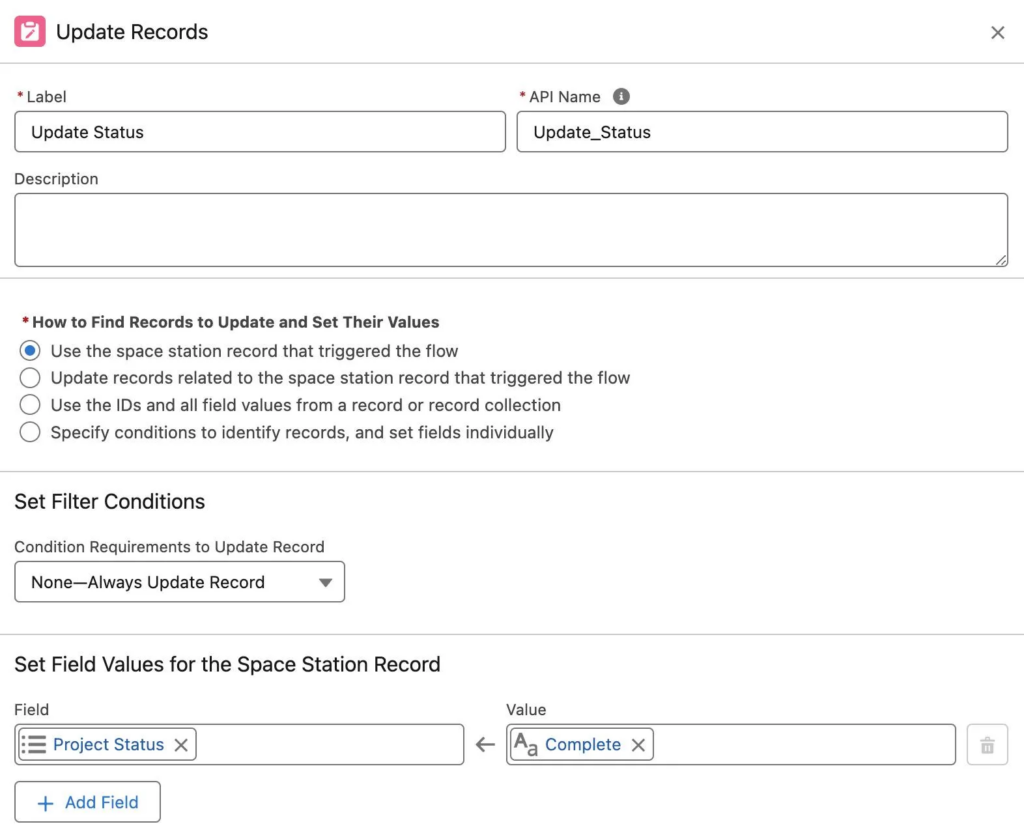
 > Update Triggering Record
 > Action