Customize a Salesforce Object: Create Lookup Filters

Study for the Administrator Certification Exam > Object Manager and Lightning App Builder (15%) > Customize a Salesforce Object > Create Lookup Filters

The Rundown

  • Lookup filters limit the records available in the lookup.
    Lookup field에서 선택할 수 있는 레코드를 제한하는 방법
    • A lookup filter can reference other fields on the same record (source);
      같은 레코드의 다른 필드
    • fields on the records of the lookup object (target);
      Lookup 대상 객체의 필드
    • fields on the user’s record, profile, and role;
      User의 정보, Profile / Role
    • fields on records directly related to the target object
      Lookup 대상과 연결된 다른 객체
  • 사용자가 아무 레코드나 선택하지 못하게 조건을 걸어 데이터 품질을 유지

요청사항

  • reps to be able to capture the name of the backup rep on their cases when they are away from the office
    휴가중인 사람이 담당 Case의 임시담당자 이름을 볼수 있게
  • ensure that new cases can only be associated to contacts from the same account
    새 Case는 같은 Account의 Contact에만 연결되도록 보장한다.
    Case.AccountId = Contact.AccountId

Create a Lookup Relationship

Case 객체에 Backup Agent라는 필드를 하나 추가하는데, 값은 언제나 User의 Name만 값으로 들어가도록 Lookup Relationship으로 만든다.

  1. Setup > Object Manager > Case > Fields & Relationships > New
    • Data Type: Lookup Relationship
  2. Next
    • Related To: User
  3. Next
    • Field Label: Backup Agent
    • Field Name: Backup_Agent
    • Description: Used to identify the assigned support rep when case owner is away — for support use only.
    • Help Text: Who is the assigned support rep when case owner is away?
    • Lookup Filter > Show Filter Settings
      • Field: User: Profile: Name
      • Operator: equals
      • Value: Support User
  4. Next
    • Select ✅ Read-Only (in the header, so all read-only check boxes are checked)
    • Support User > Deselect 🔲 Read-Only
  5. Next
    • Uncheck 🔲 Close Case Layout
  6. Save!

Add Filter to Lookup Field

필드에 필터추가하기. Case의 Contact Name에 오직 해당 Account의 User만 값으로 가지게 끔 필터를 추가한다.

  1. Setup > Case > Fields & Relationships > Contact Name > Edit
    • Lookup Filter > Show Filter Settings
      • Field: Contact Name: Account ID
      • Operator: equals
      • Field: Case: Account ID
    • Check ✅ Required
  2. Save!

넌 왜 항상 만들기만 하고 결과를 보여주지를 않냐? 이게 어디서 어떻게 쓰이는지를 보여줘야 기억에도 잘 남고 왜 이걸 했는지도 알지..그냥 설정만 하고 계속 넘어가니까 뭘 하긴 했는데 정확히 뭘 한건지 모르겠단 말이야….

Customize a Salesforce Object: Create Picklists and Field Dependencies

Study for the Administrator Certification Exam > Object Manager and Lightning App Builder (15%) > Customize a Salesforce Object > Create Picklists and Field Dependencies

요구사항

  • Account를 region과 zone으로 나눠서 관리원함
  • Opportunity가 왜 Won인지 Lost인지 이유를 알기 원함
  • 이유는 Sales만 입력할 수 있고, 필드값은 선택하게 하길 원함
  • Closed Won이나 Closed Lost인 경우에만 이유를 넣기 원함

작업순서

  • Create Picklists, region and zone
    • Field dependencies 구현

Picklist Value Sets

  1. Setup > Picklist Value Sets > New
    • Label: Region
    • Name: Region
    • Description: For use in region fields throughout AW’s org.
    • Regions, each on its own line:
      • APAC
      • EMEA
      • LATAM
      • US
      • Canada
  2. Save!

Add Region & Zone to Lead & Account

Add Region to Lead and Account:

  1. Setup > Object Manager > [Lead, Account] > Fields & Relationships > New
    • Data Type: Picklist
  2. Next
    • Field Label: Region
    • Select ✅ Use global picklist value set
      • select Region from the picklist
    • Description: Customer’s geographical region—for sales operations use only.
    • Help Text: In which region is the customer based?
  3. Next
  4. Save!

Add Zone to Account:

  1. Setup > Object Manager > [Account] > Fields & Relationships > New
    • Data Type: Picklist
  2. Next
    • Field Label: Zone
    • Select ✅ Enter values, with each value separated by a new line
      • East Asia
      • Oceania
      • Southeast Asia
      • Africa
      • Europe
      • Middle East
      • UK + Ireland
      • Mexico
      • Caribbean
      • Central America
      • South America
      • Midwest US
      • Northeast US
      • Southeast US
      • Southwest US
      • West US
      • Northern Canada
      • Mountains and the West
      • The Prairies
      • Central Canada
      • East Coast
    • Description: Customer’s zone within the selected region—for sales operations use only.
    • Help Text: In which zone is this customer based? Depends on region.
  3. Next, Next, Save!

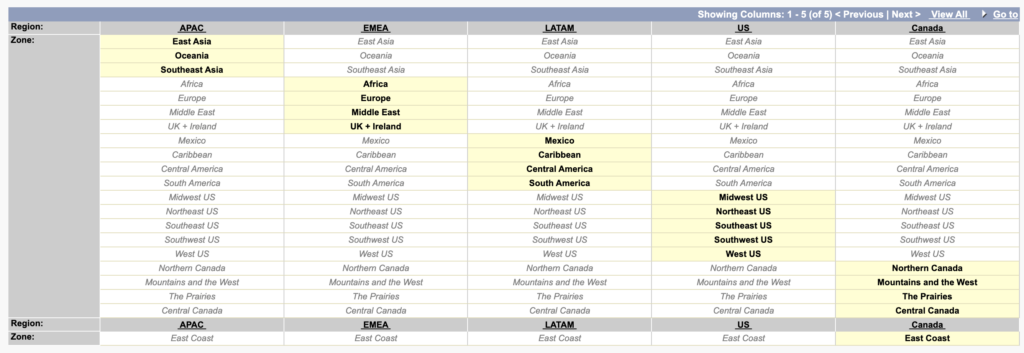
Field Dependencies, Region > Zone

  1. Setup > Object Manager > Account > Fields & Relationships > Field Dependencies > New
    • Controlling Field: Region
    • Dependent Field: Zone
  2. Continue!
    • APAC: East Asia, Oceania, Southeast Asia
    • EMEA: Africa, Europe, Middle East, UK + Ireland
    • LATAM: Mexico, Caribbean, Central America, South America
    • US: Midwest US, Northeast US, Southeast US, Southwest US, West US
    • Canada: Northern Canada, Mountains and the West, The Prairies, Central Canada, East Coast
  3. Preview!
  4. Save!

Add Close Reason to Opportunity

  1. Setup > Object Manager > Opportunity > Fields & Relationships > New
    • Data Type: Picklist (Multi-Select)
  2. Next
    • Field Label: Close Reason
    • ✅ Enter values, with each value separated by a new line
      • Lost: Competitor
      • Lost: Price
      • Lost: Product Features
      • Lost: Project Abandoned
      • Lost: Company Budget Constraints
      • Lost: Other Reason
      • Won: Competitor
      • Won: Price
      • Won: Product Features
      • Won: Other Reason
    • # Visible Lines: 6
    • Field Name: Close_Reason
    • Description: Created for the VP of Global Sales to track wins and losses.
    • Help Text: When you close the opportunity, select one or more values that best describe your reason for closing.
  3. Next
    • Select ✅ Read-Only (in the header, so all read-only check boxes are checked)
    • Sales User > Deselect 🔲 Read-Only
  4. Next
  5. Save

Field Dependencies, Stage > Close Reason

  1. Setup > Object Manager > Opportunity > Fields & Relationships > Field Dependencies > New
    • Controlling Field: Stage
    • Dependent Field: Close Reason
  2. Continue
    • Closed Won:
      • Won: Competitor
      • Won: Price
      • Won: Product Features
      • Won: Other Reason
    • Closed Lost
      • Lost: Competitor
      • Lost: Price
      • Lost: Product Features
      • Lost: Project Abandoned
      • Lost: Company Budget Constraints
      • Lost: Other Reason
  3. Preview
  4. Save
    • 8 controlling field values have no dependent values included. Save anyway?
  5. OK

Customize a Salesforce Object: Work with Standard and Custom Fields

Study for the Administrator Certification Exam > Object Manager and Lightning App Builder (15%) > Customize a Salesforce Object > Work with Standard and Custom Fields

요구사항

AW Computing이라는 회사가 있는데, Sales팀이랑 Support팀이 Account.Rating필드를 Sales의 Prospect로 사용하고 있다는거에요. 그런데 필드명이 그냥 Rating이라서 상사가 이게 뭔가 할거 같대요. 필드명을 적절하게 바꾸고, Sales랑 Support팀에게 해당 필드가 뭐고 어떻게 사용하는지 보여줬으면 좋겠대요.

Create a Playground, AW Computing

Create Profiles for Sales and Support team

  1. Setup > Profiles > S > Standard User > Clone!
    • Profile Name: Sales User
  2. Save!
  3. Clone!
    • Profile Name: Support User
  4. Save!

Change Field

Label:

  1. Setup > Rename Tabs and Labels > Accounts > Edit
  2. Next
  3. Rating
    • Singular: Prospect Rating
  4. Save!

Help text:

  1. Setup > Object Manager > Account > Fields & Relationships > Prospect Rating > Edit!
    • Help Text:
      • This indicates the likelihood of a sale being made to this account in the next six months. Cold indicates not likely. Warm indicates quite likely. Hot indicates very likely.
  2. Save!

Add a value:

  1. Account Rating Picklist Values > New
    • Not Known
  2. Save!

Prospect Rating Field to Read-Only to all users except Sales User Profile:

  1. Set Field-Level Security!
    • Select ✅ Read-Only (in the header, so all read-only check boxes are checked)
    • Sales User > Deselect 🔲 Read-Only
  2. Save!

Add New Field, Has Support Plan:

  1. Setup > Object Manager > Account > Fields & Relationships > New
    • Data Type: Checkbox
  2. Next
    • Field Label: Has Support Plan
    • Field Name: Has_Support_Plan
    • Default Value: ✅ Unchecked
    • Description: Sales users use this field to indicate to Support which customers have support plans.
    • Help Text: Does this customer have a current support plan? Check this box when you sell a support plan to this customer.
  3. Next
    • Select ✅ Read-Only column header
    • Deselect the Sales User and Support User checkboxes in the Read-Only column.
  4. Next
  5. Save & New

Add New Field, Support Plan Expiration Date:

  1. Setup > Object Manager > Account > Fields & Relationships > New
    • Data Type: Date
  2. Next
    • Field Label: Support Plan Expiration Date
    • Field Name: Support_Plan_Expiration_Date
    • Description: Expiration date of current support plan
    • Help Text: When is the current support plan due for renewal?
  3. Next
    • Select ✅ Read-Only column header
    • Deselect the Sales User and Support User checkboxes in the Read-Only column.
  4. Next
  5. Save

Salesforce User Basics: Work with Your Salesforce Admin

Study for the Administrator Certification Exam > Object Manager and Lightning App Builder (15%) > Salesforce User Basics > Work with Your Salesforce Admin

App Launcher에서 View All을 클릭하면, 해당 사용자에게 접근 권한이 있는 모듭앱을 보여줍니다.

사용자가 Admin이나 Spport팀에 로그인 권한을 주는 방법:

  1. 사용자로 로그인
  2. 우측상단 Profile 사진 > Settings > Grant Account Login Access
    • Grant Access To: Your Company’s Administrator
    • Access Duration: 1 Day

Quiz +100

  1. Salesforce admins:
    A. Serve as trusted advisor, helping you find the best ways to optimize Salesforce.
    B. Design automated processes to help you work faster and smarter.
    C. Help you adopt new features.
    D. Design and deliver training.
    E. All of the above
  2. To reset your password through the standard process, you should:
    A. Go to your admin’s desk.
    B. Click the ‘Forgot Your Password?’ link.
    C. Search for the answer using your favorite search engine.
    D. Create a new username.

Salesforce User Basics: Get Started with Salesforce

Study for the Administrator Certification Exam > Object Manager and Lightning App Builder (15%) > Salesforce User Basics > Get Started with Salesforce

  1. Using opportunity workspace, you can:
    A. View details on any opportunity, including activity history and next steps.
    B. Log calls, create task, and send emails.
    C. Get coaching details with customizable sales path.
    D. Quickly see more details about an activity or a contact
    E. All of the above
  2. For the standard login process, the URL for logging in to Salesforce is:
    A. salesforce.login.com
    B. login.salesforce.com
    C. login.salesforce.org
    D. mylogin.salesforce.com
  3. Key features on the Home page include:
    A. Performance chart, activity timeline, sales path.
    B. Path, filters, and charts.
    C. Opportunity workspace, assistant, and recent records.
    D. Assistant, news, performance chart.

Salesforce User Basics: Learn About the Salesforce Customer Success Platform

Study for the Administrator Certification Exam > Object Manager and Lightning App Builder (15%) > Salesforce User Basics > Learn About the Salesforce Customer Success Platform

이 강좌는 맨 앞에 와있어야겠다.

  1. Collaborating in Salesforce is helpful for:
    A. Building an online, searchable content source over time.
    B. Collaborating in context on individual deals and records.
    C. Crowdsourcing expertise from across your company.
    D. Creating groups, following people and topics, and asking questions.
    E. All of the above
  2. CRM stands for:
    A. Customer Relationship Management.
    B. Client Relations Management.
    C. Cloud Relational Metadata.
    D. Collaborate Relate Market.
  3. When converting a lead, the following three records are created:
    A. Contract, quote, and opportunity.
    B. Contact, account, and report.
    C. Contact, account, and opportunity.
    D. Field, app, and object.

강의순서를 고려한 Trailmix 생성:

Protect Your Data in Salesforce: Set Up Account Teams

Study for the Administrator Certification Exam > Configuration and Setup (15%) > Protect Your Data in Salesforce > Set Up Account Teams

Salesforce에서 **계정(Account)**은 고객 조직 하나를 의미합니다.
계정과 관련된 영업 기회(Opportunities), 사건(Cases), 연락처(Contacts) 등은 여러 부서의 협업이 필요한 경우가 많습니다. 계정 팀(Account Teams)을 설정하면 다음과 같은 팀 구성원들이 해당 계정과 연관된 기록들을 적절하게 볼 수 있고 사용할 수 있게 됩니다:

✔️ 영업 담당자
✔️ 기술 엔지니어
✔ 고객 지원 담당자
✔ 컨설팅 담당자 등

계정 팀 기능 활성화

  1. Setup > Account Teams > Enable Account Teams
    • Check ✅ Account Teams Enabled
  2. Save!
    • Check ✅ Account Layout
    • Check ✅ Add to users’ customized related lists
  3. Save!

팀 역할 목록 추가

  1. Team Roles > New
    • Customer Support Rep
    • Sales Engineer
  2. Save!

기본 계정 팀(Default Account Team) 생성

  1. Setup > Advanced User Details > Default Account Team > Add
Team MemberAccount AccessOpportunity AccessCase AccessTeam Role
[Your Name]Read/WriteRead/WriteRead/WriteCustomer Support Rep
Amy DanielsRead/WriteRead/WriteRead/WriteSales Engineer

2. Save!

계정에 기본 팀 적용

  1. App Launcher > Sales > Accounts > All Accounts > [Edge Communications] > Related List > Account Team > Add Default Team!

Protect Your Data in Salesforce: Create Sharing Rules

Study for the Administrator Certification Exam > Configuration and Setup (15%) > Protect Your Data in Salesforce > Create Sharing Rules

공유 규칙(Sharing Rules)이란?

Salesforce의 공유 규칙은 기본적으로 조직 전체 기본값(Organization-Wide Defaults, OWD) 또는 역할 계층(Role Hierarchy)만으로는 접근이 어려운 데이터를 추가로 누구에게 보여줄지 자동으로 정의하는 설정입니다. 즉:

  • 기본적으로는 소유자(owner) 또는 그 위의 역할만 볼 수 있지만,
  • 공유 규칙을 통해 다른 역할/그룹에게도 열어줄 수 있음

참고: 공유 규칙은 기존의 접근 수준보다 더 넓게 열어주는 것만 가능합니다. (제한하는 것은 아님)

Create Sharing Rules

Opportunity오브젝트의 Won필드에 True가 들어오면 Account Receivable을 Role로 가진 사람들과 공유한다.

  1. Setup > Sharing Settings
  2. Manage sharing settings for: Opportunities
  3. Opportunity Sharing Rules > New
    • Label: Share Won Opportunities with Account Receivable
    • Rule Type:
      • Select ✅ Based on criteria
    • Criteria:
      • Field: Won
      • Operator: Equals
      • Value: True
    • Share with:
      • Roles: Accounts Receivable
    • Access Level: Read/Write
  4. Save > OK!

Applicant, Interviewer, and Position 모두 OWD가 Private으로 설정했기 때문에 리쿠르터들 간에 지원자레코드를 공유하지 못하는 상태입니다. Role이 Recruiter인 사람이 Applicant를 생성하면 Role이 Recruiter인 사람이 읽을 수 있는 만든 사람기반의 공유규칙을 만드세요.

  1. Setup > Sharing Settings
  2. Manage sharing settings for: Applicant
  3. Applicant Sharing Rules > New
    • Label: Share Applicants Between Recruiters
    • Rule Type:
      • Select ✅ Based on record owner
    • Applicant: owned by members of
      • Roles: Recruiter
    • Share with
      • Roles: Recruiter
    • Access Level
      • Read Only
  4. Save > OK!

Recruiter간에 Interviewer도 공유하게

  1. Setup > Sharing Settings
  2. Manage sharing settings for: Interviewer
  3. Interviewer Sharing Rules > New
    • Label: Share Interviewers Between Recruiters
    • Rule Type:
      • Select ✅ Based on record owner
    • Applicant: owned by members of
      • Roles: Recruiter
    • Share with
      • Roles: Recruiter
    • Access Level
      • Read Only
  4. Save > OK!

Recruiter간에 Position도 공유하게

  1. Setup > Sharing Settings
  2. Manage sharing settings for: Position
  3. Position Sharing Rules > New
    • Label: Share Positions Between Recruiters
    • Rule Type:
      • Select ✅ Based on record owner
    • Applicant: owned by members of
      • Roles: Recruiter
    • Share with
      • Roles: Recruiter
    • Access Level
      • Read/Write
  4. Save > OK!

Create a public group, VPs

  1. Setup > Public Groups > New
    • Label: VPs
    • Group Name: VPs
    • Search: Roles
    • Selected Members:
      • Role: VP of Services
      • Role: VP, International Sales
      • Role: VP, Marketing
      • Role: VP, North American Sales
  2. Save!

Sharing Rule for VPs

Position이 열리면 VP들이 볼수 있게

  1. Setup > Sharing Settings
  2. Manage sharing settings for: Position
  3. Position Sharing Rules > New
    • Label: Share Open Positions with VPs
    • Rule Type:
      • Select ✅ Based on criteria
    • Criteria
      • Field: Status
      • Operator: Equals
      • Value: Open
    • Share with:
      • Public Groups: VPs
    • Access Level: Read Only
  4. Save > OK!

Protect Your Data in Salesforce: OWD + Role Hierarchy

Study for the Administrator Certification Exam > Configuration and Setup (15%) > Protect Your Data in Salesforce > Set Organization-Wide Defaults and Create a Role Hierarchy

레코드 접근 권한순서

  • Object 권한 (Profile / Permission Set)
  • OWD (Organization-Wide Defaults) → 기본 잠금
  • Role Hierarchy → 위 사람이 아래 데이터 보기
  • Sharing Rule / Manual Sharing → 예외적으로 더 열기

OWD (Organization-Wide Defaults)

내가 소유하지 않은 레코드를 기본적으로 얼마나 볼 수 있나?

  • Private → 소유자만
  • Public Read Only → 다 볼 수 있지만 수정은 소유자만
  • Public Read/Write → 다 수정 가능
  • Controlled by Parent → 부모 따라감

Role Hierarchy

위에 있는 사람은 아래 사람 레코드를 자동으로 본다

Role과 Profile는 완전 다른것:

  • Role = 접근 범위(레코드 공유용)
  • Profile = 기능 권한

Role Hierarchy 특징:

  • org chart랑 꼭 같을 필요 없음
  • 데이터 접근 레벨 기준으로 설계
  • Manager가 팀 데이터 보게 만들 때 사용

왜 OWD를 Private로 했을까?

기본 상태
→ 직원은 자기 것만 봄

문제
→ VP / Director가 팀 데이터를 못 봄 😱

해결
→ Role Hierarchy로 위 사람에게 자동 접근 부여

이게 바로 Salesforce 보안 철학:

🔒 기본은 잠그고
🔓 필요한 사람만 열어준다

실제로 만든 Role 구조

CEO
└ VP of Services
 ├ Accounts Receivable
 └ Customer Support Director

→ VP는 두 팀 데이터 다 봄

요약

OWD = 기본 잠금
Role = 위로 공유
Sharing Rule = 옆으로 공유

Create Custom Objects

  1. Setup > Object Manager > Create > Custom Object
    • Label: Applicant
    • Plural Label: Applicants
    • Check ✅ Starts with vowel sound
    • Object Name: Applicant
    • Record Name: Applicant Name
    • Data Type: Text
    • ✅ Allow Reports
    • ✅ Allow Search
  2. Save & New
    • Label: Interviewer
    • Plural Label: Interviewers
    • Check ✅ Starts with vowel sound
    • Object Name: Interviewer
    • Record Name: Interviewer Name
    • Data Type: Text
    • ✅ Allow Reports
    • ✅ Allow Search
  3. Save & New
    • Label: Position
    • Plural Label: Positions
    • Check ✅ Starts with vowel sound
    • Object Name: Position
    • Record Name: Position Name
    • Data Type: Text
    • ✅ Allow Reports
    • ✅ Allow Search
  4. Save!

Add Fields to Position

  1. Setup > Object Manager > Position > Fields & Relationships > New
    • Data Type: Picklist
    • Field Label: Status
    • Select ✅ Enter values, with each value separated by a new line
      • New
      • Open
      • Closed
    • Check ✅ Restrict picklist to the values defined in the value set
  2. Next, Next, Save!

Organization-Wide Sharing Defaults to Private

  1. Setup > Sharing Settings > Edit
    • Applicant – Default Internal Access: Private
    • Interviewer – Default Internal Access: Private
    • Position – Default Internal Access: Private
  2. Save!

Create a Role Hierarchy

  1. Setup > Roles > Set Up Roles > Expand All > CEO > Add Role
    • Label: VP of Services
    • Role Name: VP_of_Services
  2. Save & New!
    • Label: Accounts Receivable
    • Role Name: Accounts_Receivable
    • This role reports to: VP of Services
  3. Save & New!
    • Label: Customer Support Director
    • Role Name: Customer_Support_Director
    • This role reports to: VP of Services
  4. Save & New!
    • Label: Customer Support Rep
    • Role Name: Customer_Support_Rep
    • This role reports to: Customer Support Director
  5. Save & New!
    • Label: Sales Engineer
    • Role Name: Sales_Engineer
    • This role reports to: Director, Direct Sales
  6. Save & New!
    • Label: Recruiter
    • Role Name: Recruiter
    • This role reports to: SVP, Human Resources
  7. Save!

Assign Roles

  1. Setup > Roles > Set Up Roles > Expand All > VP of Services > Assign
    • Search: All Users
    • Selected Users for VP of Services: Noah Larkin
  2. Save!
  3. Accounts Receivable > Assign
    • Search: All Users
    • Selected Users for VP of Services: Maya Lorrette
  4. Save!
  5. Sales Engineer > Assign
    • Search: All Users
    • Selected Users for VP of Services: Amy Daniels
  6. Save!
  7. Recruiter > Assign
    • Search: All Users
    • Selected Users for VP of Services: Ted Kim 
  8. Save!
  9. Customer Support Rep > Assign
    • Selected Users for VP of Services: [Your name]
  10. Save!

Protect Your Data in Salesforce: Create New Users and Allow a User to Delete Accounts

Study for the Administrator Certification Exam > Configuration and Setup (15%) > Protect Your Data in Salesforce > Create New Users and Allow a User to Delete Accounts

이 단원에서는 Account를 삭제할 수없는 Profile을 만들어서 사용자에게 할당하고, Account를 삭제하는 권한을 Permission Set으로 만들어서 해당 사용자에게 할당하여 특정집단의 일부만 해당 권한을 부여하도록 하는 방법을 연습합니다.

Enhanced Profile User Interface

보기편하게:

  1. Setup > User Management Settings
    • ✅ Enhanced Profile User Interface

New Profile (No Delete)

Delete권한 없는 프로파일 만들기:

  1. Setup > Profiles
  2. Clone Standard Platform User
    • Profile Name: Standard Profile – No Acct Delete
  3. Save!
  4. Object Settings > Accounts > Edit
    • Uncheck 🔲 Delete
  5. Save!

Login Access Policies

Admin이 다른 사용자계정으로 로그인 할수 있게:

  1. Setup > Login Access Policies
    • ✅ Administrators Can Log in as Any User
  2. Save!

New User

  1. Setup > Users > New User
    • First Name: Maya
    • Last Name: Lorrette
    • Alias: mlorr
    • Email: dama*****77@gmail.com
    • Username: mlorette@wbyellow678.co.kr
    • Nickname: mlorreette
    • Title: Accounts Receivable
    • Department: Sales
    • Role: Western Sales Team
    • User License: Salesforce Platform
    • Profile: Standard Profile – No Acc Delete
    • Time Zone: Pacific Time (America/Los_Angeles)
    • Locale: English (United States)
    • Language: English
  2. Save & New!
    • First Name: Ted
    • Last Name: Kim
    • Alias: tkim
    • Email: dama*****77@gmail.com
    • Username: tkim@wbyellow678.co.kr
    • Nickname: tkim
    • Title: Recruiter
    • Department: Sales
    • Role: Western Sales Team
    • User License: Salesforce Platform
    • Profile: Standard Profile – No Acc Delete
    • Time Zone: Pacific Time (America/Los_Angeles)
    • Locale: English (United States)
    • Language: English
  3. Save!

Salesforce Platform License가 2개밖에 없으므로 방금 만든 2명 Deactivate:

  1. Setup > Users > [Maya Lorrette, Ted Kim] > Edit
    • Uncheck 🔲 Active
  2. Save!
  1. Setup > Users > New User
    • First Name: Noah
    • Last Name: Larkin
    • Alias: nlark
    • Email: dama*****77@gmail.com
    • Username: nlarkin@wbpurple.co.kr
    • Nickname: nlarkin
    • Title: VP Services
    • Department: Customer Support
    • Role: Customer Support, International
    • User License: Salesforce Platform
    • Profile: Standard Profile – No Acc Delete
    • Time Zone: Pacific Time (America/Los_Angeles)
    • Locale: English (United States)
    • Language: English
  2. Save & New!
    • First Name: Amy
    • Last Name: Daniels
    • Alias: tkim
    • Email: dama*****77@gmail.com
    • Username: adaniels@wbyellow.co.kr
    • Nickname: adaniels
    • Title: Sales Engineer
    • Department: Sales
    • Role: Western Sales Team
    • User License: Salesforce Platform
    • Profile: Standard Profile – No Acc Delete
    • Time Zone: Pacific Time (America/Los_Angeles)
    • Locale: English (United States)
    • Language: English
  3. Save!

New Permission Set (with Delete)

  1. Setup > Permission Sets > New
    • Label: Delete Accounts
    • API Name: Delete_Accounts
    • Description: Grants Delete Accounts permission
    • Who will use this permission set(License)? Salesforce Platform
  2. Save!
  3. Object Settings > Accounts > Edit
    • ✅ Read
    • ✅ Edit
    • ✅ Delete
  4. Save!
  5. Manage Assignments > Add Assignments
    • ✅ Noah Larkin
  6. Next, Assign, Done!

Login As Noah Larkin

  1. Setup > Users > Login Noah Larkin
  2. App Launcher > Accounts > All Accounts > [GenePoint] > More > Delete
  3. 화면 최상단 > Log out as Noah Larkin!