Study for the Administrator Certification Exam > Object Manager and Lightning App Builder (15%) > Customize a Salesforce Object > Create Picklists and Field Dependencies
요구사항
- Account를 region과 zone으로 나눠서 관리원함
- Opportunity가 왜 Won인지 Lost인지 이유를 알기 원함
- 이유는 Sales만 입력할 수 있고, 필드값은 선택하게 하길 원함
- Closed Won이나 Closed Lost인 경우에만 이유를 넣기 원함
작업순서
- Create Picklists, region and zone
- Field dependencies 구현
Picklist Value Sets
- Setup > Picklist Value Sets > New
- Label:
Region - Name:
Region - Description:
For use in region fields throughout AW’s org. - Regions, each on its own line:
APACEMEALATAMUSCanada
- Label:
- Save!
Add Region & Zone to Lead & Account
Add Region to Lead and Account:
- Setup > Object Manager > [Lead, Account] > Fields & Relationships > New
- Data Type: Picklist
- Next
- Field Label: Region
- Select ✅ Use global picklist value set
- select Region from the picklist
- Description:
Customer’s geographical region—for sales operations use only. - Help Text:
In which region is the customer based?
- Next
- Save!
Add Zone to Account:
- Setup > Object Manager > [Account] > Fields & Relationships > New
- Data Type: Picklist
- Next
- Field Label: Zone
- Select ✅ Enter values, with each value separated by a new line
- East Asia
- Oceania
- Southeast Asia
- Africa
- Europe
- Middle East
- UK + Ireland
- Mexico
- Caribbean
- Central America
- South America
- Midwest US
- Northeast US
- Southeast US
- Southwest US
- West US
- Northern Canada
- Mountains and the West
- The Prairies
- Central Canada
- East Coast
- Description:
Customer’s zone within the selected region—for sales operations use only. - Help Text:
In which zone is this customer based? Depends on region.
- Next, Next, Save!
Field Dependencies, Region > Zone
- Setup > Object Manager > Account > Fields & Relationships > Field Dependencies > New
- Controlling Field: Region
- Dependent Field: Zone
- Continue!
- APAC: East Asia, Oceania, Southeast Asia
- EMEA: Africa, Europe, Middle East, UK + Ireland
- LATAM: Mexico, Caribbean, Central America, South America
- US: Midwest US, Northeast US, Southeast US, Southwest US, West US
- Canada: Northern Canada, Mountains and the West, The Prairies, Central Canada, East Coast
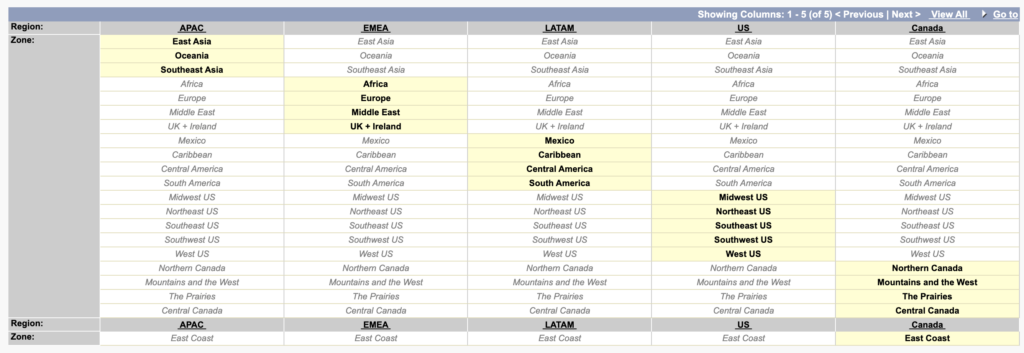
- Preview!
- Save!
Add Close Reason to Opportunity
- Setup > Object Manager > Opportunity > Fields & Relationships > New
- Data Type: Picklist (Multi-Select)
- Next
- Field Label: Close Reason
- ✅ Enter values, with each value separated by a new line
- Lost: Competitor
- Lost: Price
- Lost: Product Features
- Lost: Project Abandoned
- Lost: Company Budget Constraints
- Lost: Other Reason
- Won: Competitor
- Won: Price
- Won: Product Features
- Won: Other Reason
- # Visible Lines: 6
- Field Name: Close_Reason
- Description: Created for the VP of Global Sales to track wins and losses.
- Help Text: When you close the opportunity, select one or more values that best describe your reason for closing.
- Next
- Select ✅ Read-Only (in the header, so all read-only check boxes are checked)
- Sales User > Deselect 🔲 Read-Only
- Next
- Save
Field Dependencies, Stage > Close Reason
- Setup > Object Manager > Opportunity > Fields & Relationships > Field Dependencies > New
- Controlling Field: Stage
- Dependent Field: Close Reason
- Continue
- Closed Won:
- Won: Competitor
- Won: Price
- Won: Product Features
- Won: Other Reason
- Closed Lost
- Lost: Competitor
- Lost: Price
- Lost: Product Features
- Lost: Project Abandoned
- Lost: Company Budget Constraints
- Lost: Other Reason

- Closed Won:
- Preview
- Save
- 8 controlling field values have no dependent values included. Save anyway?
- OK