Study for the Administrator Certification Exam > Configuration and Setup (15%) > User Authentication > Customize Your Login Process with My Domain
Customize Your Salesforce Org URL with My Domain
로그인 URL에 도메인을 넣거나 로그인 화면에 회사 로고를 넣는 등의 맞춤서비스를 My Domain을 통해서 할수 있습니다
What Is My Domain?
도메인을 등록해서 관리하고, 서브도메인을 통해서 조직화하면 동일한 브라우저에서 서로 다른 조직에 로그인하여 작업이 가능합니다. 단일 로그인(SSO)을 설정하여 한번의 로그인으로 여러 서비스를 이용할 수도 있고, 소셜계정으로 로그인하는 것도 가능하게 되며, 로그인페이지를 꾸밀수도 있습니다.
My Domain은 모든 서비스에 할당되며, 초기값은 Salesforce에서 부여한 도메인이 됩니다. My Domain설정에서 회사도메인으로 변경하는 방법을 설명합니다.
Set My Domain Policies
지난 시간에 MFA를 OFF하지 않으셨다면 Playground에 접속이 안되실거에요. 새로운 Playground를 생성해서 실습을 따라해주세요.
사용자가 Salesforce로그인 할때 어디로 보내고, 어떤 로그인 방식으로 쓰게 할지 설정하려면:
- Setup > My Domain > Routing and Policies > Edit
- Salesforce Edge Network
- Routing Method
- ☑️ Global
전 세계 Salesforce Edge Location 중 사용자에게 가장 빠른 경로로 라우팅 - 🔲 Use Salesforce locations in US only
미국 내 서버로만 라우팅
- ☑️ Global
- Routing Method
- Login Policy
- 🔲 Prevent login from https://login.salesforce.com and https://welcome.salesforce.com
반드시 My Domain으로만 로그인. 일반 로그인 페이지 차단. SSO 쓸 때 필수. SSO는 My Domain 통해야 작동하기 때문. ✅ SSO를 사용중인데 직원이 login.salesforce.com에 접근해서 비밀번호 로그인을 해서 SSO를 우회하는것을 방지하기 위해 체크, MFA 정책통합 가능- ❌ login.salesforce.com
- ⭕ yourdomain.my.salesforce.com
- 🔲 Prevent SOAP API login from https://login.salesforce.co
API를 통한 로그인 차단. 이것도 My Domain통해서만 접속하게 강제함.
- 🔲 Prevent login from https://login.salesforce.com and https://welcome.salesforce.com
- Cookies
- 🔲 Require first-party use of Salesforce cookies
타사 컨텍스트에서 쿠키 사용 차단. 브라우저 보안 강화. 요즘 Chrome 정책 때문에 점점 중요해짐.
- 🔲 Require first-party use of Salesforce cookies
- Salesforce Edge Network
My Domain을 활성화하면 로그인 주소가 바뀌는데 사용자들은 예전 북마크를 계속 쓰기 때문에 자동으로 보내주는 것임. Redirections은 기존 URL로 들어온 사용자를 My Domain URL로 자동 보내는 기능. 즉 옛날 주소로 들어와도, 새 도메인으로 자동 이동.
- Setup > My Domain > Redirections > Edit
- 🔲 Log redirections
자동으로 보내준 기록을 남겨서 My Domain전환 후 문제를 추적하거나 어떤 사용자가 아직 옛날 URL을 쓰는지, Integration이 잘못된 URL이 있는지 등을 확인합니다.
- 🔲 Log redirections
For more informaiton:
Customize Your Login Page
로그인 페이지 다양하게 꾸며보기
- Setup > My Domain > Authentication Configuration > Edit
- Login Page Type: Standard
기본 Salesforce 로그인 화면
대부분 이거 그대로 사용
브랜딩된 커스텀 로그인 화면 쓰는 회사 아니면 변경하지 말기 - Authentication Service
- ✅ Login Form
Salesforce 아이디 / 비밀번호로 로그인
이게 체크되어 있어야 일반 로그인 가능 - 🔲 trailhead SAML SSO Setting
SSO 로그인 (회사에서 Okta / Azure AD 같은 거 쓸 때)
지금 Trailhead org면
SSO 안 쓰니까 체크 안 하는 게 정상
- ✅ Login Form
- Logo File
- 용량 100KB 이하
- 250×150픽셀 이하
- Background Color
- #113699
- Right Frame URL
- 로그인 화면 오른쪽에 웹페이지 넣는 용도
- https://picsum.photos/
- 🔲 Use the native browser for user authentication on iOS
iOS에서 사용자 인증에는 기본 브라우저를 사용 - 🔲 Allow sharing native browser session for user authentication on iOS
iOS에서 사용자 인증을 위해 네이티브 브라우저 세션 공유를 허용 - 🔲 Use the native browser for user authentication on Android
Android에서 사용자 인증에는 기본 브라우저를 사용 - 🔲 Allow sharing native browser session for user authentication on Android
Android에서 사용자 인증을 위해 네이티브 브라우저 세션 공유를 허용
위의 옵션들은은 모바일 기기에서 Salesforce 및 Mobile SDK 애플리케이션 사용자를 위한 위임 인증부터 인증서 기반 인증에 이르기까지 다양한 인증 방식을 지원합니다. 이러한 옵션은 로그인 페이지 브랜딩에 영향을 미치지 않으므로 변경하지 않습니다. - Save!
- Profile > Log Out
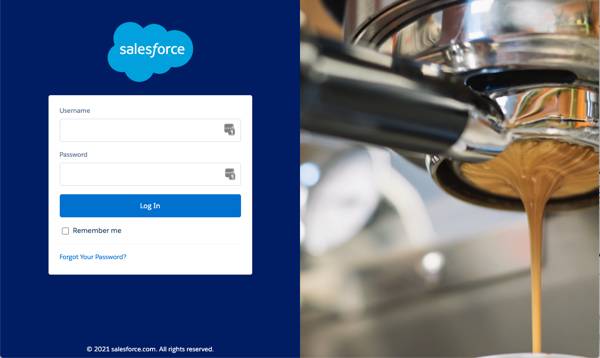
- Login Page Type: Standard
Quiz +100
- You need a My Domain in place to do which of the following?
A. Authenticate users.
B. Work in multiple Salesforce orgs in the same browser.
C. Set up single sign-on (SSO) with third-party identity vendors.
D. A and B
E. B and C - What section on the My Domain page in Setup contains options for branding your login page?
A. Redirections
B. Authentication Configuration
C. Routing and Policies
D. My Domain Details