Set up multi-factor authentication for your users.
Use the Salesforce Authenticator app for MFA logins.
Get login information about users who log in to your org.
MFA(Multi-Factor Authentication)
아이디랑 비번으로는 완벽한 보안을 보장할 수 없기때문에 2중 보안장치를 하는데요. Salesforce에서는 모든 사용자에게 MFA가 필수조건입니다. To learn about the MFA requirement, check out the Salesforce Multi-Factor Authentication FAQ.
본 강좌에서는 핸폰이 필요합니다.
What Is Multi-Factor Authentication?
2-factor authentication는 들어보셨죠? 같은 맥락인데 2개 이상의 인증절차를 제공하기 때문에 2대신 multi를 붙인거에요.
그러면, 여기서 말하는 Multi-Factor에는 어떤게 있을까요:
Something you know:
아이디랑 비번
ATM기 쓸때 PIN
Something you have: 사용자가 소유하고 있는 verification methods
핸폰인증 authenticator app
집에 들어갈때 열쇠키
Requiring another factor in addition to a username and password adds an extra, important layer of security for your org. Even if a user’s password is stolen, the odds are very low that an attacker can guess or impersonate a factor that a user physically possesses.
How Multi-Factor Authentication Works
MFA는:
아이디와 비번을 우선적으로 물어봅니다
그다음에 하나 또는 여러단계의 인증절차를 요구하죠
아래는 Salesforce에서 사용가능한 인증절차입니다.
Salesforce Authenticator
A free mobile app that integrates seamlessly into your login process. Users can quickly verify their identity via push notifications. We talk more about this app in a bit.
Third-party TOTP authenticator apps
Apps that generate unique, temporary verification codes that users type in when prompted. This code is sometimes called a time-based one-time password, or TOTP for short. Users can pick from a wide variety of options, including Google Authenticator, Microsoft Authenticator, or Authy.
Security keys
Small physical tokens that look like a thumb drive. Logging in with this option is fast and easy; users simply connect the key to their computer then press the key’s button to verify their identity. Users can use any key that’s compatible with the FIDO Universal Second Factor (U2F) or FIDO2 WebAuthn standards, such as Yubico’s YubiKey or Google’s Titan Security Key.
Built-in authenticators
Biometric readers, such as fingerprint or facial recognition scanners, that are built into a user’s device. In some cases, built-in authenticators can leverage a PIN or password that users set up on their device’s operating system. Common examples include Touch ID, Face ID, and Windows Hello.
When Are Users Prompted for Multi-Factor Authentication?
사용자들은 매번 로그인 할때마다 multiple factors인증단계를 거쳐야합니다. Salesforce의 약관에 의거, Salesforce UI에 접속하는 모든 사용자들은 반드시 MFA를 사용해야합니다.
Jedeye Technologies의 Salesforce Production을 런칭하기 전에 직원들이 손쉽게 로그인을 하게 MFA를 비활성화 시켰습니다. 이제 전 직원의 MFA를 활성화 시키고, 새로운 직원 Sia Thripio를 사용자로 추가하고 MFA도 활성화 해주세요.
Check ✅ Generate new password and notify user immediately
Save
이메일확인 후 비번변경해주세요.
Check your email inbox
Click the Link and Reset Password
New Password: *********
이제 Sia로 로그인을 해볼텐데요. Log Out을 하고 Sia로 다시 로그인을 해도 이미 다른 탭에서 System Admin으로 로그인이 되어 있으면 계속 System Admin으로 로그인이 됩니다. Sia로 로그인을 하시려면 다른 브라우저나, 크롬의 다른 계정으로 열어서 Sia로 로그인을 해주세요.
Login as Sia
Username: sthripio.112233@trailhead.com
Password: *********
Register Your Mobile Phone
Country/Territory: United States (+1)
Mobile Phone Number: 551-335-****
Register!
Enter Verification code
Verification Code: ######
Verify!
Turn on MFA for Everyone in Your Org
모든 사용자들이 MFA을 사용하도록 활성화하기
Setup > Identity Verification
Check ✅ Require multi-factor authentication (MFA) for all direct UI logins to your Salesforce org
Save!
이제 모든 직원들이 MFA를 무조건 사용하도록 설정이 되었습니다. 물론 새로운 직원 Sia도 MFA를 사용해야합니다. 하지만 때에 따라서 MFA를 사용하지 않도록 유지해야하는 계정이 있을수 있습니다. 테스트계정등이 그렇죠. 사용자별로 MFA설정을 다르게 주고 싶다면 다음 문서를 참고하세요. Exclude Exempt Users from MFA
How Users Register Salesforce Authenticator for MFA Logins
다른 나라에서 잠시 온 직원들이 전번이 없거나 하면 폰에 Salesforce Authenticator를 설치하면 MFA인증을 받을 수 있습니다. Salesforce Authenticator를 설치하는데는 핸드폰과 더불어 데스크탑도 함께 필요합니다.
아래는 Salesforce Authenticator에 사용자 계정을 추가하는 방법입니다.
📱Salesforce Authenticator를 폰에 설치한뒤 앱을 여세요.
📱각종안내는 Skip하고,
📱Is this your first time connecting an account to Salesforce Authenticator?
Yes!
📱You can approve requests and user 6-digit time-based one-time passwords(TOTPs) only after you connect an account to Salesforce Authenticator
Connect Your Account!
📱Connect Your Account
On your computer, enter this two-word phrase when prompted
honest quality
💻 Login as Sia
Choose Another Verification Method!
✅ Use the Salesforce Authenticator mobile App
Continue!
Connect Salesforce Authenticator
Two-Word Phrase
honest quality
Connect!
📱Connect Account
Username: sthripio.112233@trailhead.com
Service: Salesforce
Connect!
📱Account Added
Got It!
📱Enable Permissions
Notifications Disables버튼을 눌러서 Enable시켜줍니다. 그래야 Desktop에서 로그인을 할때 Authenticator에서 인증 팝업이 뜹니다. 나중에 해야지 하고 iPhone에서 Disable시키면 나중에 설정에서 Notification옵션이 안나타나요.
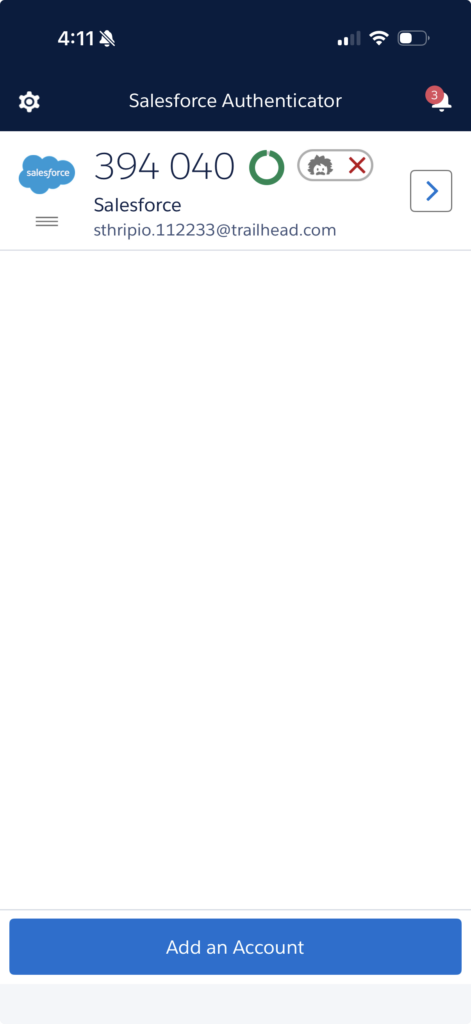
📱Salesforce Authenticator 위의 화면이 보이면 정상적으로 설치가 된것입니다.
Sia의 계정이 Salesforce Authenticator에 추가되었습니다.
💻 이제 사용자가 어디선가 로그인을 시도한다고 칩시다.
💻 그러면 인증앱을 열어서 인증하라고 합니다.
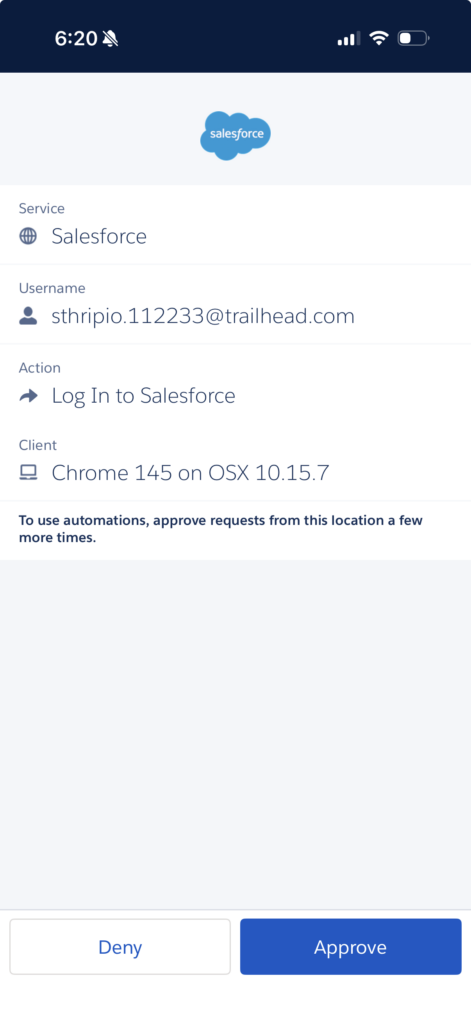
📱폰을 열어보면 누가 어디서 로그인을 시도하려고 하는지 아래와 같이 보여줍니다. Approve버튼을 눌러서 인증합니다.
Back Up Connected Accounts
Salesforce Authenticator앱에서 백업설정을 해볼게요
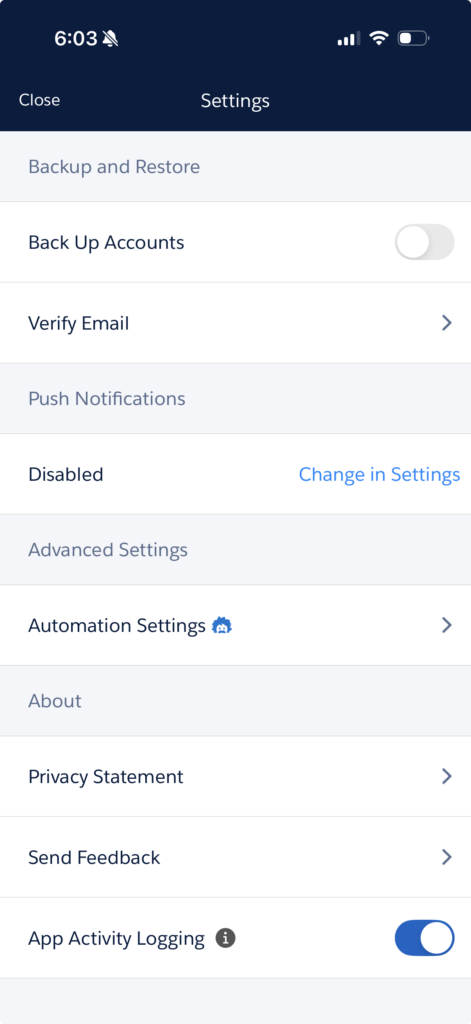
왼쪽 상단 톱니아이콘 누르면 설정화면이 뜹니다.
Back Up Accounts가 현재 OFF로 되어 있을거에요. 그걸 ON으로 바꾸도록 클릭하세요.
그러면 인증화면이 뜨면서 이메일을 입력하라고 합니다.
이메일 입력하고 Send Code버튼 클릭
인증번호 입력 및 Verify버튼 클릭
백업을 복구할때 사용할 4자리 숫자 Passcode설정
Back Up Accounts가 ON으로 바뀝니다.
Verify That Salesforce Authenticator Can Send Notifications
처음에 설정할때 실수로 Notification을 받지 않도록 클릭했다면 설정에서 받도록 바꿀수 있습니다.
톱니바퀴 > Push Notification > Disabled > Change in Settings
어떤 iPhone에서는 처음에 한번 Notification을 거절하면 Settings에가서 해당 앱을 보면 Notification설정하는 부분 자체가 없을 수 있습니다. 그럴때는 해당 Account를 삭제하고 다시 추가하면 Notification옵션을 추가하도록 할수 있습니다.
Automate the Authentication Process
시간이 지나면 언젠가는 다시 로그인을 해야하는 일이 생기는데 그때마다 Salesforce Authenticator를 열고 인증버튼 누르고 하는거 너무 귀찮잖아요. 그래서 같은 장소, 같은 기기, 같은 브라우저나 앱에서 동일한 계정으로 로그인을 하는 경우에는 Salesforce가 자동으로 인증을 해줍니다.
💻 로그아웃하시고 다시 로그인하세요
📱 그러면 폰으로 인증팝업이 날라오죠. 그때 밑에 보면 Trust and automate request for 90 days라고 toggle상자가 있습니다. 그걸 켜놓으면 지금 보이는 정보로 들어오는 로그인에 대한 요청은 자동으로 인증이 됩니다.
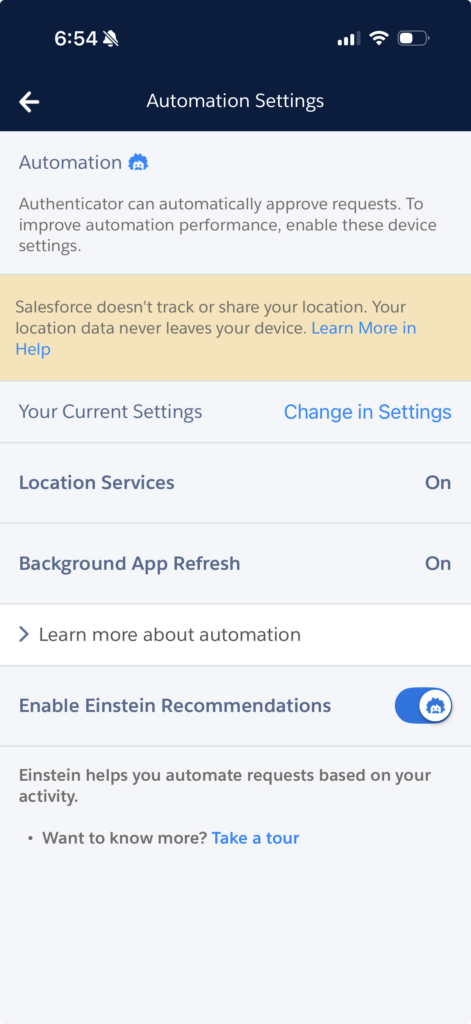
자동로그인 인증기능을 사용하시려면 반드시 App이 Location정보를 항상 접근할 수 있어야하고 Background Refresh도 허용(ON)이 되어 있어야합니다.
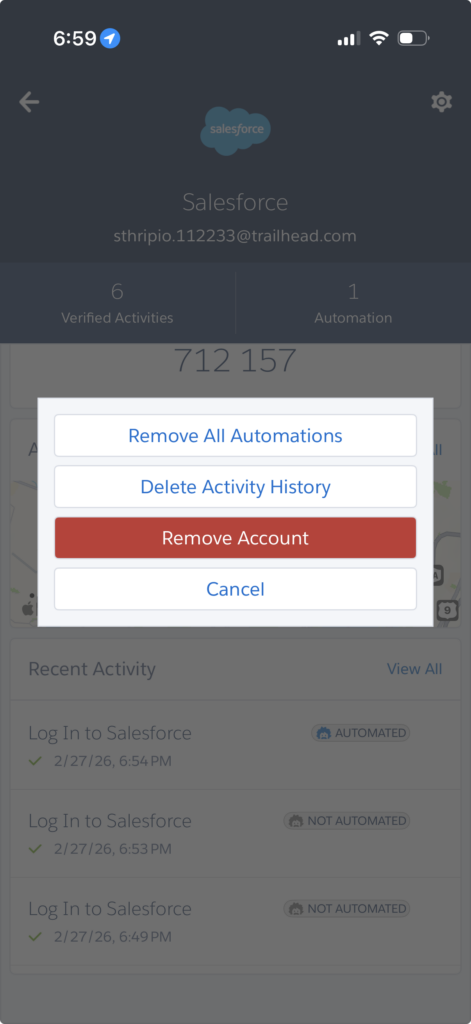
자동인증은 여러군데 설정할 수도 있고, 전부다 지워버릴수도 있습니다.
해당 계정 우측에 more버튼(꺽쇠아이콘)을 누르면 그동안 로그인한 기록이 전부 보이고요
우측상단에 톱니바퀴 > Remove All Automation버튼을 클릭하면 모든 자동인증 설정이 삭제됩니다.
직원들이 사무실에서 로그인을 한다면 신뢰할만한 IP를 등록해서 인증절차 없이 간편하게 로그인하도록 설정할 수 있습니다.
Setup > Identity Verification
✅ Let Salesforce Authenticator automatically verify identities using geolocationSecurity and Privacy Warnings
🔲 Salesforce Authenticator uses the phone’s location services to verify the user’s identity. If users approve the location, they aren’t prompted for their identity when at that location. If the location is not approved, or if users are outside the trusted location, they’re prompted to verify their identity.Let Salesforce Authenticator automatically verify identities based on trusted IP addresses onlySecurity and Privacy Warnings
그러면 사용자는 Authenticator를 안깔았던 상태로 돌아가게 되어서 다시 설정을 할수 있게 됩니다.
Monitor Who’s Logging In to Your Org
직원들의 로그인 히스토리를 보겠습니다.
Setup > Identity Verification History
정보가 너무 많아서 보기가 힘들면 Create New View를 클릭해서 간단한 버젼을 만드셔도 됩니다.
Hands-on Challenge
Require a User To Log In Using Multi-Factor Authentication
Create a more secure environment by requiring multiple factors of authentication when users log in to your org. This challenge requires you to enable MFA for your Trailhead Playground.
Create a new Trailhead Playground to complete this challenge by clicking the Trailhead Playground name below and selecting Create Playground. It typically takes 3–4 minutes for Salesforce to create your Trailhead Playground.
Note: Yes, we really mean a brand-new Trailhead Playground! If you use an existing org or playground, you can run into problems completing this challenge.
Enable this org setting in Identity Verification setup:
Multi-Factor Authentication (MFA)
Require multi-factor authentication (MFA) for all direct UI logins to your Salesforce org
Log in to your org as the user to register for multi-factor authentication
Log out, then log in again with multi-factor authentication
풀이
Setup > Identity Verification
Multi-Factor Authentication (MFA)
Check ✅ Require multi-factor authentication (MFA) for all direct UI logins to your Salesforce org
Save!
아마 위에 설정만 확인을 할겁니다. 강의를 잘 따라오셨다면 이미 도전과제는 완료하신거에요.
설정 원상복귀 해주세요
향후 단원에서 연습을 계속하기 위해서는 MFA를 비활성화 시키셔야합니다.
Setup > Identity Verification
Multi-Factor Authentication (MFA)
Uncheck 🔲 Require multi-factor authentication (MFA) for all direct UI logins to your Salesforce org