Study for the Administrator Certification Exam > Cert Prep: Platform Administrator: Configuration, Setup, and Objects > Study Up on Configuration and Setup
Key Topics
This unit prepares you for the configuration and setup section of the Salesforce Platform Administrator exam, which makes up 15% of the overall exam. This section of the exam tests these topics.
- UI features
- Company information
- Locale settings
- Search results
- List views
- Currency management
- Fiscal year
- Default settings
- Homepage layouts
- User management
- Security settings
- Sharing settings
As you tackle the practice questions, you get immediate feedback on your answers, along with detailed information on why your answers are correct (or incorrect).
Exam Practice Questions
1. Solar components and systems supplier, Ursa Major Solar wants to ensure that the information is up to date on their Company Information page in Salesforce. Which set of information can an administrator specify in the Company Information page?
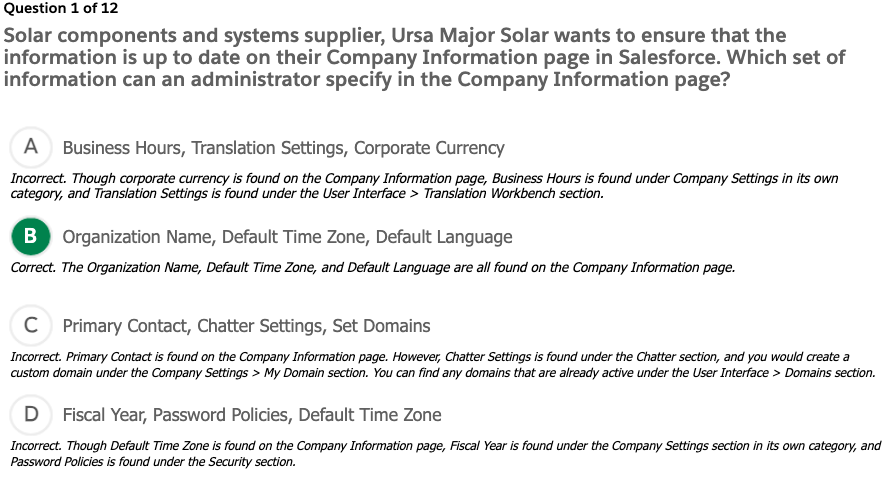
Setup > Company Settings > Company Information
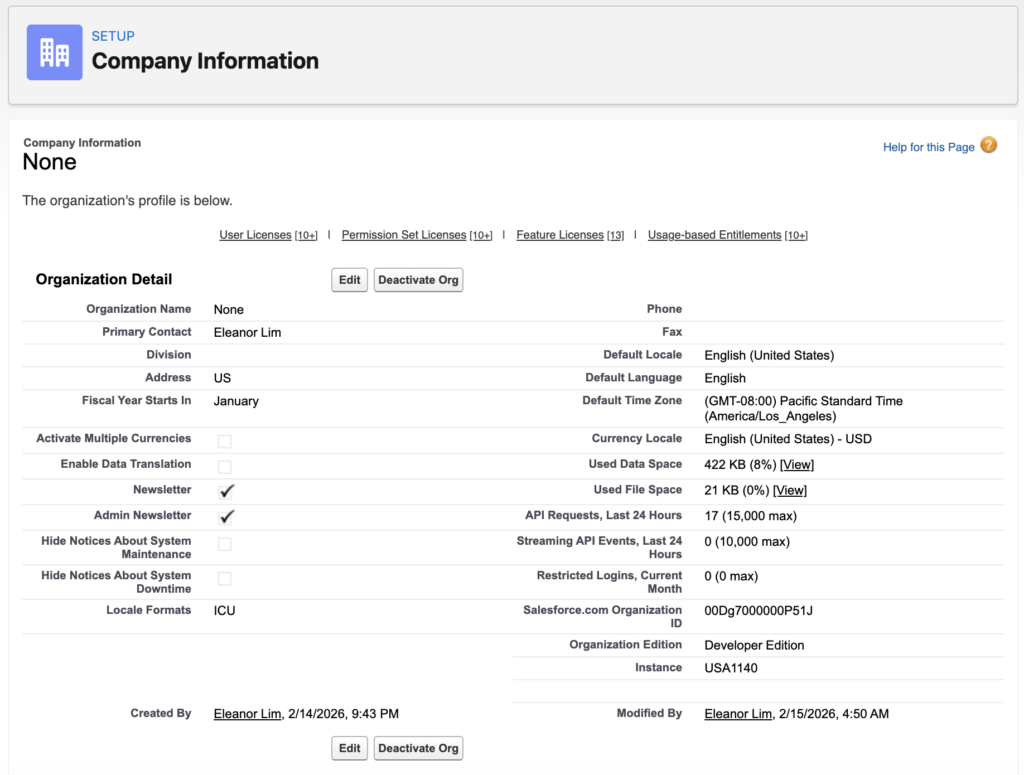
2. Ursa Major Solar wants to ensure that all of its locale settings are up to date and consistent in the Salesforce system. The administrator is going through the process of making updates and configuring parameters for this information. Which two sets of parameters are configured using Locale settings?

- Locale Settings
- Setup > Company Settings > Company Information
- Default Locale
- Default Language
- Default Time Zon
- Currency Locale
- Setup > Company Settings > Company Information
- User Locale Settings
- Setup > Users > [User record] > Language & Time Zone
⭐️ There’s no literal First/Last Name Format field, but First/Last Name format is determined by the Locale setting.
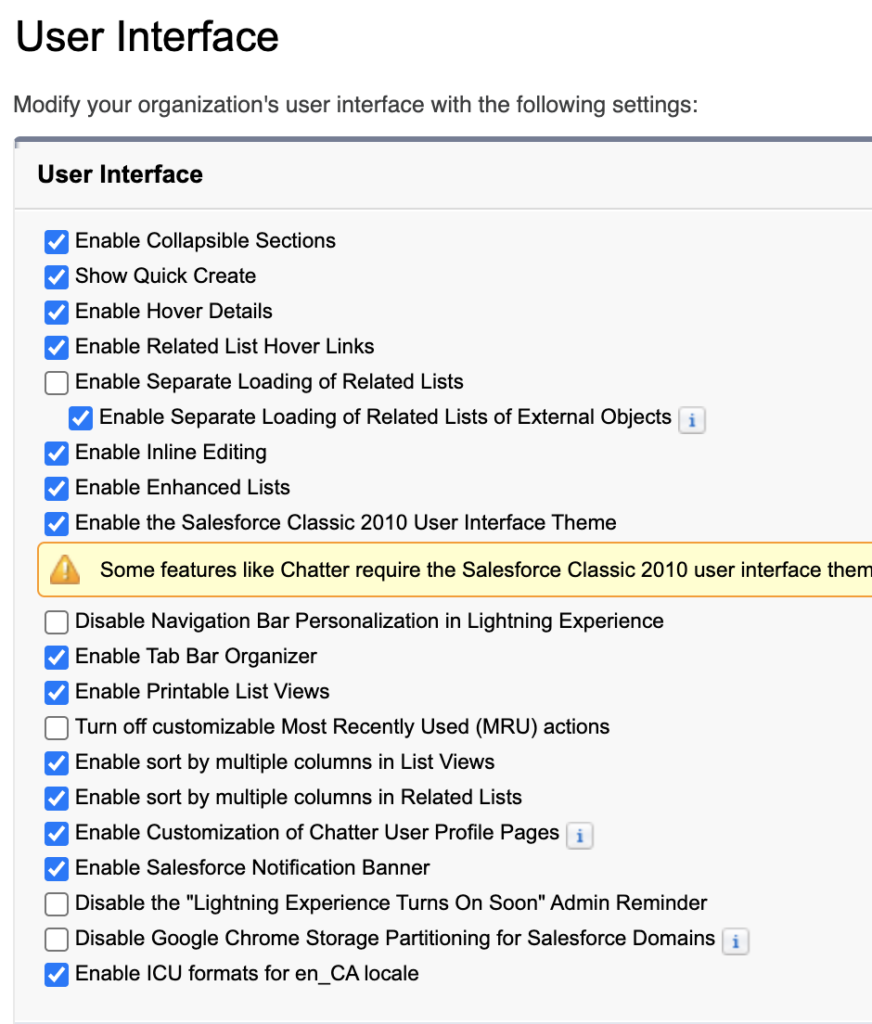
3. The VP of sales has changed the naming convention for opportunities to make it more uniform across the company. The sales manager wants to update multiple opportunity names for his sales team in Europe using his “Team Europe” list view in Salesforce. Which two user interface settings should be used to allow users, with all required profile permissions, to edit records in List Views?

Setup > User Interface > User Interface
4. A new hire at Ursa Major Solar has joined the customer service team to interact with customers and handle cases. This user needs access to the Service Console to manage the cases and customer information. What should an administrator do to assign a Service Cloud user license to a new user?

- Setup > Users > [User]
- Role: Customer Support
- User License: Salesforce
- Profile: Custom: Support Profile
- ✅ Service Cloud User
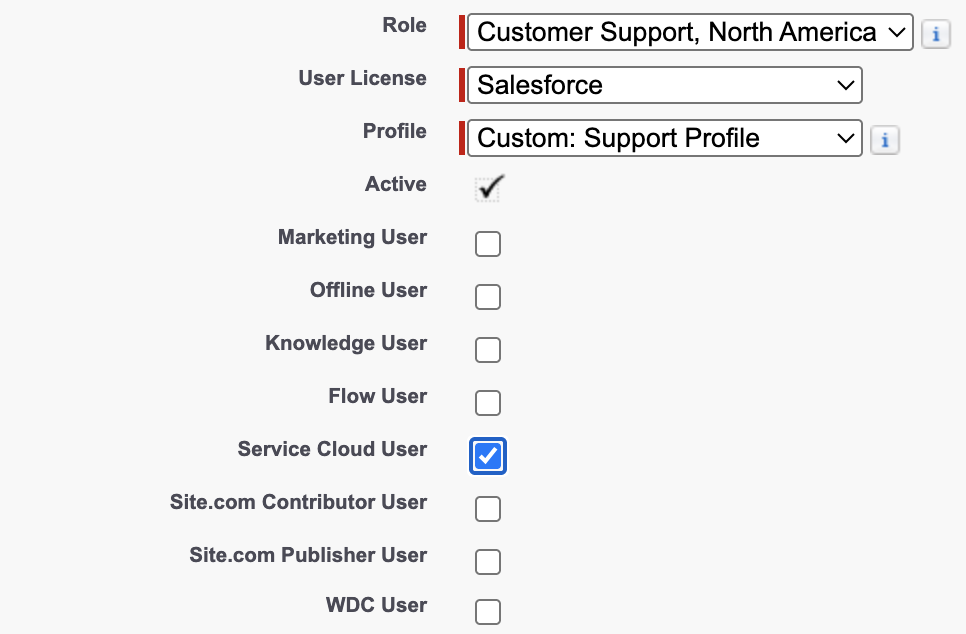
Because, Customer Service Profile is not a Default Profile in Salesforce, Admin has to add a custom profile if it’s needed
5. Ursa Major Solar, a medium-size, Southwest-based supplier of solar components and systems, is growing internationally. An administrator receives details of a new hire in the Tokyo office who requires access to the Salesforce organization. Which two requirements should the administrator consider when creating a new user in a production Salesforce org?

6. A new employee is trying to login to Salesforce, but is having trouble and getting login error messages. He reaches out to the Salesforce admin for help. What should the administrator do first to troubleshoot login error messages?

- Ask for the exact error message
- Check Login History in Salesforce
- Setup > Users > Login History

- Login failed: Invalid username or password
- Login blocked by IP restrictions
- User is inactive
- Setup > Users > Login History
- Verify user account settings
- Confirm that the user is active.
- Check profile login IP restrictions and login hours.
- Ensure the user has been assigned the correct profile or permission set.
- Reset password if needed
- Setup > Users > [User] > Reset Password
- Consider multi-factor authentication (MFA)
7. The administrator is notified that one of Ursa Major Solar’s employees is going on leave for a few weeks. Ursa Major Solar does not want the employee logging in to Salesforce while on leave. What should the administrator do to prevent a user from logging into Salesforce temporarily?

Setup > Users > [User] > Freeze버튼
Freezing is temporary, safe, and preserves all user data, whereas deactivation is more permanent and can disrupt workflows.
8. The administrator is asked to deactivate the Salesforce user account for an employee who has recently left the company. When a user account is deactivated, what happens to the associated license?

해당 User를 Unassign해도 License가 자동으로 없어지지는 않는다. 그냥 라이센스가 붕떠있을 뿐이다. 그렇겠지..그렇게 해야 Salesforce가 계속 돈을 받을 테니까…
9. The Executive Team at Ursa Major Solar is exploring ways to increase protection of the organization’s Salesforce data from unauthorized access. It has been proposed to leverage the Trusted IP Ranges feature. What is a benefit of entering Trusted IP ranges in the network access section?

Trusted IP Range 바깥의 IP에서도 로그인 되긴 된다. 다만 ⭐️본인인증을 추가로 해야할 뿐인다.
10. The password policy in Ursa Major Solar’s org shows that the length of time until passwords expire is 60 days. However, sales reps are complaining that their passwords expire every 30 days. Where should the system administrator change the password expiration period for the sales rep users?

- Setup > Profile > [Sales Rep Profile] > Password Policies > Edit
- > Password Policies > User passwords expire in: 60 days > Save

11. Ursa Major Solar’s vice president of global Sales has requested that the sales rep commission report be visible to the executive team. How should the system administrator provide visibility to the sales rep commission report to the executive team only?
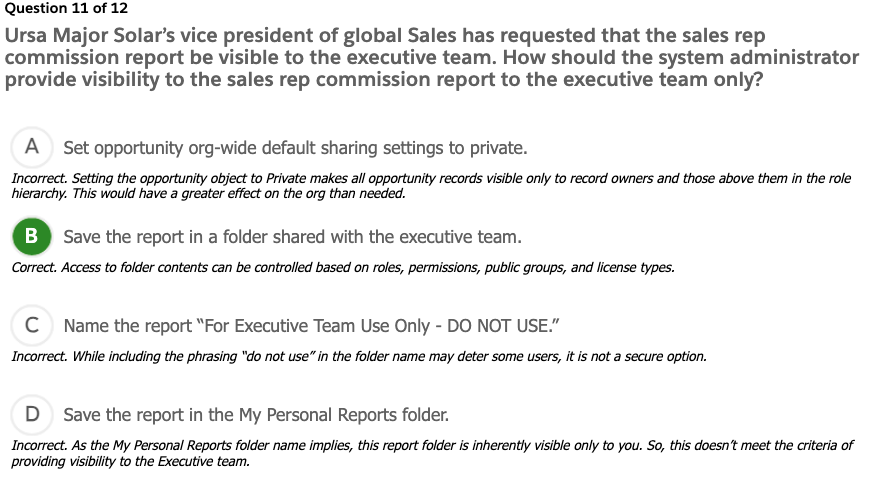
Put the report to the folder where the executives can access.
- App Launcher > Reports > [Report] > Edit > Properties
- Folder > Select Folder > [Executive Reports]
- Save
- Save
Make sure Executive Reports contains all the users you need to show the report.
- Setup > FOLDERS > All Folders > [Executive Reports] > Share(dropdown)
- Share With: Roles
- Name:
- CEO
- CFO
- COO
- Access: View
- Done
12. A user’s profile can be affected by which three settings?

A user’s profile can be affected by:
- Record type assignment
- which record types a user can access for a given object
- Page layouts (different fields or sections shown)
- Picklist values available to the user
- which record types a user can access for a given object
- Security at the field-level
- which fields are visible or editable
- Assigned apps
- which apps a user can access
- Object-level permissions (Read, Create, Edit, Delete)
- Tab visibility
- System permissions (e.g., “Manage Reports”)
- Login hours and IP ranges
Setup > Profiles > [Custom: Sales Profile]
이거 이렇게 해서는 안되겠네..그냥 Profile들어가서 죄다 봐야할거 같은데…뭐가 엄청 많아…
Exam Topic Flashcards
- Salesforce users at Ursa Major Solar complain that global search returns too many records. Which two configurations should an administrator perform to help users manage search results?
- filter, access permission?
- Specify the Search Filter Fields for the object’s search layout.
Reduce the number of records displayed for each object in the Search Results page.
- List View
- A list of records that meet specific filter criteria
- What are two reasons a user cannot be deactivated?
- It’s hard to reactivate, The contents that the user owns are disabled
- The user is the recipient of workflow email alerts.
The user is a customer community administration.
- User License
- Salesforce License that can be assigned to the users.
- They can be assigned based on their roles.
- A user license determines the baseline of features that the user can access. Every user must have exactly one user license. You assign user permissions for data access through a profile and optionally one or more permission sets.
- Permission Set
- Group of the permissions who have same permission
- Permission Set Group is the people
- A permission set is a collection of settings and permissions that give users access to various tools and functions.
The settings and permissions in permission sets are also found in profiles, but permission sets extend users’ functional access without changing their profiles.
권한 세트의 설정 및 권한은 프로필에도 있지만, 권한 세트를 사용하면 프로필을 변경하지 않고도 사용자의 기능적 접근 권한을 확장할 수 있습니다.
- Profile
- One user can have only one profile. Every user must have a profile. Profile is a default permission set of the user’s role.
- Defines how users access objects and data, and what they can do within the application. When you create users, you assign a profile to each one.
- How can a system administrator discover who added a field to the account page layout?
- System log?
- Use the Setup Audit Trail.
- Setup > Security > Setup Audit Trail
- Salesforce에서 관리자(Admin)가 Setup에서 변경한 내역을 추적하는 기능
- Setup 설정 변경 내용
- 누가 변경했는지 (User)
- 언제 변경했는지 (Date/Time)
- 무엇을 변경했는지 (Action)
- 예시
- Password Policy 변경
- Validation Rule 수정
- Profile 권한 변경
- UI에서 최근 20개 변경 사항
- CSV로 최대 6개월치 다운로드 가능
- System Administrator가 주로 쓰고
- 보안 감사 / 컴플라이언스 대응용
- Ursa Major Solar uses a private sharing model for cases. Each product line has several product specialists who want to have visibility to all cases involving their product line. How should the administrator meet this requirement?
제품라인마다 몇명의 스페셜리스트가 있고, 그들의 제품라인에 대한 케이스만 보려면?- Create a predefined case team for each group of product specialists and assign the team using Case Assignment Rules.
Public Group: A public group is a set of users. It can contain individual users, other groups, the users in a particular role or territory, or the users in a role or territory plus all of the users below that role or territory in the hierarchy.- Create a Public Group for each product line
- Setup > Public Groups > New
- Label: Product Line 1 Specialists
- Group Name: Product_Line_1_Specialists
- Search: Users
- Seleted Members
- User: Eleanor Lim
- User: Integration User
- Create a Case Sharing Rule
- Setup > Sharing Settings > Case Sharing Rules
- Label: Product Line 1
- Rule Name: Product_Line_1
- Rule Type
- ✅ Based on criteria
- Criteria
- Field: Product Line
- Operator: equals
- Value: 1
- Share with: Public Group > Product Link 1 Specialists
- Case Access: Read Only
- Setup > Sharing Settings > Case Sharing Rules
- Create a predefined case team for each group of product specialists and assign the team using Case Assignment Rules.
- Organization-wide Sharing Default (OWD)
- It’s company wide default setting
- Defines the default access level for an object’s records with organization-wide sharing settings
각 오브젝트에 대한 기본 접근 권한 설정 - Can be set separately for custom objects and many standard objects, including assets, campaigns, cases, and accounts and their contracts
10. Customer only for Closed Won
Ursa Major Solar has 3 account record types: Prospect, Customer, and Vendor. The Customer record type is only for accounts that have a Closed Won opportunity. How should a system administrator prevent users from selecting the Customer record type when they create new account records?
어떤 회사가 Account Type이 3가지가 있는데 Customer타입으로 등록되려면 그 회사의 Opportunity가 Closed Won되어야만 해당 회사의 Account Type을 Customer로 변경할 수 있다. 어떻게 하면 아무 Account나 Customer로 Type을 변경하지 못하게 막을수 있을까?
// 새로운 Account를 생성할때 Record Type으로 Customer를 선택하지 못하게 하려면,
// 기본적으로 Record Type에 Customer를 옵션으로 넣지 않고,
// 조건이 충분되는 상황에서만 Record Type에 Customer를 끼워넣는다.
Remove the Customer record type as an Assigned record type in the users’ profiles and permission sets.
- Account > Record Type = [Prospect|Customer|Vendor]
- Opportunity > Stage = [Prospecting|…|Close Won]
옵션 1) Account생성시 Customer를 안보이게 하기
1️⃣ Records
Record Type이 없으면 Record Type Settings자체를 할 수가 없으니까
Account Object에 Record Type 3개 입력
- Setup > Object Manager > Account > Record Types > New
- Label:
- Prospect
- Customer
- Vendor
- ✅ Active
- Label:
2️⃣ Remove Customer from Profile
누구에게 해당 기능을 제공할 것인가? Profile.Standard User
그렇다면, Profile에서 Standard User에게 Account의 Record Type를
Customer를 뺀 두개만 보이도록 설정
Setup > Profiles > [Standard User] > Record Type Settings > Accounts > Edit
Setup > Profiles > [System Administrator] > Record Type Settings > Accounts > Edit
* Customer는 반드시 Available Record Types에 있어야 한다.
저장하면 이렇게 두개만 나오게
확인은 Account를 생성해보면 된다.
App Launcher > Accounts > New

App Launcher > Accounts > [Account] > Change Record Type
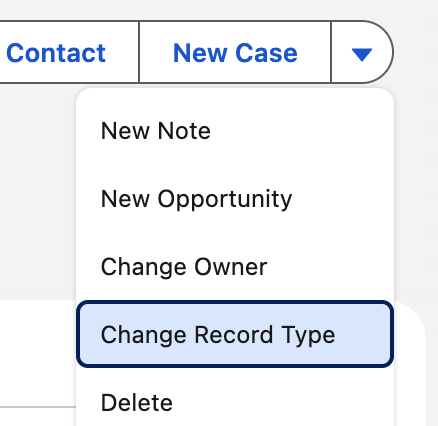
클릭하면 팝업뜨고, 여기도 두개만 보임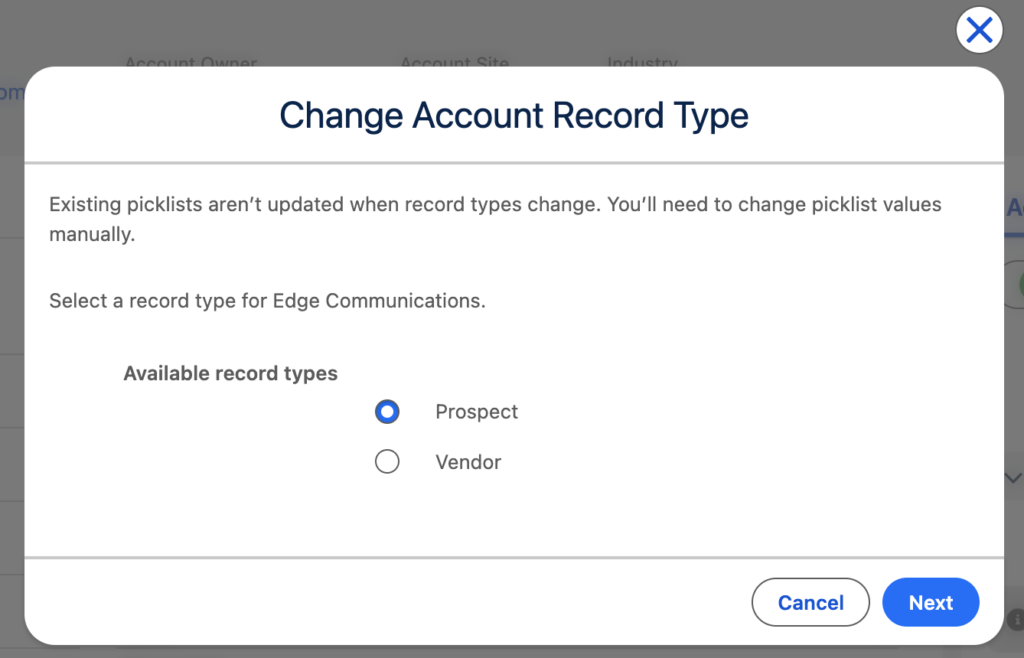
3️⃣ Remove Customer from Permission Set
Customer가 Profile에서 제거되었어도, Permission Set에 있으면 나타날거임
할당받은 여러개의 권한 중에 한개라도 Customer가 있으면 Customer가 나타남
그래서 해당 유저가 할당받은 Permission Set에서도 동일하게 처리를 해주어야함
- Setup > Permission Sets > New
- Label: Account Customer RT Test
- License: –None–
- Save
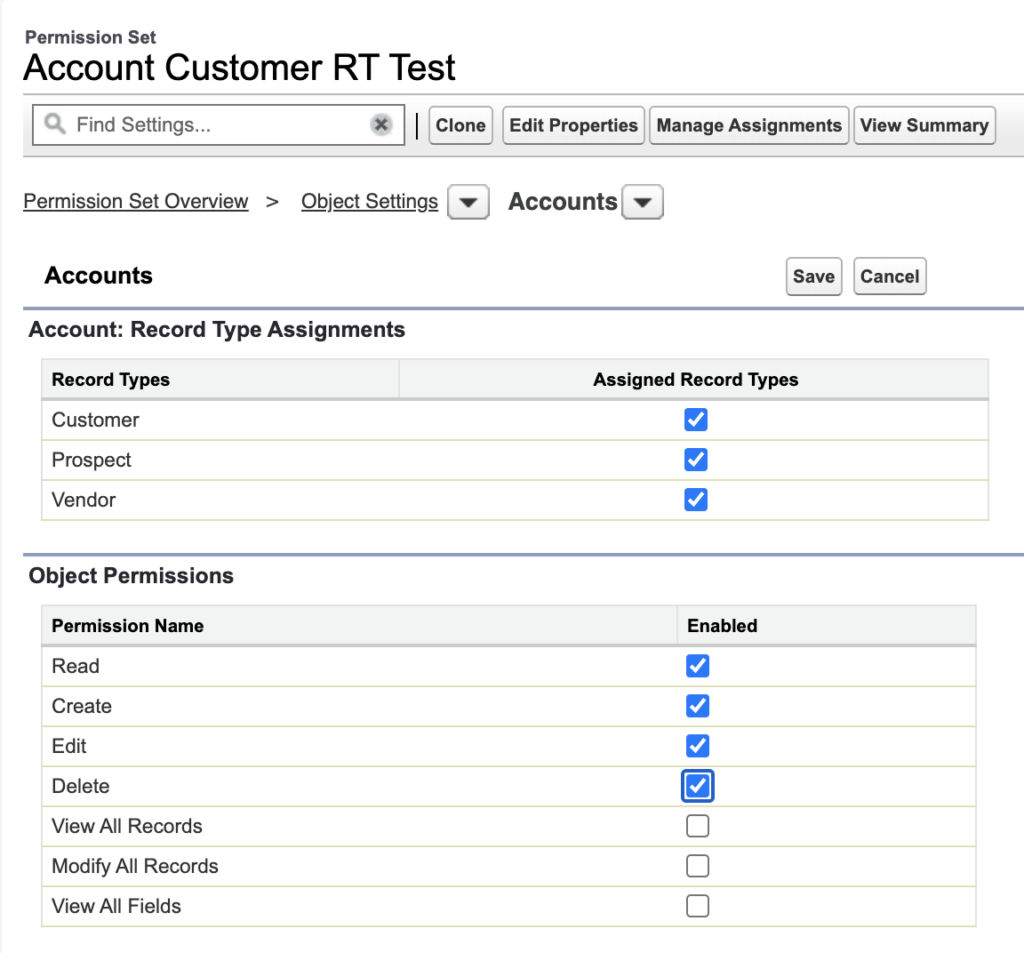
- Object Settings > Accounts > Edit
- Assigned Record Types:
- Customer ✅
- Prospect ✅
- Vendor ✅
- Object Permissions
- Read ✅
- Create ✅
- Edit ✅
- Delete ✅
- Save
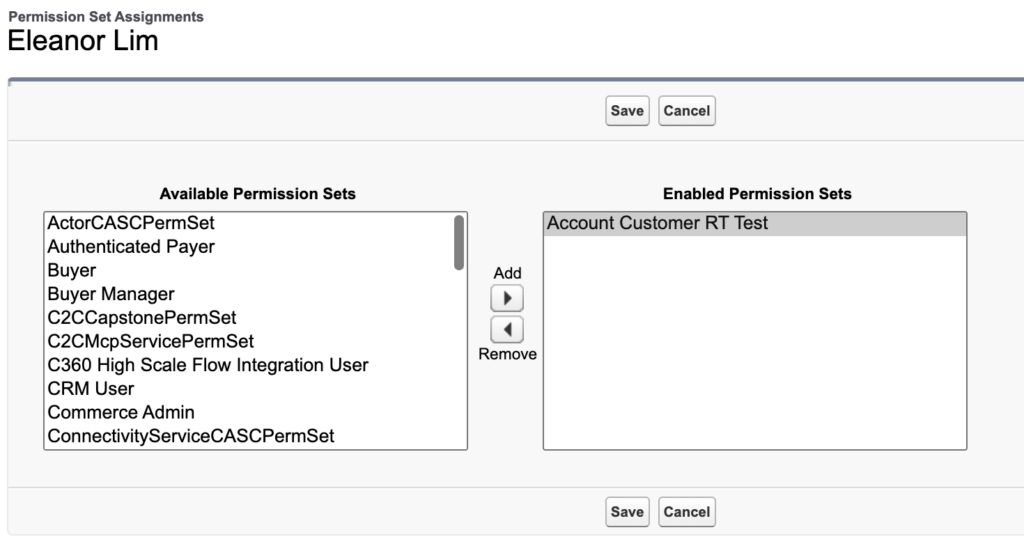
- Setup > Users > [Lim, Eleanor] > Permission Set Assignments > Edit Assignments
- Enabled Permission Sets:
- Account Customer RT Test
- Save
- Enabled Permission Sets:
- App Launcher > Accounts > New

Profile에서 해당 유저의 Profile의 Record Type Settings > Account를 2개로 제한해도,
해당 유저가 Record Type 3개를 허용하는 Permission Set에 assign되어 있다면,
Account를 생성할때 Record Type이 3개가 보인다.
- Setup > Permission Sets > Account Customer RT Test > Object Settings > Accounts > Edit
- Assigned Record Types:
- Customer 🔲
- Prospect ✅
- Vendor ✅
- Save
- Assigned Record Types:
다시 확인할때 저장후 막바로는 처음에 3개 나타날 수 있어요. 하지만 리후레시 계속 하다보면 2개 나와요.
- App Launcher > Accounts > New

옵션 2) Customer를 항상 보이게 하고, 조건 안 되면 저장만 막기
Roll-Up Summary
Closed Won이 있을때만 Customer를 보여줘야하는데
그렇다면 Closed Won을 Account어딘가에 갖다 쓰기 쉽게 Field로 정의를 해야지
- Setup > Object Manager > Account > Fields & Relationships > New
- Data Type: Roll-Up Summary
- Field Label: Closed Won Opportunities
- Summarized Object: Opportunities
- Select Roll-Up Type: COUNT
- Filter Criteria
- ✅ Only records meeting certain criteria should be included in the calculation
- Field: Stage
- Operator: equals
- Value: Closed Won (검색버튼 눌러서 선택하세요)
결과확인
- App Launcher > Accounts > [Account] > Details > Closed Won Opportunities

Validation Rule
Customer를 Record Type에 넣어줘야하는 때
- Setup > Object Manager > Account > Validation Rules > New
- Rule Name: Customer_Record_Type_Check
- Description: Prevent users from selecting the Customer record type when they don’t have a Closed Won opportunity
- Formula:
- AND(
RecordType.DeveloperName = “Customer”,
BLANKVALUE(Closed_Won_Opportunities__c, 0) <= 0
) - Error Message:
- You can only change the Account to Customer if it has a Closed Won Opportunity.
- AND(
Record Type다시 3개 보이게 바꾸기
- Setup > Permission Sets > [Account Customer RT Test] > Object Settings > Accounts > Account: Record Type Assignments

- Save
결과확인. Customer로 생성하려고 하면 저장할때 못하게 막음
(아쉬운건 첫 카드에서 다음 카드로 넘어갈때 Validate을했으면 더 좋지 않았겠냐…는)
- App Launcher > Accounts > New
- Select a record type: ✅ Customer
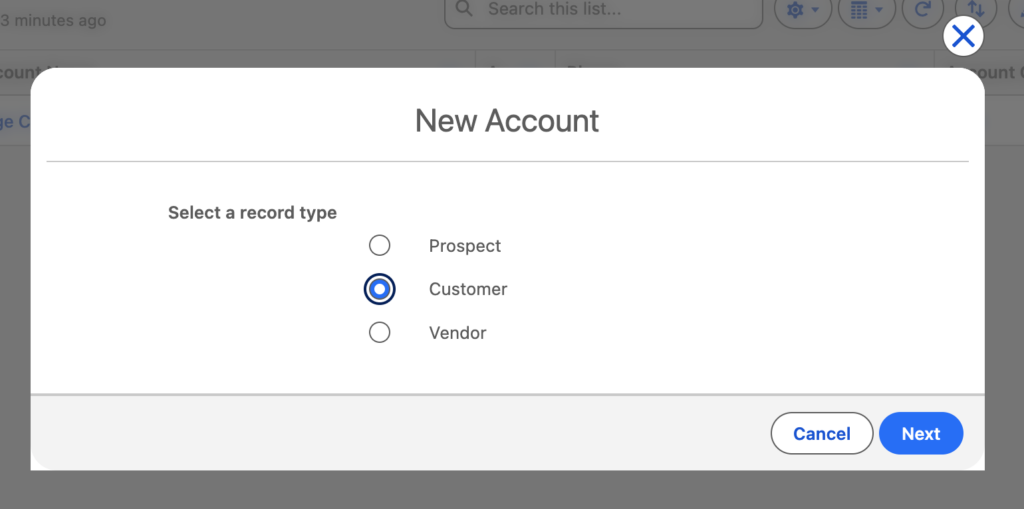
- Next
- Account Name: Test
- Save

- Select a record type: ✅ Customer
옵션 3) Dynamic Actions + Flow Quick Action
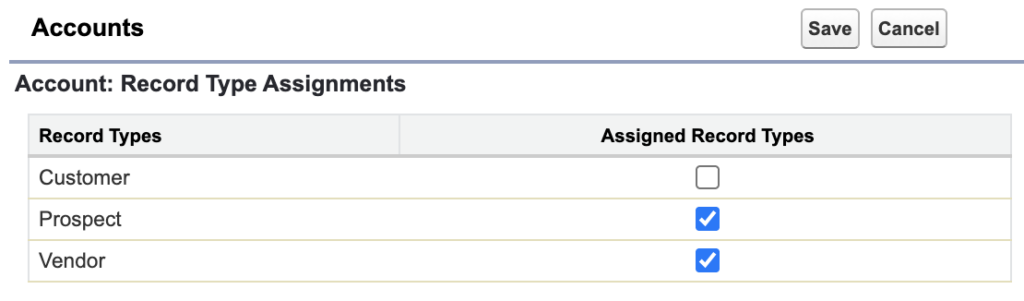
Record Type다시 2개 보이게 바꾸기
- Setup > Permission Sets > [Account Customer RT Test] > Object Settings > Accounts > Account: Record Type Assignments
- Save
시작하기 전에 아래의 전제사항을 만족하는지 확인해주세요:
- Account에 Roll-Up Summary:
Closed_Won_Opportunities__c(Closed Won count) - Customer Record Type이 available하고
- Account의 Record Type은 현재 2개만 보이도록 설정해 놓았음
Screen Flow 생성
- Setup > Flows > New Flow > Screen Flow
- Auto-Layout → Free-Form
- Save
- Flow Label: Convert to Customer
- Save
변수추가
- Manager > New Resource
- Resource Type: Variable
- API Name: recordId
- Data Type: Text
- ✅ Available for input
Quick Action에서 현재 Account Id가 자동으로 들어옴 - Done
Account 가져오기
- Elements > Get Records
- Lable: Get Account
- Object: Account
- Condition Requirements:
- All Conditions Are Met (AND)
- Field: Account ID
- Operator: equals
- Value: RecordId
- How Many Records to Store:
- ✅ Only the first record
- How to Store Record Data:
- ✅ Automatically store all fields
- Done
조건 체크
- Elements > Decision
- Label: Has Closed Won
- API Name: Has_Closed_Won
- New Outcome
- Label: Yes
- Resource:
- Account from Get Account > Closed Won Opportunities
{!Get_Account.Closed_Won_Opportunities__c} - Operator: Greater Than
- Value: 0
- Account from Get Account > Closed Won Opportunities
- Default Outcome
- Label: No
- Done
Yes면 Record Type을 Customer로 업데이트
갱신할 Customer Record Type Id가져오기
- Elements > Get Records
- Label: Get CustomerRT
- API Name: Get_CustomerRT
- Object: Record Type
- Condition Requirements:
- All Conditions Are Met (AND)
- Conditions:
- Field Name: SObject Type Name
- Operator: Equals
- Value: Account
- DeveloperName Equals Customer
- Add Condition:
- Field Name: Record Type Name
- Operator: Equals
- Value: Customer
- How Many Records to Store:
- ✅ Only the first record
- How to Store Record Data:
- ✅ Automatically store all fields
- Done
가져온 RecordId를 Account에 할당하기
- Elements > Assignment
- Label: Put RecordId
- Set Variable Values
- Variable: Account from Get Account > Record Type ID
{!Get_Account.RecordTypeId} - Operator: Equals
- Value: Record Type from Get CustomerRT > Record Type ID
{!Get_CustomerRT.Id}
- Variable: Account from Get Account > Record Type ID
- Done
Account Update하기
- Elements > Update Records
- Label: Update Account
- API Name: Update_Account
- How to Find Records to Update and Set Their Values
- ✅ Use the IDs and all field values from a record or record collection
- Record or Record Collection: Account from Get Account
- Done
No면 에러메세지 보여주는 화면
- Elements > Screen
- Display Text를 끌어다 화면 중앙에 놓는다.
- API Name: Has_Closed_Won_No_Error_Message
- 우측 Textarea에 메세지:
- You can only convert to Customer if you have at least one Closed Won Opportunity.
- Done
- Screen Properties
- Label: Error Message
- API Name: Error_Message
- Done
Flow활성화
- Debug > Run
- Activate
Flow를 Quick Action으로 만들기
- Setup > Object Manager > Account > Buttons, Links, and Actions
- New Action
- Action Type: Flow
- Flow: Convert to Customer
- Label: Convert to Customer
- Save
Dynamic Action버튼만들기
Lightning App Builder열기
해당페이지가 Lightning Page로 등록이 되어 있다면 아래의 경로를 통해 Lightning App Builder페이지를 열수 있습니다.
Setup > Object Manager > Account > Lightning Record Pages > [Account Record Page] > Edit
하지만 아무것도 보이지 않는다면 해당 페이지를 만들어야해요.
App Launcher > Sales > Accounts > [Account] > 최상단 톱니(우리가 Setup으로 갈때 쓰는 그 톱니임) > Edit Page
그러면 Lightning App Builder가 열리는데 여기보면 우측 패널에 Page정보를 저장하는 부분이 있습니다.
- Label: Account Record Page
- API Name: Account_Record_Page
- Save
Action Button 삽입
Account상세페이지에 Convert to Customer버튼을 넣을 건데요. 이 버튼은 Closed Won이 있을때만 보이도록 할거에요. 중앙페널 윗쪽에 Highlights Panel (페이지가 크게 3개로 나누는데 그중 윗부분) 선택하시면 우측에 속성창이 보입니다.
Dynamic Action을 넣으려면 Upgrade를 해야하거든요.
- 우측 속성패널에 Upgrade to Dynamic Actions: You can now configure dynamic actions for the highlights panel in the lighting app builder라고 안내되어 있는곳 밑에 Upgrade Now버튼을 클릭
- 그러면 Dynamic Actions팝업이 뜨는데 여기서 Migrate선택

- Next
- Account Layout선택

- Finish
이제 버튼을 추가해볼게요.
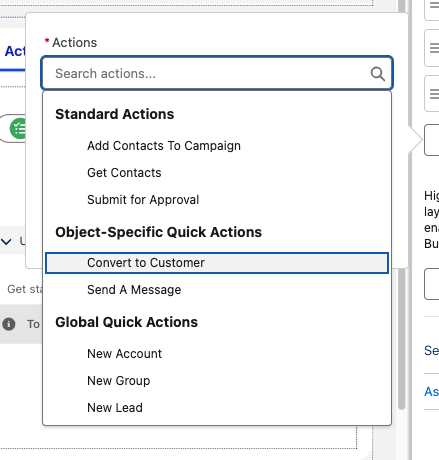
- 우측패널에 Actions버튼들이 생겨는데 맨밑에 Add Action버튼 클릭
- Convert to Customer선택
- Add Filter클릭
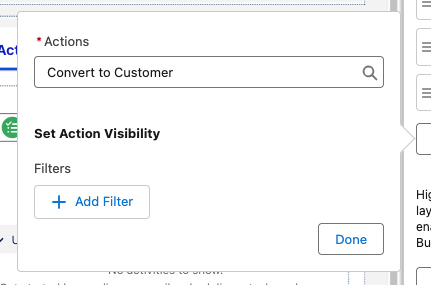
- Filter Type: Record Field
- Field: Closed Won Opportunities
- Operator: Greater Than
- Value: 0
- Done, Done
- Activation버튼 클릭
- ORG DEFAULT > Assign as Org Default
- ✅ Desktop and Mobile
- Close
결과확인
Account Details에 Record Type을 추가해볼까?
- Setup > Object Manager > Account > Page Layouts > [Account Layout] > Fields
- 팔레트에서 Account Record Type버튼을 Account Information 섹션으로 끌어다 놓는다.
하지만 화면이 보이지 않는다. Account에는 “Record Type”이라는 페이지에 올릴 수 있는 일반 필드가 없기때문이다. 일반 필드처럼 레이아웃에 드래그해서 표시 불가.
가능한 경우는 딱 하나 Compact Layout (Highlights Panel)에는 넣을 수 있어요.
- App Launcher > Accounts > [Account] > 최상단톱니 > Edit Page
- Lightning App Builder > Account Record Page > Highlights Panel
- Assign Compact Layouts
- System Default 링크 클릭
>> System Default는 수정불가하기 때문에 Clone해서 만들어서 할당해야함
- System Default 링크 클릭
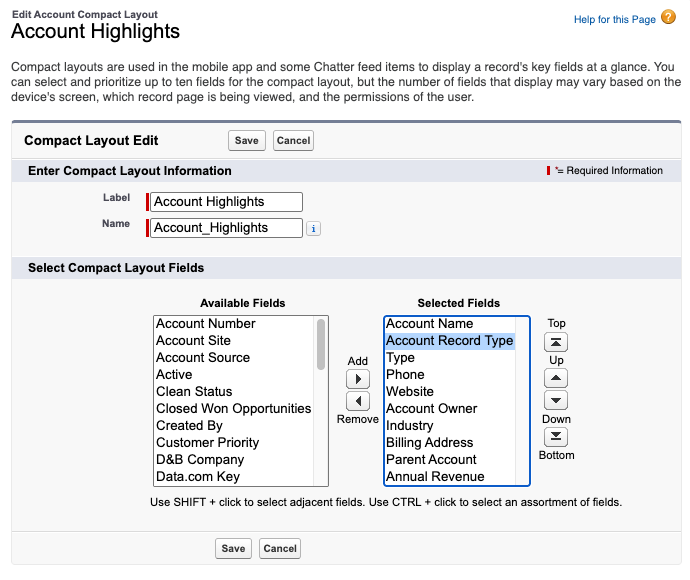
- Clone버튼 클릭 > New Compact Layout
- Label: Account Highlights
- Name: Account_Highlights
- Selected Fields:
- 기존 필드 그대로 두고
- Account Record Type 추가
- 10개만 넣을 수 있으니까 기존에 필드하나 빼고 넣되
- Account Name은 최상단에 있어야한다.
- Save
그러면 기존에 Account에서 Compact Layout으로 System Default쓰고 있던 거를 Account Highlight로 변경
- App Launcher > Accounts > [Account] > 최상단톱니 > Edit Page
- Lightning App Builder > Page > Highlights Panel > Assign Compact Layouts > Edit Assignment
- Primary Compact Layout: Account Highlights
그 밑에는 각 Record Type별로 Compact Layout을 다른 것을 선택하겠냐는 질문은데 아무것도 추가하지 않습니다. - Save
- Primary Compact Layout: Account Highlights
결과확인
App Launcher > Accounts > [Account] > Account Record Type

Convert to Customer실행후 Record Type확인 Customer로 바뀌지 않았다면 Flow문제
Get Account
Id: {!Get_Account.Id}
RT: {!Get_Account.RecordTypeId}
ClosedWon: {!Get_Account.Closed_Won_Opportunities__c}
-----------------------------------------------------------------
Id: 001g7000001XiRWAA0
RT: 012g7000000Avg9AAC
ClosedWon: 3
Get CustomerRT
Customer RT: {!Get_CustomerRT.Id}
-----------------------------------------------------------------
Customer RT: 012g7000000AveXAAS
Account URL: https://cunning-badger-897lvs-dev-ed.trailblaze.lightning.force.com/lightning/r/Account/001g7000001XiRWAA0/view?uid=177143260704426205
Customer Record Type URL: https://cunning-badger-897lvs-dev-ed.trailblaze.my.salesforce-setup.com/lightning/setup/ObjectManager/Account/RecordTypes/012g7000000AveXAAS/view
권한 오류
INSUFFICIENT_ACCESS_ON_CROSS_REFERENCE_ENTITY An operation affects an object that the specified object cross-references, but the logged-in user doesn’t have sufficient permissions on the cross-referenced object. For example, a logged-in user attempts to modify an account record, and the update creates a ProcessInstanceWorkitem. If the user doesn’t have permission to approve, reject, or reassign the ProcessInstanceWorkitem, this exception occurs.
Profile에서 Selected Record Types에 들어가있지 않은 Record Type이나 Permission Set에서 Assigned Record Types에 선택되지 않은 Record Type은 UI에서든, Flow에서든, API로든 어떤방식으로든 선택할 수 없다는게 Salesforce의 강한 규칙이다.
그러니 결국 화면에서는 안보여줬다가 액션버튼으로 허용을 하겠다는 꿈은 실현이 될 수 없는 꿈이었다는 거지
대안1: Record Type선택화면을 안띄우는 방법
Custom Account생성화면을 따로 만들어서 관리하는 방법이 있긴한데, 문제는 계속 따로 관리를 해주어야한다는 거지..엄청 귀찮은 일이야…관리포인트가 늘어나는건 난 반대야
>> 10번문제는 공부를 좀더 한 다음에 계속하는게 좋겠어 지금으로서는 내가 생각하는 이상적인 방안이 떠오르지가 않아
11. System Administrator Report Folder
11. A system administrator cannot share a report folder. What is a possible reason?
>> it’s because, a system admin has too much power, the normal users might not be able to access the folder that system admin shared.
The folder is private.
영어 번역에 살짝 문제가 있다. 이 문제는 시스템 어드민자격으로 리포트폴더를 공유하지 못하는 이유를 묻는것이 아니라, 어떤 시스템 어드민이 있는데, 어떤 리포트 폴더를 공유하지 못하고 있는 상황을 말하면서 왜 이 사람은 해당 폴더를 공유하지 못할까 이유를 물어보고 있는것이다. 시스템어드민임에도 불구하고 어떤 폴더를 공유할수 없다면 그 폴더는 Private이기 때문일것이다.
12. Sharing Rules
Give chosen users greater access by making automatic exceptions to your org-wide sharing settings. Use to extend sharing access to users in public groups, roles, or territories.
13. Role Hierarchy
By creating a hierarchy, you can grant permissions based on the hierarchical relationship.
Salesforce offers a user role hierarchy that you can use with sharing settings to determine the levels of access that users have to your Salesforce org’s data. Roles within the hierarchy affect access on key components such as records and reports.
Permissions come from: Profiles, Permission Sets. Role Hierarchy grants record access.
Provides record access based on role levels
- Permission = what you can do
- Role hierarchy = which records you can see
Quiz
- The Configuration and setup section makes up what percentage of the Platform Administrator Certification exam?
A. 3%
B. 5%
C. 10%
D. 15% - Which key topics are covered in the Configuration and setup section of the Platform Administrator Certification exam?
A. Locale settings,Chatter, list views, and data loader
B.Products, price books, web-to-case, and activities
C. Search results,Chatter, opportunities, and campaigns
D. UI features, company information, locale settings, and search results
Vocabulary
- Locale: 장소
- Fiscal year: 회계연도
- name convention: 이름짓는규칙