Admin Intermediate > Use External Services With a Flow > Create a Flow Using External Services Actions
Create Flow
Flow 생성
- Setup > Quick Find > Flows > New Flow > Screen Flow
이렇게 해도 똑같아요. Setup > App Launcher > Automation > New > Screen Flow - Create
상단에 Auto-Layout을 Free-Form으로 변경하면 좌측에 툴바가 보이게 되요.
Screen 추가
- 좌측 Elements탭에서 Screen을 끌어다 Start 밑에 놓습니다.
- Label: Bank Account Record
- API Name: Bank_Account_Record
- 좌측 Components메뉴에서 input하단에 Text를 끌어다 중앙에 Flow Label밑에 놓습니다.
텍스트상자를 놔도 되는 곳에서 초록색이 됩니다.- Label: Last Name on Account
- Text를 하나더 끌어다 놓습니다.
- Label: Bank Account Type
- Done
- Save
- Flow Label: Bank Account Records
- Save
Action 추가
- 좌측 Elements탭에서 Action을 끌어다 Screen밑에 갖다 놓습니다.
- 팝업이 뜨면 좌측에 Filter By: Category로 된거를 Type으로 바꾸고 External Service를 선택합니다.
이렇게 해도 똑같아요. Filter By: Category > BankService를 선택합니다. - 우측 Action 검색창에서 Add Account를 선택합니다.
- Label: Add Bank Account
- Account Name:
- Bank Account Record > Last Name on Account 선택
- Account Type:
- Bank Account Record > Bank Account Type 선택
- Advanced ✅ Manually assign variables
- 201 > New Resource
- Resource Type: Variable
- API Name: account
- Data Type: Apex-Defined
- Apex Class: ExternalService_BankService_accountDetails
- Availability Outside the Flow
- ✅ Available for input
- ✅ Available for output
- Done
- 409 > New Resource
- Resource Type: Variable
- API Name: existingAccount
- Data Type: Apex-Defined
- Apex Class: ExternalService_BankService_accountDetails
- Availability Outside the Flow
- ✅ Available for input
- ✅ Available for output
- Done
- Done
- 201 > New Resource
Decision 추가
- 좌측 Elements탭에서 Decision을 끌어다 Action밑에 갖다 놓습니다.
- Label: Bank Account Updated?
- New Outcome
- Label: Bank Account Created
- Condition Requirements to Execute Outcome: All Conditions Are met (AND)
- Resource: existingAccount

Object를 선택하고 나면 필드를 선택하도록 유도하는데 우리는 레코드 자체의 존재유무를 파악해야하기 때문에 필드는 선택하지 않습니다.
필드를 선택하지 않으면 Resource에 그냥 Resource이름만 들어갑니다.
- Operator: is Null
- Value: GlobalConstant > True
- Resource: existingAccount
- 왼쪽 메뉴에 Default Outcome 선택
- Label: Bank Account Found
- Done
Default Outcome은 이름만 있고 조건은 없습니다. 왜냐면 조건에 부합하지 않는 모든 흐름은 Default Outcome으로 흘러가기 때문입니다. IF문의 Else같은거죠.
Assignment 추가
- 좌측 Elements탭에서 Assignment을 끌어다 Decision밑에 갖다 놓습니다.
- Label: Assign Existing Bank Account ID
- Set Variable Values
- Variable
- Apex-Defined Variables 밑에 account를 선택합니다.
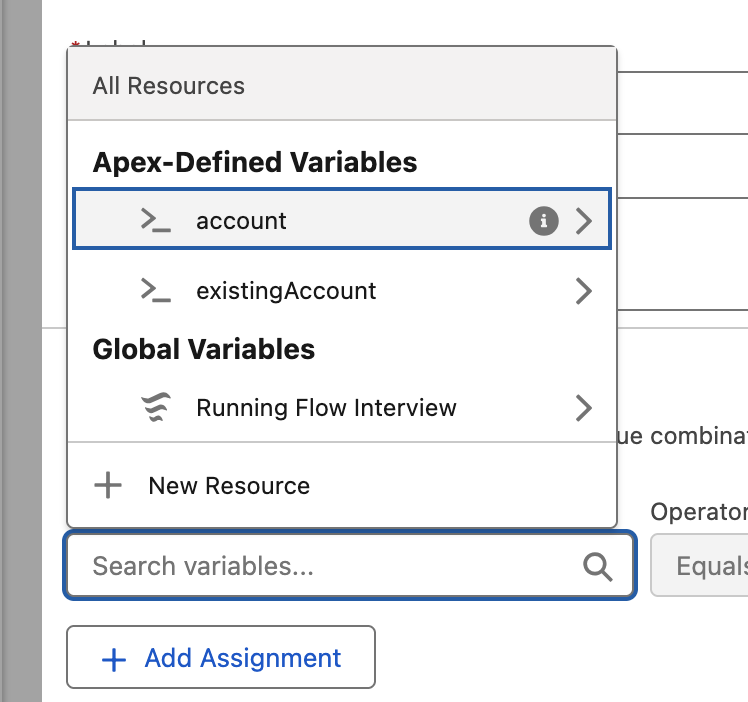
그러면 필드를 선택하는 창이 뜨는데 여기서 id를 클릭합니다.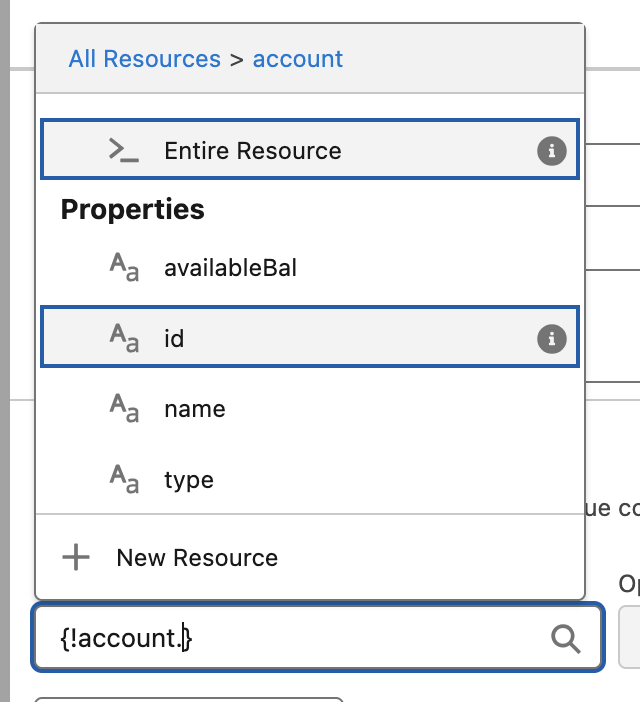
- account가 입력창에 들어가면 그 다음에 필드명 id를 선택합니다.
- Operator: Equals
- Value: existingAccount.id


- Apex-Defined Variables 밑에 account를 선택합니다.
- Variable
- Done
Update Records 추가
- 좌측 Elements탭에서 Update Records을 끌어다 Decision밑에 갖다 놓습니다.
- Label: Update Salesforce User Record
- How to Find Records to Update and Set Their Values
- ✅ Specify conditions to identify records and set fields individually
- Update Records of This Object Type
- Object: User
- Filter User Records
- Condition Requirements to Update Records: All Conditions Are Met (AND)
- Field: Last Name
- Operator: Equals
- Value: Bank Account Record > Last Name on Account
- Set Field Value for the User Records
- Field: Account ID
- Value: account.id
- Add Field버튼 클릭
- Field: Account Type
- Value: Bank_Account_Type
- Done
- 좌측 Manager탭에서 New Resource를 클릭합니다.
- Resource Type: Variable
- API Name: accountTypeField
- Data Type: Record
- Object: User
- Availability Outside the Flow
- ✅ Available for output
- Done
- 좌측 Manager탭에서 New Resource를 클릭합니다.
- Resource Type: Variable
- API Name: user
- Data Type: Record
- Object: User
- Availability Outside the Flow
- ✅ Available for output
- Done
Connect Elements & Run
- Start → Screen → Action → Decision → Update Records
- Outcome: Bank Account Created
- Done
- Decision → Assignment
- 자동으로 Decision중 선택하지 않은 나머지 하나가 할당됨
- Assignment → Update Records
- Save
Debug
Thompson으로 실행하면 에러가 난다 [409 ERROR]
- Debug버튼을 클릭합니다.
- ✅ Select Run the latest version of each flow called by subflow elements.
- 하단에 Run버튼을 클릭합니다.
- Last Name on Account: Thompson
- Bank Account Type: Checking
- Next

test1은 valid한 Last Name이 아니다 [Bad Request]
- Debug버튼을 클릭합니다.
- ✅ Select Run the latest version of each flow called by subflow elements.
- 하단에 Run버튼을 클릭합니다.
- Last Name on Account: test1
- Bank Account Type: Checking
- Next

아마도 이름에 숫자가 들어가서 그런거 같아요.
Bank Service API에 새레코드 추가 [201 OK]
- Debug버튼을 클릭합니다.
- ✅ Select Run the latest version of each flow called by subflow elements.
- 하단에 Run버튼을 클릭합니다.
- Last Name on Account: Howard
- Bank Account Type: Checking
- Next

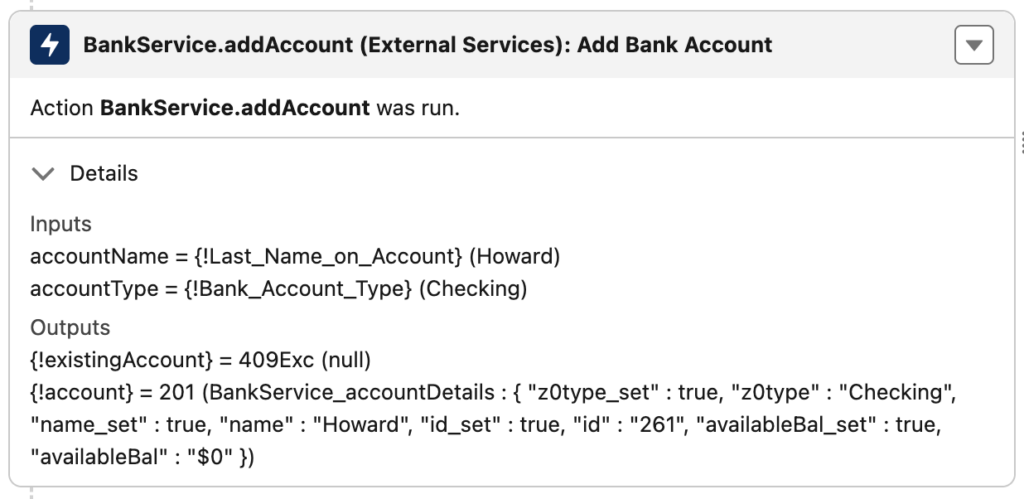


Salesforce User에 동일한 레코드 추가 [201 OK]
- Setup > Users > New User > Ellie Howard
다시 로직을 돌립니다.
- Setup > Flows > Bank Account Records
- Debug > Run
- Last Name on Account: Howard
- Bank Account Type: Checking
- Next
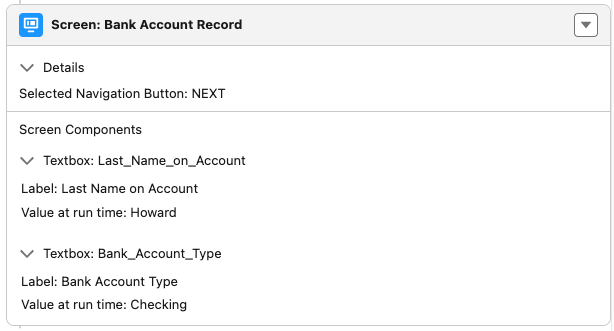


결과 확인
- Setup > Users > Ellie Howard
- Account Type: Checking
- Account ID: 144
어쩐지 Thompson으로는 테스트가 안되고, Bank Service Records에 새로운 레코드 Howard를 입력해서 Bank API에 데이타를 추가한 뒤에, Salesforce에서 동일한 레코드를 추가한 뒤, 다시 Bank Service Records를 돌려서 해당 레코드를 Bank API를 통해 검색한 뒤, Salesforce에서 데이타를 갱신하도록 유도했더니 결과가 잘 나왔다.