AppExchange Basics: Navigate AppExchange

Admin Intermediate > AppExchange Basics > Navigate AppExchange

AppExchange둘러보기

AppExchange전략을 이미 계획했다면 검색을 통해서 앱을 찾으시고, 뭘해야할지 모르겠다 하실때는 상단 메뉴에서 Type별로 앱을 둘러 보세요. Top Categories도 제공하고 있으니까 살펴보세요.

Search and Filter the Expert Way

Ursa Major를 위한 Lightning Experience랑 호환되는 공짜 앱을 찾아 볼게요.

  1. AppExchange를 열어주세요
  2. 검색창에 dashboard를 입력한뒤 엔터
  3. 왼쪽에 보면 필터가 있는데 그중에 Solution Type을 찾아서 필터옵션을 열어서 다른거 전부다 선택해제하고 Salesforce App만 선택해주세요.
  4. 그리고 Pricing섹션에서 Free만 선택하세요.
  5. Features and Capabilities섹션에서 Lightning Ready를 선택해주세요.
    Supported Features에서 Lightning App Builder와 Lighting Experience를 선택해주세요.

Quiz

  1. What is one benefit of logging in to AppExchange?
    A. You can access filters.
    B. You save time when you install a solution.
    C. You gain access to private developer forums.
    D. You can directly edit Salesforce code.
  2. What area of AppExchange lets you discover solutions according to your business challenge or industry?
    A. Collections
    B. Explore
    C. Learn
    D. Consultants

A했다 D했다 B하는 바람에 +25밖에 못먹음…

References

AppExchange Basics: Get Started with AppExchange

Admin Intermediate > AppExchange Basics > Get Started with AppExchange

AppExchange?

Salesforce의 공식 앱스토어이며 유용한 앱을 무료또는 유료로 다운받아 설치할 수 있고, 커뮤니터로서의 역할도 합니다.

Define an AppExchange Strategy

사전에 약간의 계획만 세워도 사용자 만족도를 높이는 솔루션을 찾는 데 큰 도움이 됩니다. AppExchange 전략을 수립하려면 다음 질문들을 스스로에게 던져보세요.

  • Solution type: Salesforce와 빠르게 통합되는 솔루션을 찾고 계신가요? 그렇다면 앱과 같은 솔루션이 가장 적합할 것입니다. 아니면 복잡한 비즈니스 문제를 해결하기 위한 맞춤형 솔루션 구축에 도움이 필요하신가요? 이 경우에는 컨설턴트의 도움을 받는 것이 더 나을 수 있습니다.
  • Functionality: 솔루션은 어떤 기능을 수행해야 하나요? 필수 기능과 있으면 좋은 기능은 무엇인가요?
  • Budget: 적합한 솔루션이라면 비용을 지불할 의향이 있으신가요, 아니면 무료 솔루션이 필요한가요? 유료 등록의 경우, 선호하는 가격 모델은 무엇인가요? AppExchange는 일회성 결제와 구독 방식을 모두 지원합니다.
  • Stakeholder needs: 누가 이 솔루션을 사용할까요? 이해관계자들과 만나 요구사항, 기대치, 일정 등을 파악하세요.
  • Testing: 솔루션을 테스트할 수 있는 환경이 마련되어 있나요? 실제 운영 환경에 설치하기 전에 샌드박스 또는 개발자 에디션 조직에서 테스트하는 것이 좋습니다.
  • Technical considerations: 솔루션이 특정 Salesforce 제품, 에디션 또는 기능과 호환되어야 합니까? 구현의 특수성을 생각해 보고 해당 사항을 기록해 두세요.
  • 위의

위의 전략들을 태양열 회사, Ursa Major에 적용해 보면 다음과 같습니다.

CriterionRequirements
Solution type솔루션이 좋을까요, 아니면 컨설턴트가 좋을까요? 이 프로젝트에 투입할 자원이 제한적이므로, 별도의 설정 없이 바로 사용할 수 있는 솔루션을 선호합니다. 즉, 앱과 같은 솔루션이 적합하다는 뜻입니다.
Functionality누가 가장 자주 로그인하는지와 같은 사용자 채택 데이터가 필요합니다. 어떤 기능을 사용하는지도 알면 좋지만 필수적인 것은 아닙니다.
Budget가능하다면 무료가 좋겠죠
Stakeholder needs수집한 데이터를 Ursa Major의 경영진과 공유할 계획이시군요. 그들은 시각적인 자료를 선호하니 차트나 그래프로 데이터를 보여주면 좋을 것 같습니다.
Testing새로운 기능을 시험해보고 Trailhead 챌린지를 완료하는 데 사용하는 개발자 에디션 조직이 있습니다.
Technical considerations엔터프라이즈 에디션 및 Lightning Experience와 호환됩니다.

Quiz

  1. What is AppExchange?
    • A. A vibrant community powered by admins, developers, and Salesforce partners
    • B. The unofficial Salesforce store for solutions and services
    • C. A place to connect with prebuilt solutions for business challenges you face
    • D. A and B
    • E. A and C
  2. What is important to keep in mind when you develop an AppExchange strategy?
    • A. Think about whether you want a free or paid solution.
    • B. Have an environment where you can test the solution, like a Developer Edition org or a sandbox.
    • C. Avoid meeting with stakeholders, because they might slow down your search for a solution.
    • D. A and B
    • E. A and C

Approve Records with Approval Processes: Build an Approval Process

Admin Intermediate > Approve Records with Approval Processes > Build an Approval Process

Create an Email Template

시작전에 Playgound(Approval Process)를 새로 생성합니다.

  1. Setup > Quick Find > Classic Email Templates > New Template
    • Template Type: Text
    • Next
    • Folder: Unfiled Public Classic Email Templates
    • ✅ Available for Use: selected
    • Email Template Name: Approve Opportunity Discount
    • Encoding: General US & Western Europe
    • Subject: Please approve this discounted opportunity
    • Email Body: {!User.Manager}, the {!Opportunity.Name} has been discounted. Please approve this discount. Thank you.
    • Save

Add Custom Fields

  1. Setup > Object Manager > Opportunity > Fields & Relationships > New
    • Data Type: Percent
    • Next
    • Field Label: Discount Percent
    • Length: (leave as default)
    • Decimal Places: (leave as default)
    • Required: ✅ Always require a value in this field in order to save a record
    • Next, Next, Save & New
    • ————————————————————————
    • Data Type: Picklist
    • Next
    • Field Label: Discount Percent Status
    • Values: ✅ Enter values, with each value separated by a new line
      • Approved
      • Not Approved
    • Next, Next, Save

Create an Approval Process

  1. Setup > Approval Processes > Opportunity > Create New Approval Process > Use Jump Start Wizard
    • Name: Approve Opportunity Discount
    • Approval Assignment Email Template: Approve Opportunity Discount
    • Specify Entry Criteria:
      • Field: Opportunity: Discount Percent
      • Operator: greater than
      • Value: 40
    • Select Approver: ✅ Let the submitter choose the approver manually
    • Save
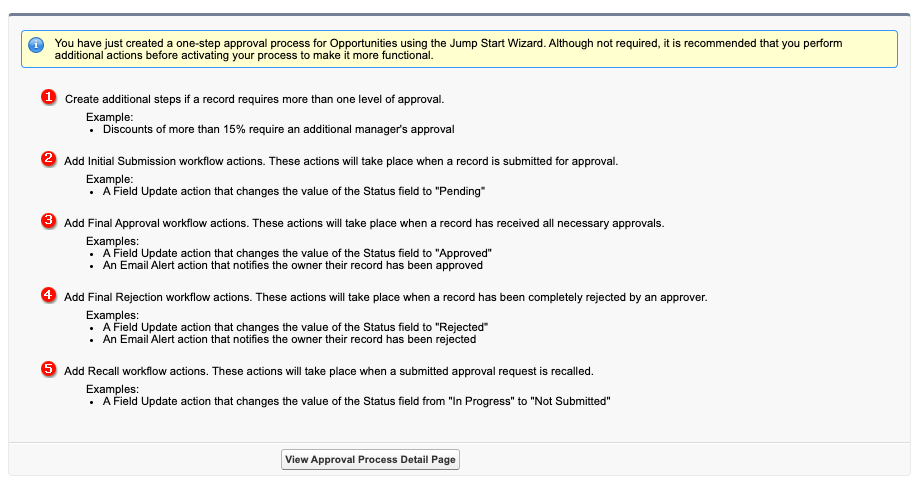
  2. View Approval Process Detail Page를 클릭하세요
  3. Final Approval Actions밑에 Add New > Field Update를 클릭하세요
    • Name: Approved
    • Field to Update: Discount Percent Status
    • ✅ A specific value: Approved
    • Save
  4. Final Rejection Actions밑에 Add New > Field Update를 클릭하세요
    • Name: Not Approved
    • Field to Update: Discount Percent Status
    • ✅ A specific value: Not Approved
    • Save
  5. 상단에 Activate버튼 클릭

Make Sure That Records Are Submitted

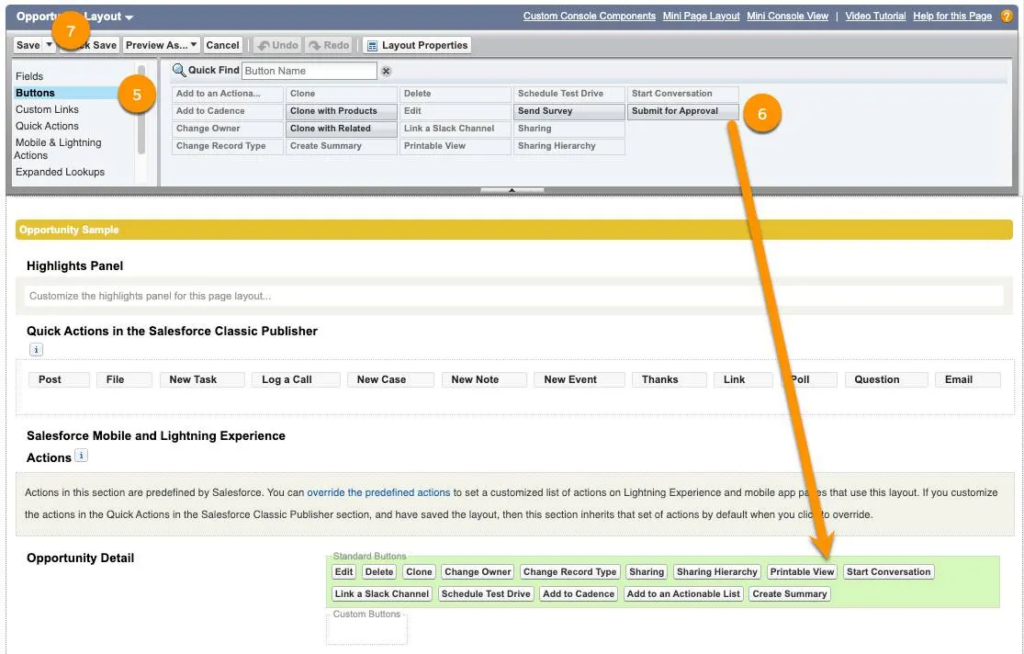
  1. Setup > Object Manager > Opportunity > Page Layouts > Opportunity Layout > Buttons
  2. 팔레트에서 Submit for Approval버튼을 끌어다가 Opportunity Detail에 있는 Standard Buttons섹션 안에 갖다 놓으세요
  3. Save

만약 Dynamic Actions을 쓰고 있다면 Lightning Record Page에 이 버튼을 갖다 놓으셔야합니다.

Hands-on Challenge

Create an approval process

Create an approval process to ensure that prospect accounts with more than 500 employees are approved before they’re converted to customers

Before You Start
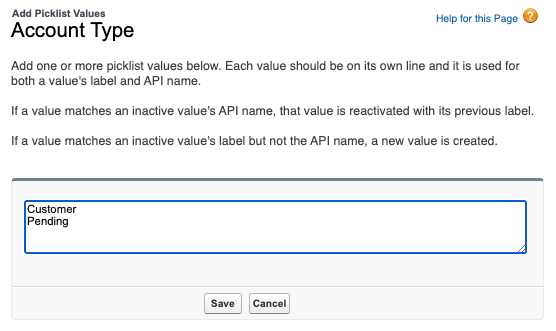
Go to Object Manager. In Fields and Relationships for the Account object, check the Type field’s picklist values for ProspectCustomer, and Pending. Add any of these values that are missing.

Use the Jump Start Wizard to create an approval process:

  • Manage Approval Processes For: Account
  • Name: Approve New Account
  • Unique Name: Approve_New_Account
  • Approval Assignment Email Template: choose any template
  • Entry Criteria:
    • Account: Type equals Prospect
    • Account: Employees is greater than 500
  • Approver:
    • Automatically assign to approver(s)
    • User: assign yourself
  • Add an initial submission action that updates fields:
    • Name: Account Type To Pending
    • Unique Name: Account_Type_To_Pending
    • Action: Update the Type field to Pending
  • Add a final approval action that updates fields:
    • Name: Account Type To Customer
    • Unique Name: Account_Type_To_Customer
    • Action: Update the Type field to Customer
  • Edit the existing final approval action:
    • Name: Record Lock
    • Action: Unlock the record for editing
  • Add a final rejection action that updates fields:
    • Name: Account Type To Prospect
    • Unique Name: Account_Type_To_Prospect
    • Action: Update the Type field to Prospect
  • Activate the approval process

풀이

Prospect Account가 500명 이상의 직원수를 가지고 있다면 Costomer로 전환하기 전에 승인을 받는 Approval Process를 만들거에요.

시작하기 전에

필요한 데이타가 들어가 있는지 확인해볼게요

  1. Setup > Object Manager > Account > Fields and Relationships > Type
  2. 밑으로 스크롤해보시면 Account Type Picklist Values밑에 선택값들이 있습니다. 아래 3개의 값이 있는지 확인하고 없다면 추가해주세요.
    • Prospect
    • Customer
    • Pending
  3. 저는 2개가 빠져있어서 두개 넣었어요.

승인요청시 사용할 이메일 템플릿을 만들겠습니다.

  1. Setup > Quick Find > Classic Email Templates > New Template
    • Template Type: Text
    • Next
    • Folder: Unfiled Public Classic Email Templates
    • ✅ Available for Use: selected
    • Email Template Name: Approve Converting Account to Customer
    • Encoding: General US & Western Europe
    • Subject: Please approve converting this account to a customer
    • Email Body: {!User.Manager}, The prospect account {!Account.Name} has more than 500 employees. Please approve converting this account to a customer. Thank you.
    • Save

Approval Process를 만들겠습니다.

  1. Setup > Approval Processes > Account > Create New Approval Process > Use Jump Start Wizard
    • Name: Approve New Account
    • Unique Name: Approve_New_Account
    • Approval Assignment Email Template: choose any template
    • Specify Entry Criteria
      • Account: Type equals Prospect
      • Account: Employees is greater than500
    • Select Approver
      • ✅ Automatically assign to approver(s)
      • User: 본인 계정 선택해주세요
    • Save
  2. View Approval Process Detail Page버튼 클릭하세요
  3. Initial Submission Actions > Add New > Field Update
    • Name: Account Type To Pending
    • Unique Name: Account_Type_To_Pending
    • Field to Update: Type
    • ✅ A specific value: Pending
    • Save
  4. Final Approval Actions > Add New > Field Update
    • Name: Account Type To Customer
    • Unique Name: Account_Type_To_Customer
    • Field to Update: Type
    • ✅ A specific value: Customer
    • Save
  5. Final Approval Actions > Record Lock > Edit
    • Unlock the record for editing
    • Save
  6. Final Rejection Actions > Add New > Field Update
    • Name: Account Type To Prospect
    • Unique Name: Account_Type_To_Prospect
    • Field to Update: Type
    • ✅ A specific value: Prospect
    • Save
  7. 상단에 Activate버튼 클릭하세요

Approve Records with Approval Processes: Customize How Records Get Approved

Admin Intermediate > Approve Records with Approval Processes > Customize How Records Get Approved

Approval Process

어떤 직원이 승진이 하고 싶어서 보고서를 씁니다. 자기 승진좀 시켜달라고. 그러면 상사가 결제를 하겠죠? 근데 상사가 결제할때 승진은 안된다고 하고 거절하면 바로 그냥 돌아서는거고, 만약에 상사가 그래 내가 보기엔 너 승진하는게 맞아 그러면 사장님께 결제서류가 올라가겠죠? 그러면 사장님이 보고 오케이 하면 승진이 되는것이고 안된다 그러면 승진은 물건너 가는거죠. 이런 상사한테 결제 받는 일련의 처리를 시스템 안에서 알려주고 결제를 받고 하는 프로세스를 Approval Process라고 합니다. Approval Process를 만들려면 일단

  1. 어떤 단계를 거쳐서 어떻게 처리 할지 단계를 먼저 구상해야겠죠
  2. 그다음 누가 어떤 단계를 결제할지 승인할 사람을 결정해야해요
  3. 그리고 그 사람이 어떤 작업을 할지를 결정하면 됩니다.

Build an Approval Process

이번에는 실제 Approval Process를 만들어 볼건데요. 물건을 파는데 40%이상 할인된 가격으로 판매되는 건수에 대한거는 관리자의 승인을 받아야만 판매가 이루어지도록 제한을 걸거에요.

Preplanning

Approval Process를 만드는데 가장 우선적으로 해야할 일은 대충 뭘 어떻게 할지 단계나 처리 내용등을 계획하는 일이에요.

  1. 일단 판매시 할인율이 얼마인지 저장하는 필드가 필요해요 40%이상인지 아닌지를 확인하려면 말이에요.
    • Opportunity에 Custom field를 만들어서 몇% 할인받고 파는건지 저장해요.
  2. 그리고 어디까지 승인이 되었는지 그것도 계속 추적을 해야하니까
    • Opportunity객체에 Custom Field를 하나 더 만들어서 현재 승인상태를 저장해요
  3. 그 다음엔 40%이상 할인받는 판매건이 있다면 관리자에게 승인을 요청해야겠죠
    • 여기가 바로 Approval Process가 필요한 구간이에요
  4. 만약 40%이상 할인받고 파는 물건이 있다면 관리자에게 알림을 해줘야해요
    • 이메일을 보내서 승인해달라고 알리도록 할게요
  5. 관리자가 들어와서 승인을 하든 거절을 하든 승인상태를 수정할거에요
    • 이때 Action은 승인상태 필드를 업데이트 하는거에요

이번 시간에는 대충 Approval Process에 대한 개념만 잡고 계획하는 단계까지만 했는데요. 다음시간에 이어서 계속 40%할인에 대한 관리자 승인작업을 계속 진행하도록 하겠습니다.

Quiz

  1. In an approval process, the parts you define are:
    승인 절차에서 여러분이 정의하는 부분은 무엇인가요?
    • A. Steps, approvers, and actions
      A. 단계, 승인자 및 작업
    • B. Requests, approvers, and approvees
      B. 요청, 승인, 승인 받는 사람
    • C. Submission actions and CEO approvals
      C. 제출 작업 및 CEO 승인
    • D. Submissions, authorizations, and Lightning actions
      D. 제출, 승인 및 Lightning 작업
  2. True or false: there’s no reason to plan an approval process before you start creating it.
    참 또는 거짓: 승인 프로세스를 만들기 전에 계획할 필요는 없습니다.
    • A. True
    • B. False

Build a Suggestion Box App: Create Reports and Dashboards

Admin Intermediate > Build a Suggestion Box App > Create Reports and Dashboards

Create Reports and Dashboards

앱을 만들고 나면 보고서나 대시보드를 생성해서 해당 앱이 어떻게 사용되어지고 있는지를 모니터링하는게 매우 중요합니다. 이번 시간에는 Suggestion Box앱에 대한 보고서 및 대시보드를 생성해보도록 하겠습니다.

Create a Tabular Report

테이블 형태의 간단한 보고서를 만들어서 합계, 평균, 최대값, 최소값 등을 보여주도록 하겠습니다.

우선 보고서를 생성하고, 아직 해결되지 않은 건의들만 모아서 보여주도록 할게요.

  1. Setup > App Launcher > Suggestion Box > Reports > New Report > Suggestions > Start Report
  2. 좌측 패널 Columns에서 Add column을 클릭하고 Status와 Number of Days Open를 선택하여 추가합니다.
  3. 좌측 패널의 Filters탭을 선택한뒤, Add filter를 클릭하여 Status필드를 선택합니다.
    • Field: Status
    • Operator: not equal to
    • Value: Implemented
    • Apply
  4. Save
    • Report Name: Suggestions: Status of Open Suggestions
    • Folder: Public Reports
  5. Save, Save & Run

Create a Summary Report and a Report Chart

요약보고서를 만들겠습니다.

  1. Setup > App Launcher > Suggestion Box > Reports >
  2. Suggestions: Status of Open Suggestions > Edit > Save As
    • Report Name: Suggestions: By Status
    • Folder: Public Reports
    • Save
  3. Edit버튼 클릭
  4. 좌측패널에서 Groups > Group Rows > Add Group > Status를 선택해주세요.
  5. Save & Run

이 보고서에 도넛챠트를 만들겠습니다. 이 챠트는 상태별로 진행 중 제안의 총 개수를 보여줍니다.

  1. 상단에 Add Chart버튼을 클릭하세요.
  2. 챠트 하나가 임의로 들어오면 챠트안에 톱니바퀴 아이콘을 클릭합니다.
    • Display As: Donut
    • Chart Title: Suggestions Status
    • Value: Record Count
  3. Edit버튼 옆에 드롭다운 클릭한 후 Save를 선택합니다.

Create a Dashboard

  1. Setup > Suggestion Box > Dashboards > New Dashboard
    • Name: Suggestions Dashboard
    • Folder: Private Dashboards
    • Create
  2. +Widget > Chart or Table
    • Suggestions: By Status
    • Select
    • Display As: Donut
    • Value: Record Count
    • Title: Suggestions By Status
    • Add
  3. Save > Done

Build a Suggestion Box App: Add Business Logic

Admin Intermediate > Build a Suggestion Box App > Add Business Logic

Add Business Logic

이번 시간에는 건의한 내용이 개선이 되면 개선된 날짜를 입력하는데요. 그때 해당 건의의 상태가 구현되었음으로 자동으로 바뀌도록 Flow를 만들도록 하겠습니다.

Add a Formula Field

건의한 내용이 개선이 잘 되고 있는지를 확인하기 위하여 개선이 안되었으면(Implemented Date가 없으면) 건의를 한 날짜부터 오늘까지 일수를 적어서 보여주고 개선이 되었으면(Implemented Date가 있으면) 개선되는데까지 며칠이 걸렸는지 보여주는 수식을 만들어 넣습니다.

  1. Setup > Object Manager > Suggestion > Fields & Relationships > New
    • Data Type: Formula
    • Next
    • Field Label: Number of Days Open
    • Field Name: Number_of_Days_Open
    • Formula Return Type: Number
    • Decimal Places: 0
    • Next
    • Advanced Formula > 수식편집기에 아래 수식을 넣습니다.
      • IF(ISBLANK(Implemented_Date__c), TODAY() – DATEVALUE(CreatedDate), Implemented_Date__c – DATEVALUE(CreatedDate))
    • Check Syntax버튼을 눌러서 오류를 확인합니다.
    • Next, Next, Save

Add a Validation Rule

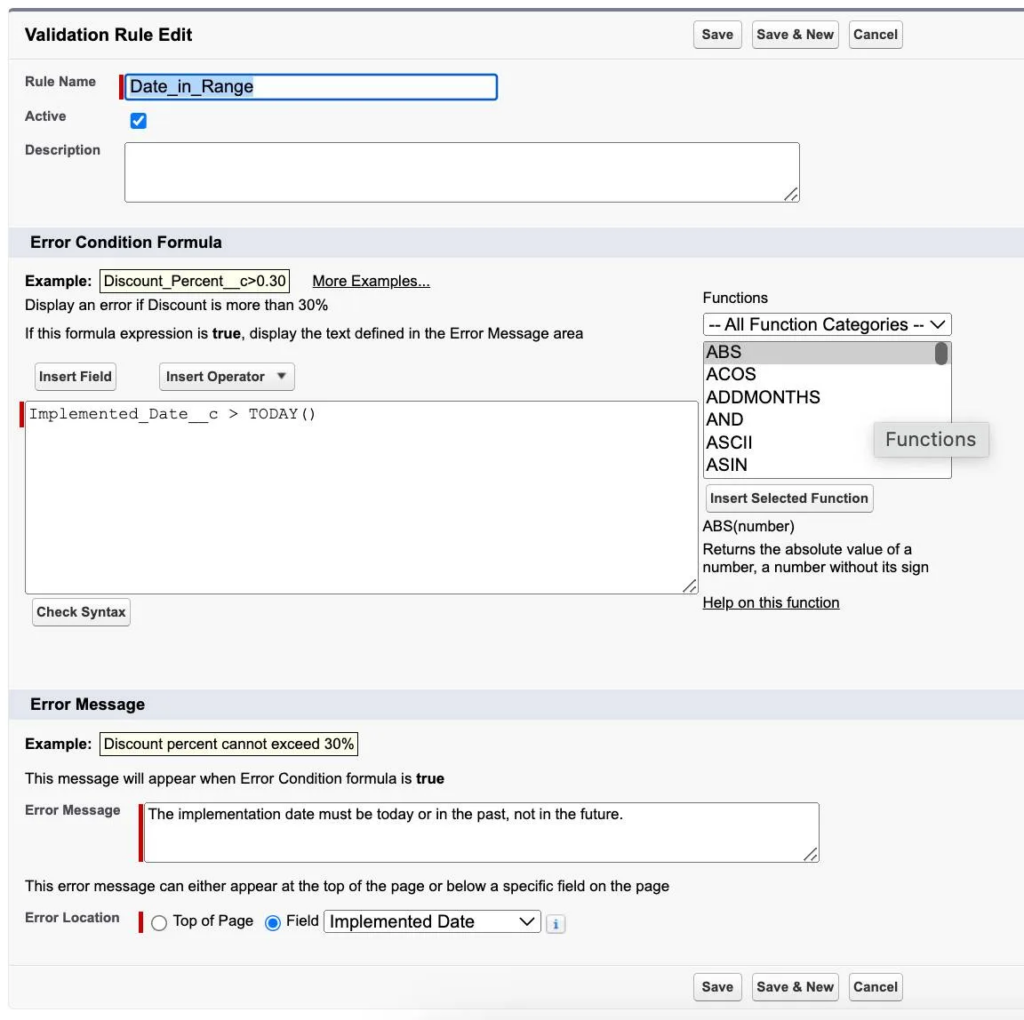
건의사항이 개선된 경우에 언제 개선이 되었는지 날짜를 적도록 필드를 만들었는데요. 만약 사용자가 이 날짜에 오늘보다 이후 날짜를 넣으려고 한다면 에러메세지를 보여주고자 합니다.

  1. Setup > Object Manager > Suggestion > Validation Rules > New
    • Rule Name: Date_in_Range
    • Error Condition Formula : Implemented_Date__c > TODAY()
      * 에러조건이 참인경우 에러메세지를 보여줍니다.
    • Error Message: The implementation date must be today or in the past, not in the future.
    • Error Location: Field=Implemented Date
    • Save

Add a Field Update Using Flow Builder

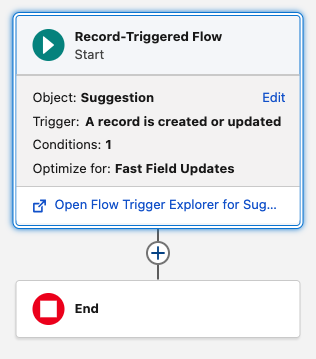
드디어 여기에서 Flow를 생성해서 Suggestion객체에 레코드가 생성되었거나 갱신되었을때, Implemented Date가 비어있는지 여부를 확인해서 비어있지 않다면 건의레코드의 Status필드를 Implemented로 자동으로 변경하는 로직을 만들도록 하겠습니다. 우선 Flow를 아래와 같이 생성해서 Flow Builder를 열겠습니다.

  1. Setup > App Launcher > Automation > Flows > New
  2. Frequently Used섹션에 Record-Triggered Flow를 선택합니다.
  3. Select Object
    • Object: Suggestion
  4. Configure Trigger
    • Trigger the Flow When: A record is created or updated
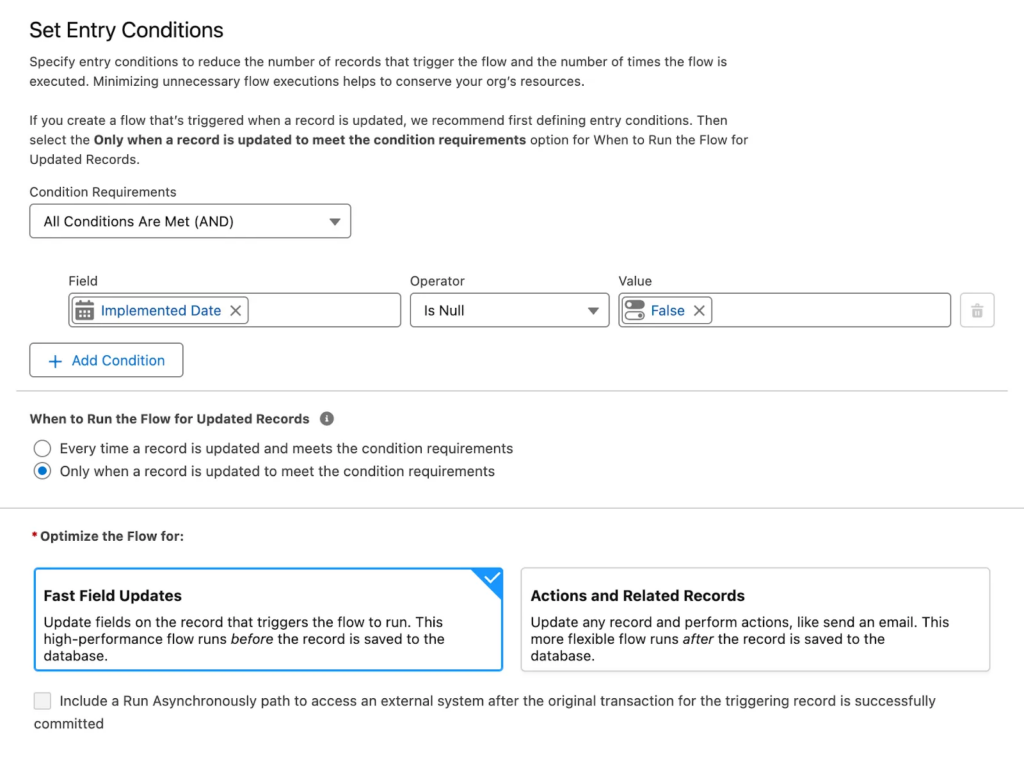
  5. Set Entry Conditions
    • Condition Requirements: All Conditions Are Met (AND)
    • Field: Implemented Date
    • Operator: Is Null
    • Value False
  6. When to Run the Flow for Updated Records:
    • ✅ Only when a record is updated to meet the condition requirements
  7. Optimize the Flow for: Fast Field Updates

Add an Update Records Element and Activate the Flow

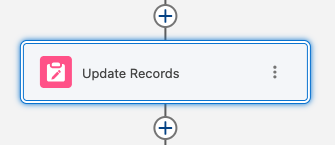
  1. 왼쪽의 Start와 End사이에 Element(요소) 추가를 클릭합니다.
  2. Data > Update Records를 선택합니다.
  3. Label: Update Status to Implemented
  4. How to Find Records to Update and Set Their Values:
    • Use the suggestion record that triggered the flow
  5. Set Filter Conditions: None—Always Update Record
  6. Set Field Values for the Suggestion Record:
    • Field: Status
    • Value: Implemented
  7. Save
    • Flow Label: Update Status
    • Save
  8. Activate
  9. 왼쪽 상단의 뒤로 가기 화살표 버튼을 클릭하여 Flow Builder를 종료합니다.

Try Out the App

레코드가 생성되거나 업데이트될 때마다 비즈니스 로직이 실행됩니다. 

  1. Setup > App Launcher > Suggestion Box > Suggestions > 레코드 하나 선택 > Edit
  2. 현재 Status는 아무것도 없습니다.
  3. Implemented Date에 날짜를 입력한뒤 Save버튼을 눌러 주세요.
    • 오늘 이후 날짜를 입력하면 아까 우리가 설정한 대로 에러메세지가 보여집니다.
  4. 저장을 하고 나면 상세페이지에 Status가 Implemented로 변경된 것을 보실 수 있으실거에요.

Build a Suggestion Box App: Modify the User Experience

Admin Intermediate > Build a Suggestion Box App > Modify the User Experience

Modify the Page Layout

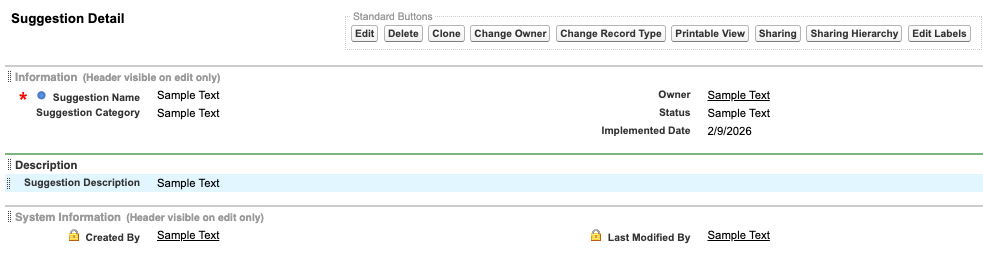
생성한 필드들을 Layout에 위치시킵니다.

  1. Setup > Object Manager > Suggestion > Page Layouts > Suggestion Layout > 드롭다운 > Edit
  2. 상단에 Fields메뉴에 보면 팔레트에 Status필드가 버튼형태로 있어요.
    * 참고로 버튼들이 줄줄이 있는 그 패널을 팔레트라고 부릅니다.
  3. 아래로 내려가면 Suggestion Detail안에 Information이 있는데 아까 봤던 Status버튼을 끌어다가 Information섹션안에 Owner밑에다 갖다 놓습니다.
  4. 그리고 Implemented Date를 Status밑으로 끌어다 놓습니다.
  5. Quick Save

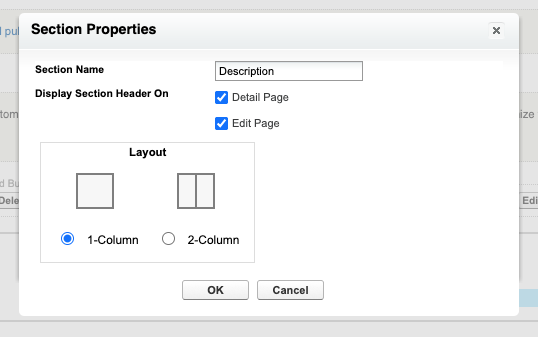
Description section을 별도로 생성해서 Description을 옮겨다 놓을게요.

  1. 상단 Fields탭의 팔레트에서 Section버튼을 찾아서 그걸 이번에는 Information섹션 바로 아래에 새로운 섹션을 하나 만들도록 끌어다 놓습니다.
  2. 그러면 새로운 Section을 만드는 팝업이 뜨는데 여기에 아래와 같이 입력하세요.
    • Section Name: Description
    • Layout: 1-Column
    • OK
  3. Information섹션에 보면 Suggestion Description이라는 필드가 있거든요. 그걸 끌어다가 방금 새로 만든 섹션에 담으세요.
  4. Save

Add a Global Action

직원들이 일하다가 갑자기 건의할게 생각나면 하던 일을 멈추고 Suggestions메뉴를 클릭해서 건의를 하게 한다면 건의를 하는 사람들이 불편을 느낄 것입니다. 그래서 Suggestion을 Global Action으로 만들거에요.

  1. Setup > Quick Find > Global Actions > New Action
    • Action Type: Create a Record
    • Target Object: Suggestion
    • Standard Label Type: New [Record]
    • Name: New_Suggestion
    • Save
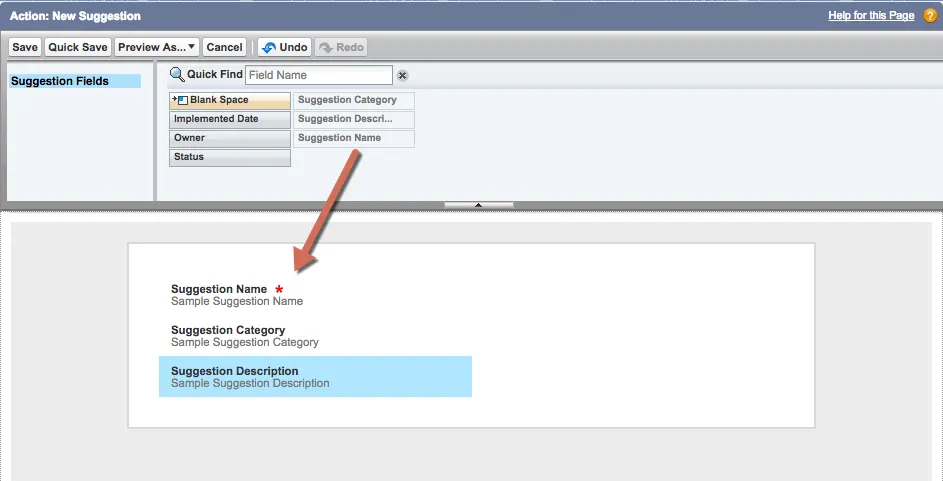
  2. 팔레트에서 Suggestion Category와 Suggestion Description를 아래와 같이 끌어다 놓으세요.
  3. Save
  4. Predefined Field Values > New
    • Field Name: Status
    • A specific value: New
    • Save

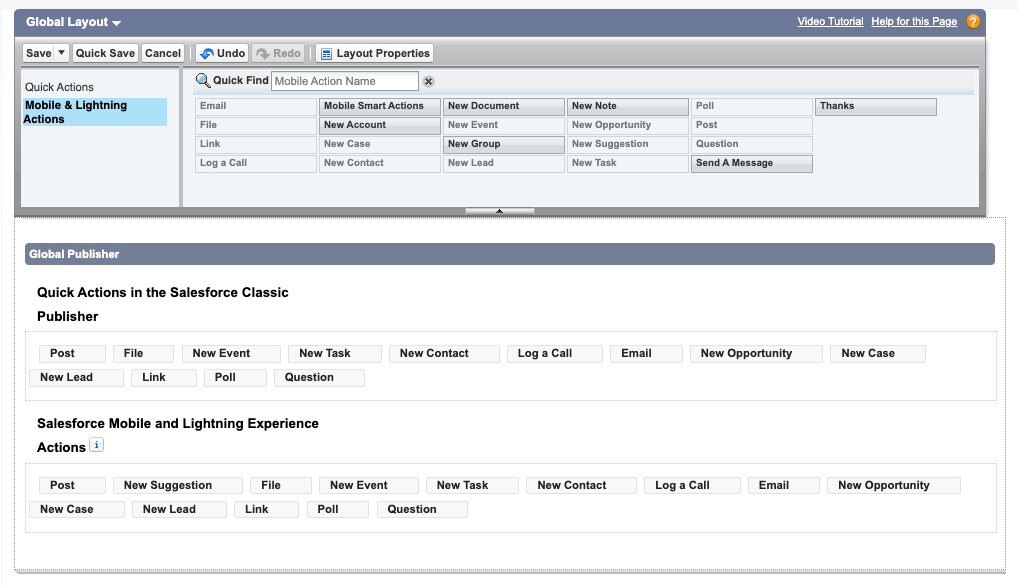
  1. Setup > Quick Find > Publisher Layouts > Global Layout > Edit
  2. Salesforce Mobile and Lightning Experience Actions 밑에 파란상자 안에 있는 Override the predefined actions링크를 클릭합니다.
  3. 팔레트 메뉴에서 Mobile & Lightning Actions를 선택합니다.
  4. New Suggestion버튼을 Salesforce Mobile and Lightning Experience Actions섹션에 Post버튼 뒷쪽에 들어가도록 끌어다 놓습니다.

Try Out the App

  1. Suggestion Box > Suggestions > New를 열어서 보시면 지난 시간에 봤던거랑 화면구성이 다르죠

Build a Suggestion Box App: Add Custom Fields

Admin Intermediate > Build a Suggestion Box App > Add Custom Fields

Sugession Object에 필드추가

설명 필드

  1. Setup > Object Manager > Suggestion > Fields & Relationships > New
    • Data Type: Text Area (Long)
    • Field Label: Suggestion Description
    • Length: 32,768
    • Visible Lines: 10
    • Field Name: Suggestion_Description
    • Help Text: Please enter as much detail around this suggestion so we clearly understand your idea.
    • Next, Next, Save

범주 필드

  1. Setup > Object Manager > Suggestion > Fields & Relationships > New
    • Data Type: Picklist
    • Field Label: Suggestion Category
    • ✅ Enter values, with each value separated by a new line
      • Customer Service
      • Employee Services
      • Facilities/ IT
      • Kitchen Snacks
      • Other
    • ✅ Restrict picklist to the values defined in the value set
    • Next, Next, Save

Suggestion Box 앱 사용해보기

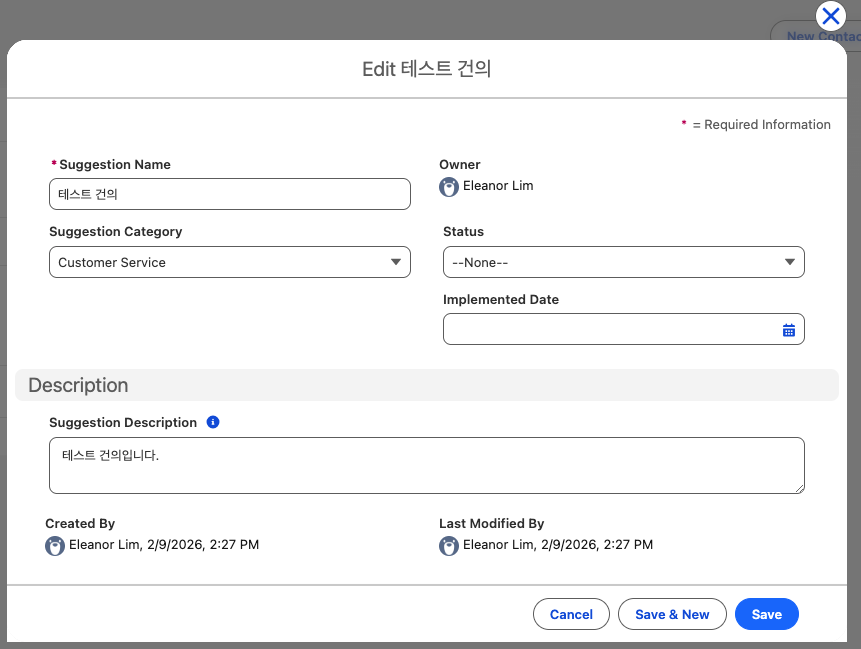
  1. Setup > App Launcher > Suggestion Box > Suggestions > New
    • Suggestion Name: 테스트 건의
    • Suggestion Description: 테스트 건의입니다.
    • Suggestion Category: Customer Service
    • Save

Viewing Objects in Schema Builder

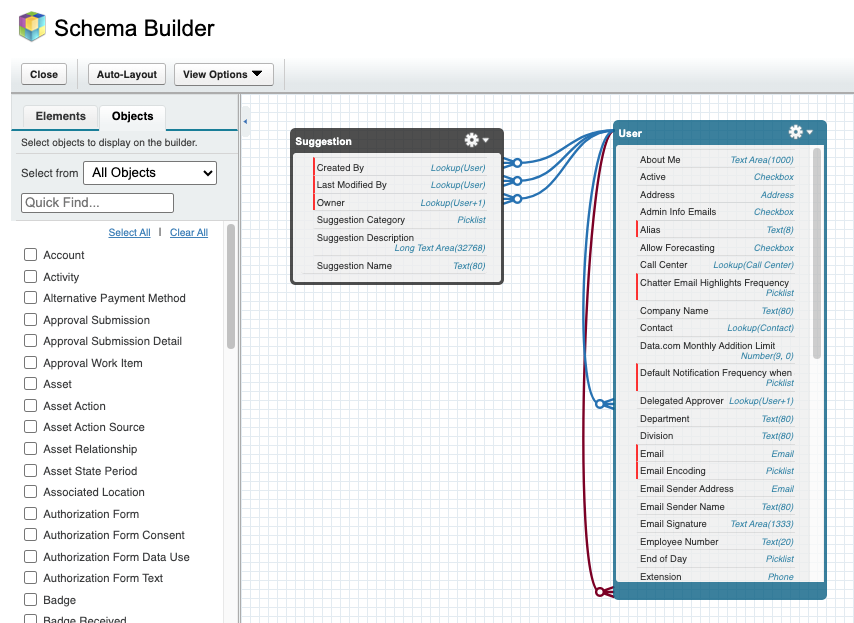
스키마 빌더에서 Object를 확인해볼게요

  1. Setup > Quick Find > Schema Builder
  2. Clear All을 눌러서 선택을 모두 해제하고 Suggestion과 User만 선택한다.
  3. Auto-Layout을 클릭해서 화면정리를 한다.

Add a Status Field

스키마빌더에서 바로 필드를 추가해보도록 하겠습니다.

  1. 좌측에 Elements탭을 클릭하세요.
  2. Picklist컴포넌트를 끌어다가 Suggestions에 갖다 놓습니다.
  3. 그러면 필드정보를 넣을 수 있는 팝업이 뜹니다.
    • Field Label: Status
    • Field Name: Status
    • Values
      • New
      • Under Consideration
      • In Progress
      • Implemented
    • ✅ Use first value as default value
    • Save

다음은 Status필드에 보안을 업데이트 하겠습니다.

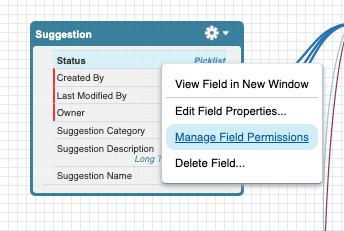
  1. Suggection 테이블에서 Status필드를 찾아 오른쪽 마우스를 클릭해서 나온 팝업메뉴에서 Manage Field Permissions를 선택합니다.
  2. 모든 사용자에 대해 읽기 전용으로 만들려면 열 상단에 Read-Only체크박스를 클릭하면 됩니다.
  3. Read-Only가 모든 사용자에게 적용이 되었다면 이제 System Administrator를 찾아서 Read-Only체크를 해지해줍니다. System Administrator는 상태를 업데이트 할 수 있어야합니다.
  4. Save

Add a Date Field

  1. Elements탭을 열고 Date컴포넌트를 Suggestion개체에 끌어다 놓습니다.
    • Field Label: Implemented Date
    • Field Name: Implemented_Date
    • Save

Implemented Date필드에 보안을 업데이트 하겠습니다.

  1. Schema Builder > Suggestion > Implemented Date > (Right Click) > Manage Field Permissions
  2. 마찬가지로 System Administrator만 제외한 모든 사용자를 Read-Only로 설정합니다.

Build a Suggestion Box App: Create a Suggestion Box App

Admin Intermediate > Build a Suggestion Box App > Create a Suggestion Box App

Overview

이번 시간부터 5개강의는 코딩없이 앱을 만들어보는 시간을 갖도록 하겠습니다. 이 강의를 통해서 개발자가 아니어도 업무용 앱을 만들 수 있다는 것을 배우고 다른 앱에도 응용하실 수 있었으면 좋겠습니다.

이번 강의에서 만드는 앱은 건의함입니다. 앱을 만드는 순서는 다음과 같습니다.

  1. 앱의 기능을 정의하고, 객체를 생성합니다.
  2. 사용자 인터페이스를 수정합니다.
  3. 업무를 자동화하여 작업을 개선합니다.
  4. 보고서, 챠트 및 대시보드를 만들어서 얼마나 효과적인지 분석합니다.

Create an App and a Custom Object

Playground, Suggestion Box를 생성합니다.

Object, Suggestion을 생성합니다.

  1. Setup > Object Manager > Create > Custom Object
    • Label: Suggestion
    • Plural Label: Suggestions
    • Record Name: Suggestion Name
    • Data Type: Text
    • ✅ Allow Reports: 선택
    • 다른 옵션은 모두 기본값으로 둡니다.
    • Save

건의할 내용을 받을 폼양식을 생성합니다.

  1. Setup > Quick Find > Tabs > Custom Object Tabs > New
    • Object: Suggestion
    • Tab Style: Form
    • Next, Next, Save

App, Suggestion Box를 생성합니다.

  1. Setup > Quick Find > App Manager > New Lightning App
    • App Details & Branding
      • App Name: Suggestion Box
      • Next
    • App Options
      • Next
    • Utility Items (Desktop Only)
      • Next
    • Navigation Items
      • Selected Items
        • Suggestions
        • Reports
        • Dashboards
      • Next
    • User Profiles
      • Selected Profiles
        • System Administrator
      • Save & Finish
  2. Setup > App Launcher > Suggestion Box를 열어보면 앱이 생성되어 있는 것을 확인할 수 있습니다.

Verify Step

방금 배운걸 전부 따라하셨으면 +100점을 받습니다.

Picklist Administration: Share Values with Global Value Sets

Admin Intermediate > Picklist Administration > Share Values with Global Value Sets

Global Value Sets란?

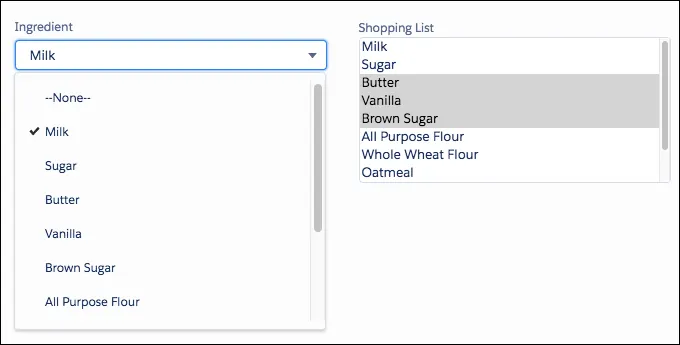
예를 들어 요리레시피 사이트를 운영하는 회사가 있어요. 그 회사에서 레시피에 요리재료를 추가할때 각 재료를 선택할 수 있게 선택상자를 보여주잖아요. 그런데 쇼핑목록을 관리하는 기능도 있어서 새로운 아이템 추가하기를 누르면 선택상자가 재료를 나열하고 그중에 하나를 선택할 수 있게 하는데 첫번째는 레시피에 들어가는 요리재료 목록이고, 두번째는 쇼핑목록이니까 두개가 서로 다른 필드란 말이에요. 그런데 두개의 선택상자에는 결국 동일한 목록이 들어가야하는데 각 필드에서 두번 나열해주는건 뭔가 비효율적이라고 느껴져요. 특히 목록에 재료를 하나더 추가해야할 경우에는 양쪽 필드에 다 추가를 해줘야하는데 너무 시간이 많이 소요되는것 같아요.

그래서 나온 개념이 Global Value Set입니다. 목록으로 나열할 수 있는 값들을 전역변수로 모아서 한 곳에서 관리하고 필드들은 해당 목록을 가져다가 쓰기만 하면 되서 따로따로 관리할 필요가 없어요.

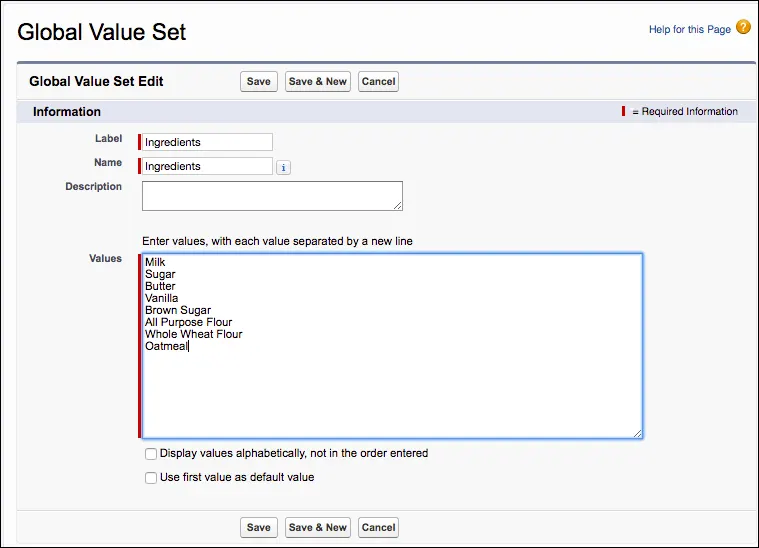
Create a Global Value Set

전역으로 사용할 Global Value Set을 만들려면

  1. Setup > Quick Find > Picklist Value Sets > Global Value Sets > New
    • Label: Ingredients
    • Name: Ingredients
    • Values
      • Milk
      • Sugar
      • Butter
      • Vanilla
      • Brown Sugar
      • All Purpose Flour
      • Whole Wheat Flour
      • Oatmeal
    • Save

생성과 마찬가지로 여기에서 목록을 수정하거나 삭제하는 등의 관리를 할수 있습니다.

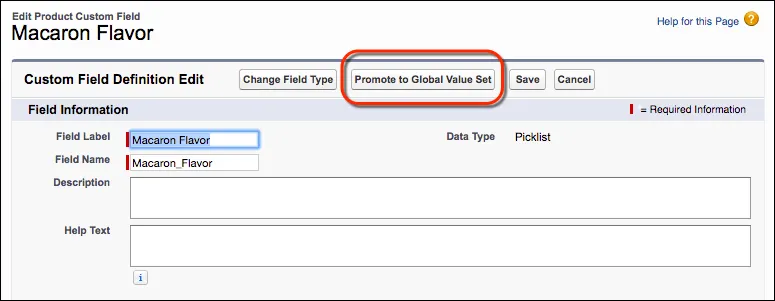
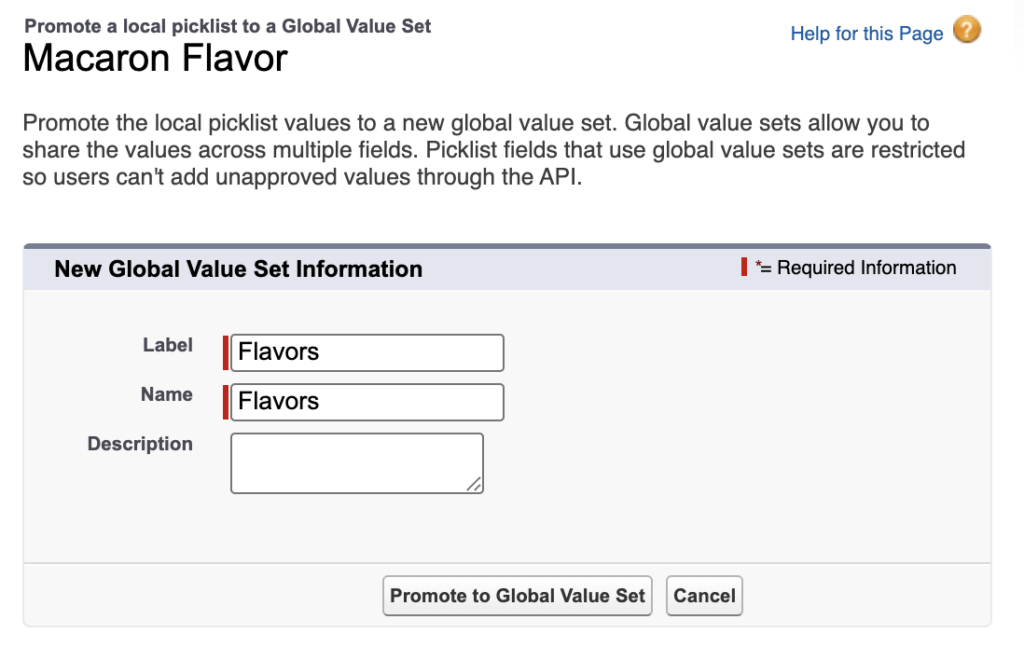
만약에 일반 필드에서 사용하던 목록을 Global Value Set으로 만들고 싶다면 필드수정화면에서 Promote to Global Value Set버튼을 클릭해서 해당 목록을 Global Value Set으로 만들 수 있습니다.

Promote to Global Value Set을 클릭하면 Global Value Set의 Lable과 Name을 넣는 팝업이 뜨는데 이름을 정하고 팝업하단에 Promote to Global Value Set버튼을 누르면 저장이 됩니다.

Use the Global Value Set in a Picklist Field

Global Value Set을 필드에 적용하시려면

  1. Setup > Object Manager > Object(Product) > Fields & Relationships > New
    • Data Type: Picklist
    • Field Label: Ingredient
    • ✅ Use global picklist value set
      • Ingredients
    • Next, Next, Save

Hands-on Challenge

Promote an existing picklist’s values to a global value set, and assign it to another picklist

You decided to create T-shirts for each of your flavors to help promote them. So you want a T-shirt selection picklist that uses the same values as your macaron flavors.

  • Promote the values of the Macaron Flavor field to a global value set with the following settings:
    • Label: Flavors
    • Name: Flavors
    Note: If Promote to Global Value Set is not available on the Macaron Flavor field, then make sure Restrict picklist to the values defined in the value set is selected.
  • Create a field with the following settings:
    • Object: Product
    • Field Type: Picklist
    • Field Label: Shirt
    • Field Name: Shirt
    • Values: Flavors global value set
  • Make this field visible to all user profiles

풀이

기존의 Picklist에 정의된 목록값을 Global Value Set으로 변경하고, 해당 목록을 다른 필드에도 사용해보세요.

이번에 프로모션 행사로 마카롱 맛별로 티셔츠를 만들어서 배포하기로 결정했어요.

현재 Macaron Flavor에 있는 목록값을 global value set으로 변경합니다.
  1. Setup > Object Manager > Product > Fields & Relationships > Macaron Flavor > Edit
  2. 여기서 상단에 Promote to Global Value Set버튼을 클릭한뒤 아래의 정보를 입력하세요.
    • Label: Flavors
    • Name: Flavors
  3. Promote to Global Value Set버튼을 한번더 눌러서 완료합니다.

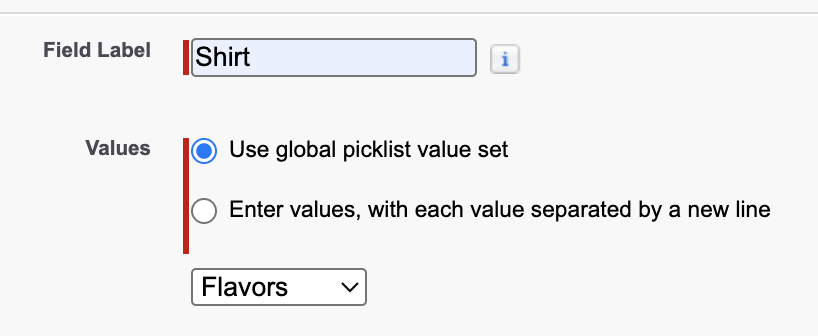
방금 만든 Global Value Set을 함께 사용할 필드를 하나 추가 하겠습니다.

  1. Setup > Object Manager > Product > Fields & Relationships > New
    • Data Type: Picklist
    • Field Label: Shirt
    • Field Name: Shirt
    • Values: Use global picklist value set
      • Flavors 선택
    • Step 3. Establish field-level security에서 모든 Profile에 Visible을 선택하고 넘어가세요
    • Save